> ## Documentation Index
> Fetch the complete documentation index at: https://docs.linkutm.com/llms.txt
> Use this file to discover all available pages before exploring further.
# Chrome extension
> Build and shorten links directly from your browser without opening the dashboard.
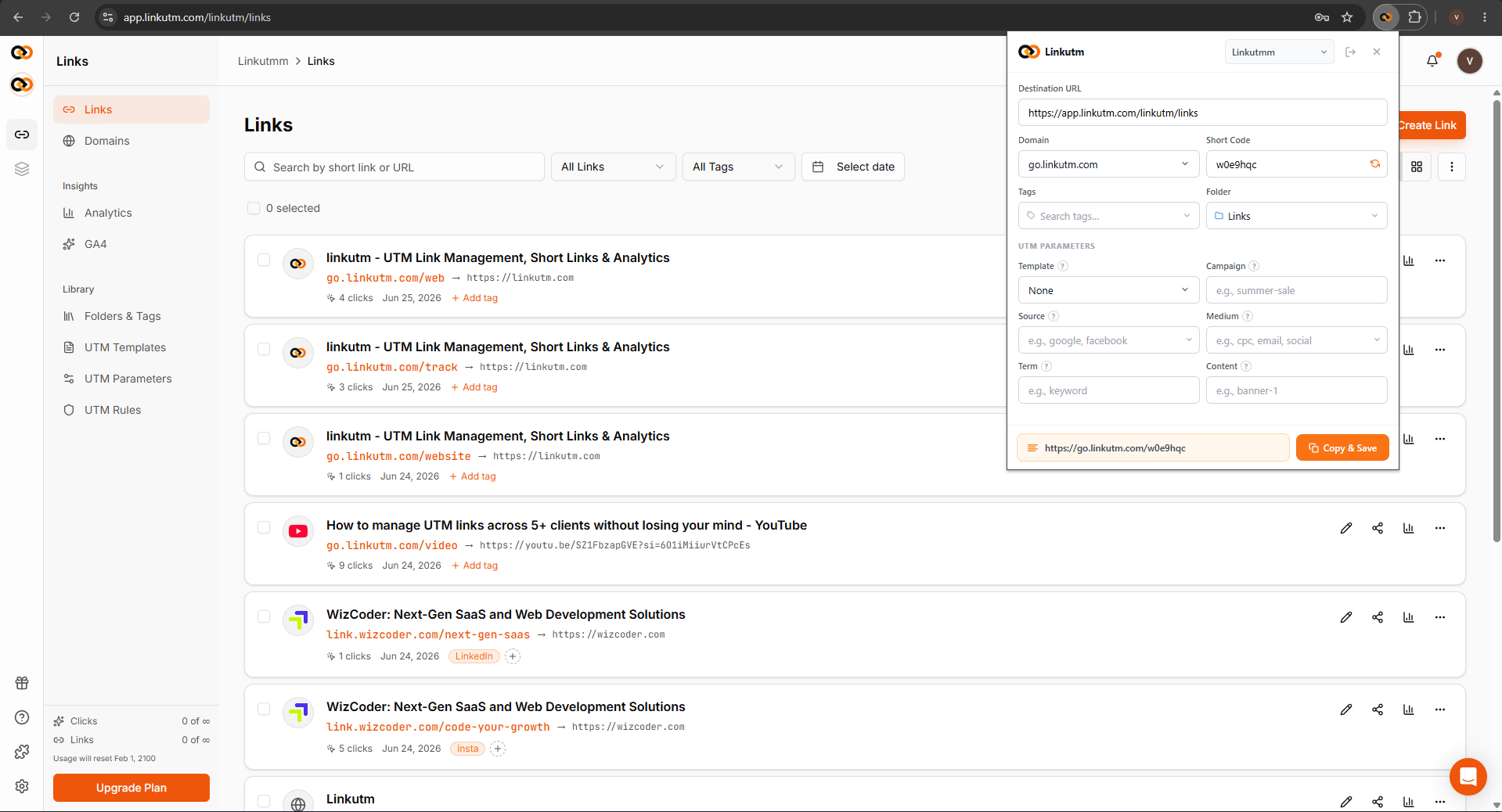
The linkutm Chrome extension lets you create UTM-tagged short links from any tab in your browser. Your workspace, templates, and saved parameters are all available inside the extension. No need to switch to the dashboard while you work.
 ## When to use it
* Building links on the fly while browsing a page you want to promote.
* Shortening and tagging URLs quickly without leaving your current tab.
* Using your saved templates and UTM parameters without opening linkutm in a separate window.
## How to install it
In the linkutm sidebar, click the puzzle-piece icon at the bottom. This opens the Chrome Web Store listing.
On the Chrome Web Store page, click **Add to Chrome** and confirm the prompt.
Click the linkutm icon in your Chrome toolbar. The extension will prompt you to log in. Sign in with your existing linkutm account. The extension connects automatically.
Click the puzzle-piece icon in Chrome's toolbar, find linkutm, and click the pin icon so it stays visible.
## Real-world example
You're on a product page you want to run a LinkedIn campaign to. Instead of copying the URL, switching tabs, and creating a link in the dashboard:
1. Click the linkutm icon in your toolbar.
2. The destination URL is pre-filled.
3. Pick a template or fill UTM fields.
4. Hit **Create**. Your short link is copied to your clipboard.
## Common mistakes
Make sure the extension is enabled in Chrome. Go to the extensions menu and check that the linkutm toggle is on. Then click the icon and sign in again.
You can switch workspaces directly in the extension. Use the workspace switcher inside the extension to select the correct workspace.
## Edge cases
**Chrome and Chromium only.** The extension works in Google Chrome and Chromium-based browsers (Edge, Brave). It is not available for Firefox or Safari.
**Staying logged in.** The extension stays connected as long as your linkutm session is active. If you log out of linkutm, you will need to reconnect the extension.
## When to use it
* Building links on the fly while browsing a page you want to promote.
* Shortening and tagging URLs quickly without leaving your current tab.
* Using your saved templates and UTM parameters without opening linkutm in a separate window.
## How to install it
In the linkutm sidebar, click the puzzle-piece icon at the bottom. This opens the Chrome Web Store listing.
On the Chrome Web Store page, click **Add to Chrome** and confirm the prompt.
Click the linkutm icon in your Chrome toolbar. The extension will prompt you to log in. Sign in with your existing linkutm account. The extension connects automatically.
Click the puzzle-piece icon in Chrome's toolbar, find linkutm, and click the pin icon so it stays visible.
## Real-world example
You're on a product page you want to run a LinkedIn campaign to. Instead of copying the URL, switching tabs, and creating a link in the dashboard:
1. Click the linkutm icon in your toolbar.
2. The destination URL is pre-filled.
3. Pick a template or fill UTM fields.
4. Hit **Create**. Your short link is copied to your clipboard.
## Common mistakes
Make sure the extension is enabled in Chrome. Go to the extensions menu and check that the linkutm toggle is on. Then click the icon and sign in again.
You can switch workspaces directly in the extension. Use the workspace switcher inside the extension to select the correct workspace.
## Edge cases
**Chrome and Chromium only.** The extension works in Google Chrome and Chromium-based browsers (Edge, Brave). It is not available for Firefox or Safari.
**Staying logged in.** The extension stays connected as long as your linkutm session is active. If you log out of linkutm, you will need to reconnect the extension.