> ## Documentation Index
> Fetch the complete documentation index at: https://docs.linkutm.com/llms.txt
> Use this file to discover all available pages before exploring further.
# Quickstart
> Sign up, create a workspace, ship your first tracked link in under 3 minutes.
**Stack at a glance.** linkutm = workspace + links + UTMs + analytics. Everything is scoped to a workspace. Run multiple workspaces (e.g., one per client) and switch between them from the workspace picker.
## 1. Create an account
Go to [app.linkutm.com](https://app.linkutm.com) and sign in with email/password or Google. Verify your email if prompted.
During onboarding you pick a workspace name (your company or client) and a slug. The slug becomes part of your URL: `app.linkutm.com/{slug}/links`.
Slug must be lowercase letters, numbers, hyphens. It's checked for availability live.
You land in the workspace with a default short domain attached. Add a [custom domain](/link-shortening/custom-domains) later for branded links.
**Setting this up for a team or agency?** Agree on your [UTM naming convention](/playbooks/utm-naming-convention) and configure UTM Rules *before* inviting anyone. Rules apply to all new links going forward. Enforcing consistency after 50 links already exist is much harder.
## 2. Create your first link
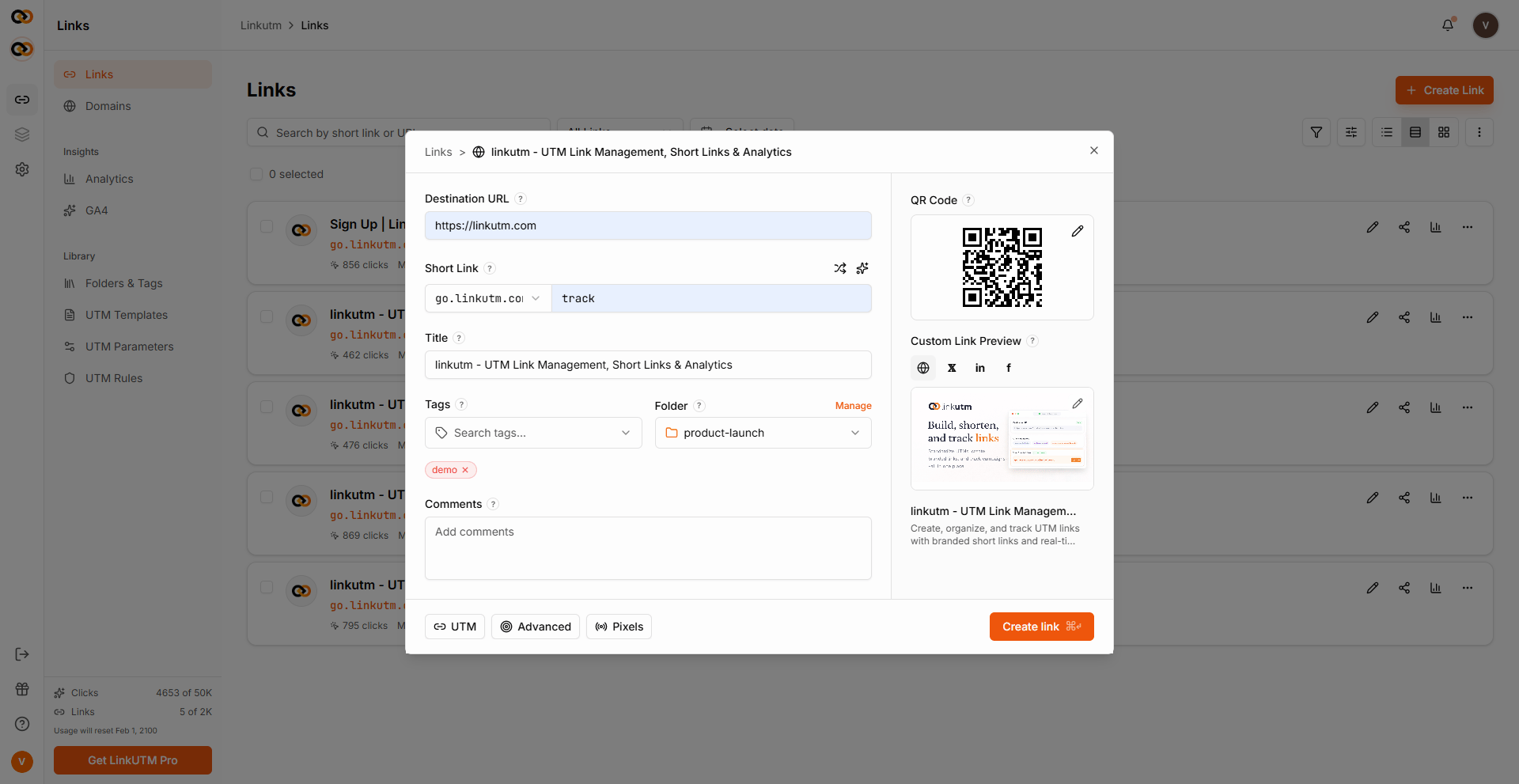
From the sidebar: **Links → Create Link** (or press the **+** button).
Full URL with `https://`. Example: `https://example.com/pricing`.
The five standard fields:
| Field | Example | Required |
| -------------- | --------------- | ------------- |
| `utm_source` | `google` | typically yes |
| `utm_medium` | `cpc` | typically yes |
| `utm_campaign` | `q2-launch` | typically yes |
| `utm_term` | `running-shoes` | optional |
| `utm_content` | `headline-a` | optional |
Apply a [template](/utm-templates/overview) instead of typing - saves time and prevents typos.
Leave blank for auto-generated short code. Type your own for branded slugs like `q2-launch`.
Click **Create**. The link is live immediately.
 ## 3. Test the redirect
Open the short link in a private window. You'll be redirected to your destination URL with all UTMs appended:
```
https://yourshort.link/q2-launch
↓
https://example.com/pricing?utm_source=google&utm_medium=cpc&utm_campaign=q2-launch
```
## 3. Test the redirect
Open the short link in a private window. You'll be redirected to your destination URL with all UTMs appended:
```
https://yourshort.link/q2-launch
↓
https://example.com/pricing?utm_source=google&utm_medium=cpc&utm_campaign=q2-launch
```
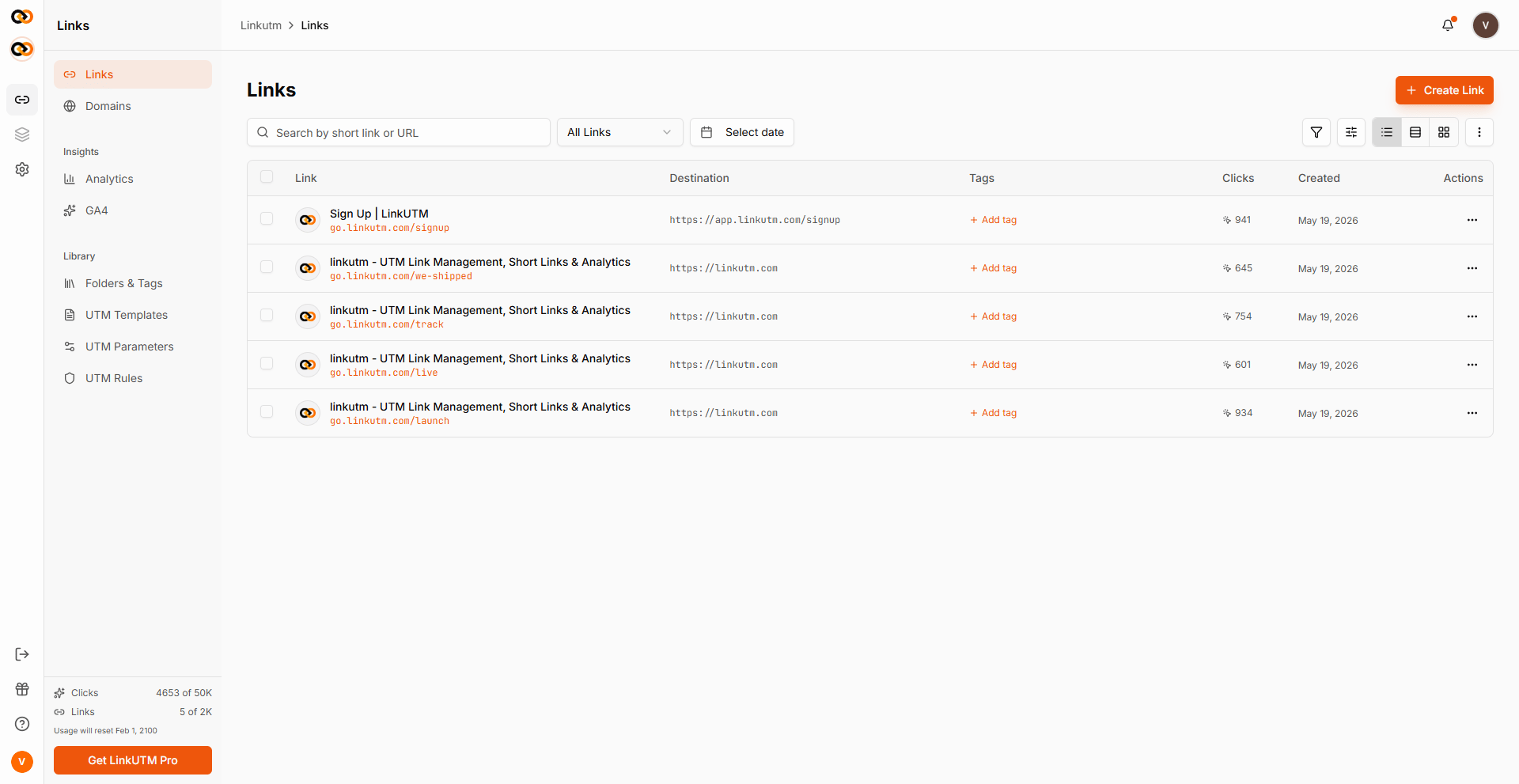 The click is recorded. Open the link's analytics tab - country, device, browser, referrer all populate within seconds.
## 4. Next steps
Approved source, medium, and campaign values - the convention your team follows.
Lock in source/medium for a channel so the team can't drift.
`go.yourbrand.com/q2-launch` instead of the default.
Roles, permissions, notification preferences.
## How linkutm thinks about your data
Links, folders, tags, templates, UTM rules, custom domains, pixels, API keys, analytics - all scoped per workspace. A user in one workspace cannot access the links, analytics, or settings of any other workspace. Useful for agency-style multi-client setups.
Even though links are workspace-scoped, the short code (the part after `yourshort.link/`) is unique across the system. If you try to use a slug another workspace already grabbed, creation fails with a conflict error.
Before a link saves, your workspace's UTM Rules are applied: lowercase, space replacement, max length, prohibited terms. The cleaned values are what gets stored. See [UTM Rules](/utm-rules/overview).
Each workspace has a retention window for click data. Queries beyond that window are clipped to it.
The click is recorded. Open the link's analytics tab - country, device, browser, referrer all populate within seconds.
## 4. Next steps
Approved source, medium, and campaign values - the convention your team follows.
Lock in source/medium for a channel so the team can't drift.
`go.yourbrand.com/q2-launch` instead of the default.
Roles, permissions, notification preferences.
## How linkutm thinks about your data
Links, folders, tags, templates, UTM rules, custom domains, pixels, API keys, analytics - all scoped per workspace. A user in one workspace cannot access the links, analytics, or settings of any other workspace. Useful for agency-style multi-client setups.
Even though links are workspace-scoped, the short code (the part after `yourshort.link/`) is unique across the system. If you try to use a slug another workspace already grabbed, creation fails with a conflict error.
Before a link saves, your workspace's UTM Rules are applied: lowercase, space replacement, max length, prohibited terms. The cleaned values are what gets stored. See [UTM Rules](/utm-rules/overview).
Each workspace has a retention window for click data. Queries beyond that window are clipped to it.