> ## Documentation Index
> Fetch the complete documentation index at: https://docs.linkutm.com/llms.txt
> Use this file to discover all available pages before exploring further.
# Create a link
> The full link creation flow: destination, UTMs, organization, advanced options.
Every campaign URL you build in linkutm gets a short link. Visitors click the short URL, the click is recorded, and they land on your destination with UTM parameters attached. There is no untracked mode.
 ## When to use it
* Every campaign URL goes through here. There's no "untracked" mode.
* Use [bulk import](#bulk-and-import) instead if you have 50+ links to migrate.
* Use a [template](/utm-templates/overview) if you create the same shape of link weekly.
## How to create one
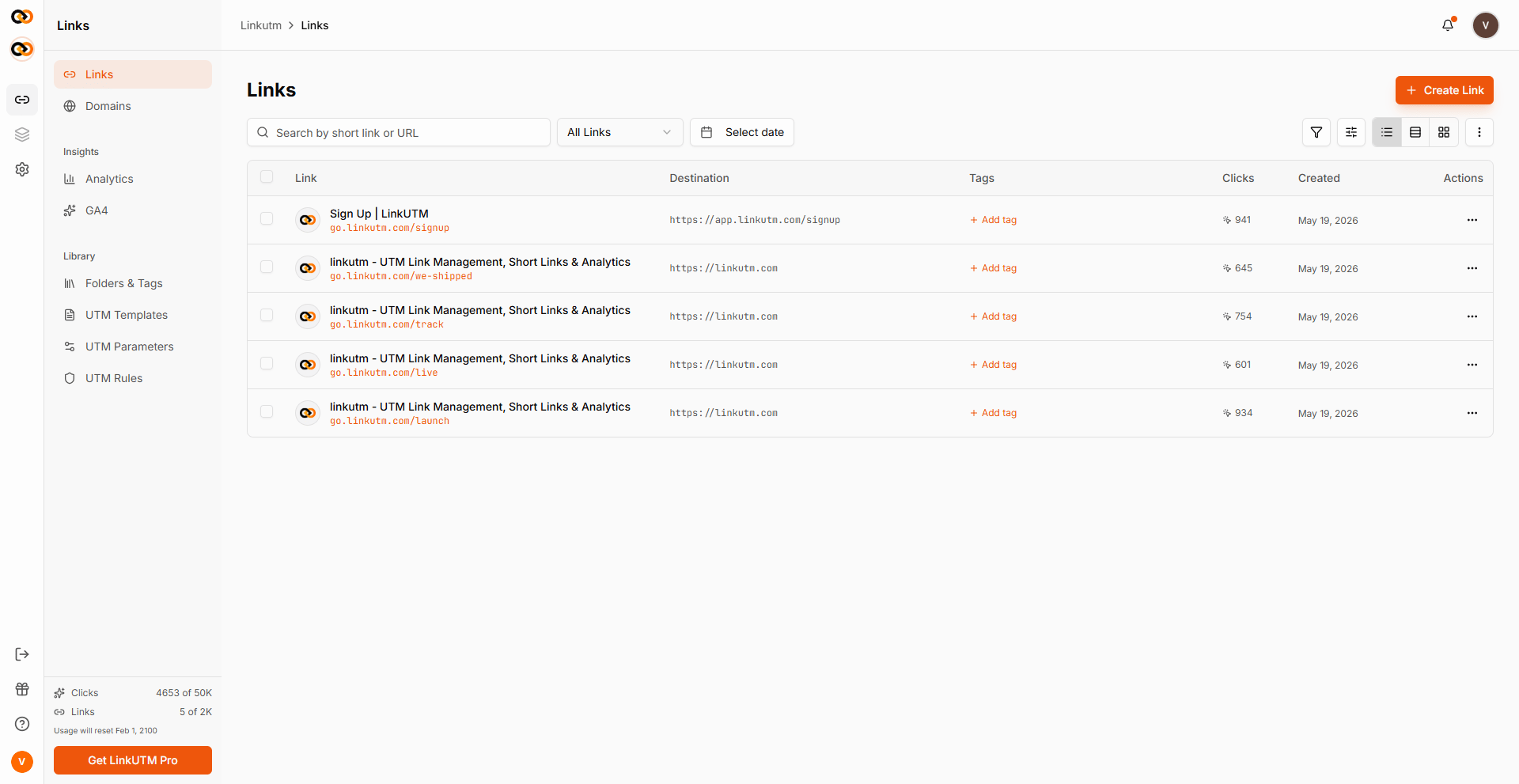
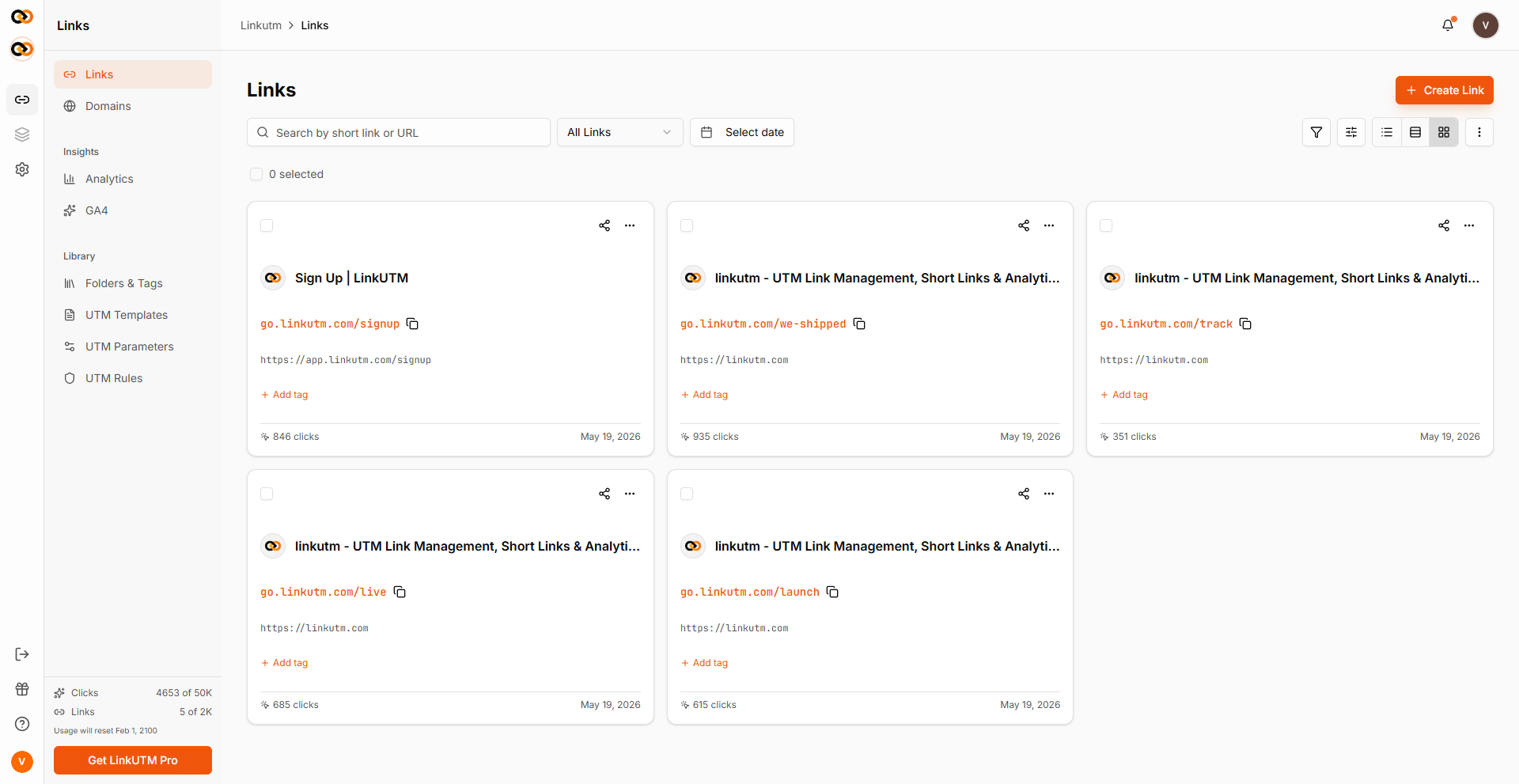
Sidebar → **Links** → **Create Link**.
## When to use it
* Every campaign URL goes through here. There's no "untracked" mode.
* Use [bulk import](#bulk-and-import) instead if you have 50+ links to migrate.
* Use a [template](/utm-templates/overview) if you create the same shape of link weekly.
## How to create one
Sidebar → **Links** → **Create Link**.
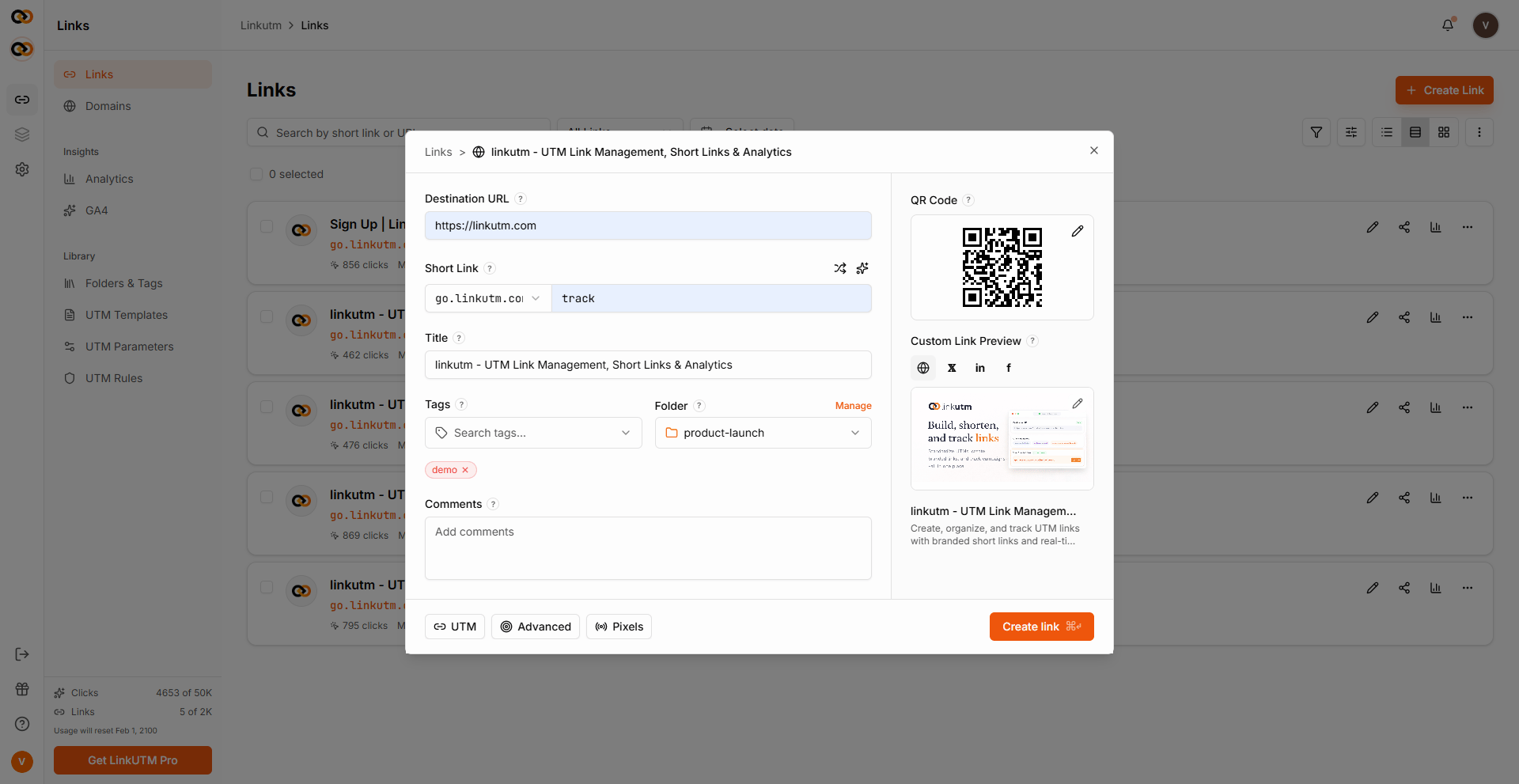 The page you're driving traffic to. Must include `https://` (or `http://`). Query strings already on the URL are preserved - UTMs append after.
Pick which short domain to use. Defaults to the workspace's default domain. Only **verified, enabled** custom domains are selectable.
The path after your domain. Leave blank for an auto-generated short code. Type your own for branded slugs (`q2-launch`).
Short codes are unique across the entire system. If your slug is taken, you'll see *"Short code already exists"* - pick another.
Drop into a [folder](/links/folders-and-tags) and add [tags](/links/folders-and-tags). Both are workspace-scoped and useful for filtering large link lists.
Only for internal reference, never shown to visitors.
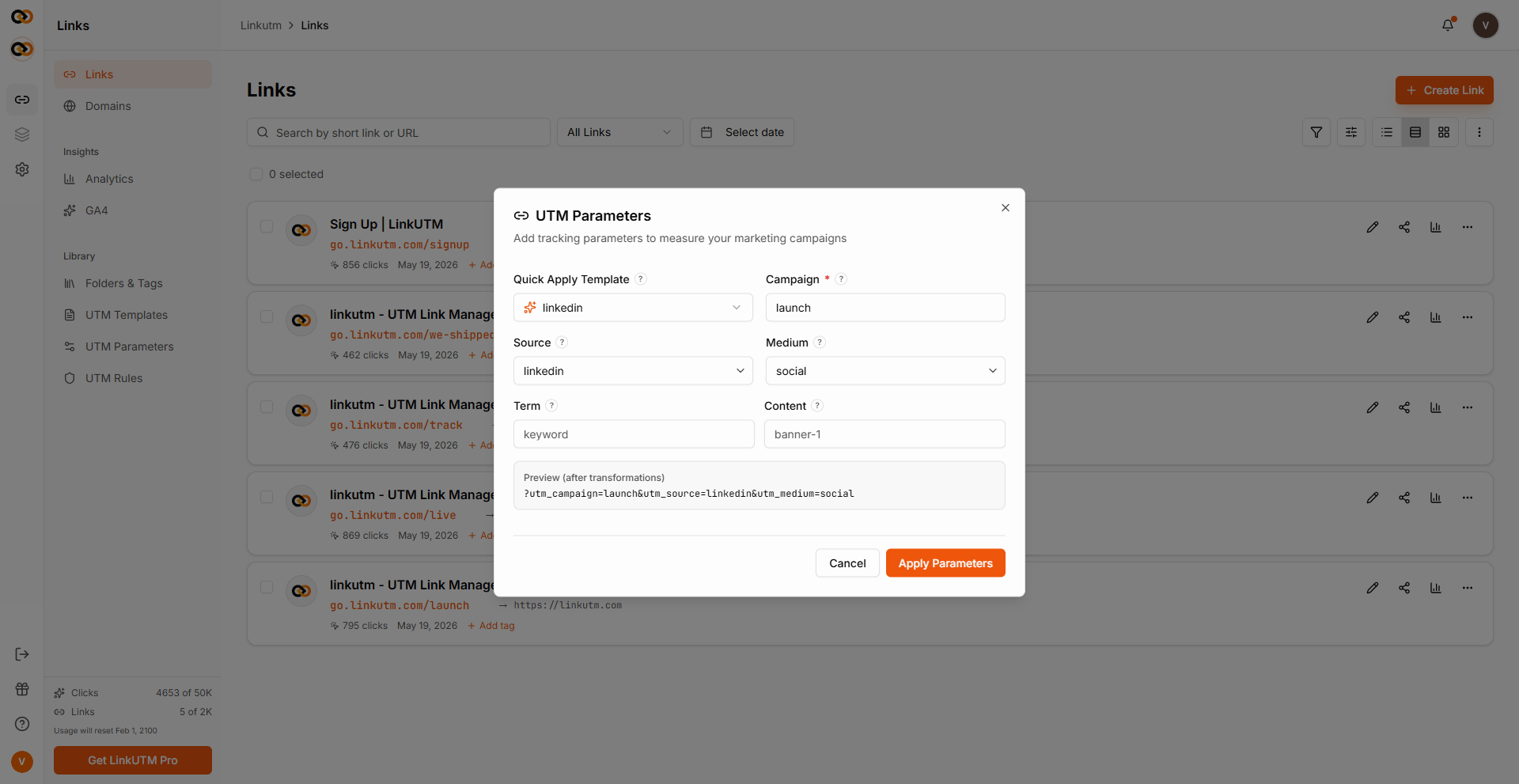
Fill from the autocomplete (powered by your [parameter library](/utm-parameters/overview)) or type freely. Workspace [UTM rules](/utm-rules/overview) clean values on save (lowercase, space → underscore, etc).
The page you're driving traffic to. Must include `https://` (or `http://`). Query strings already on the URL are preserved - UTMs append after.
Pick which short domain to use. Defaults to the workspace's default domain. Only **verified, enabled** custom domains are selectable.
The path after your domain. Leave blank for an auto-generated short code. Type your own for branded slugs (`q2-launch`).
Short codes are unique across the entire system. If your slug is taken, you'll see *"Short code already exists"* - pick another.
Drop into a [folder](/links/folders-and-tags) and add [tags](/links/folders-and-tags). Both are workspace-scoped and useful for filtering large link lists.
Only for internal reference, never shown to visitors.
Fill from the autocomplete (powered by your [parameter library](/utm-parameters/overview)) or type freely. Workspace [UTM rules](/utm-rules/overview) clean values on save (lowercase, space → underscore, etc).
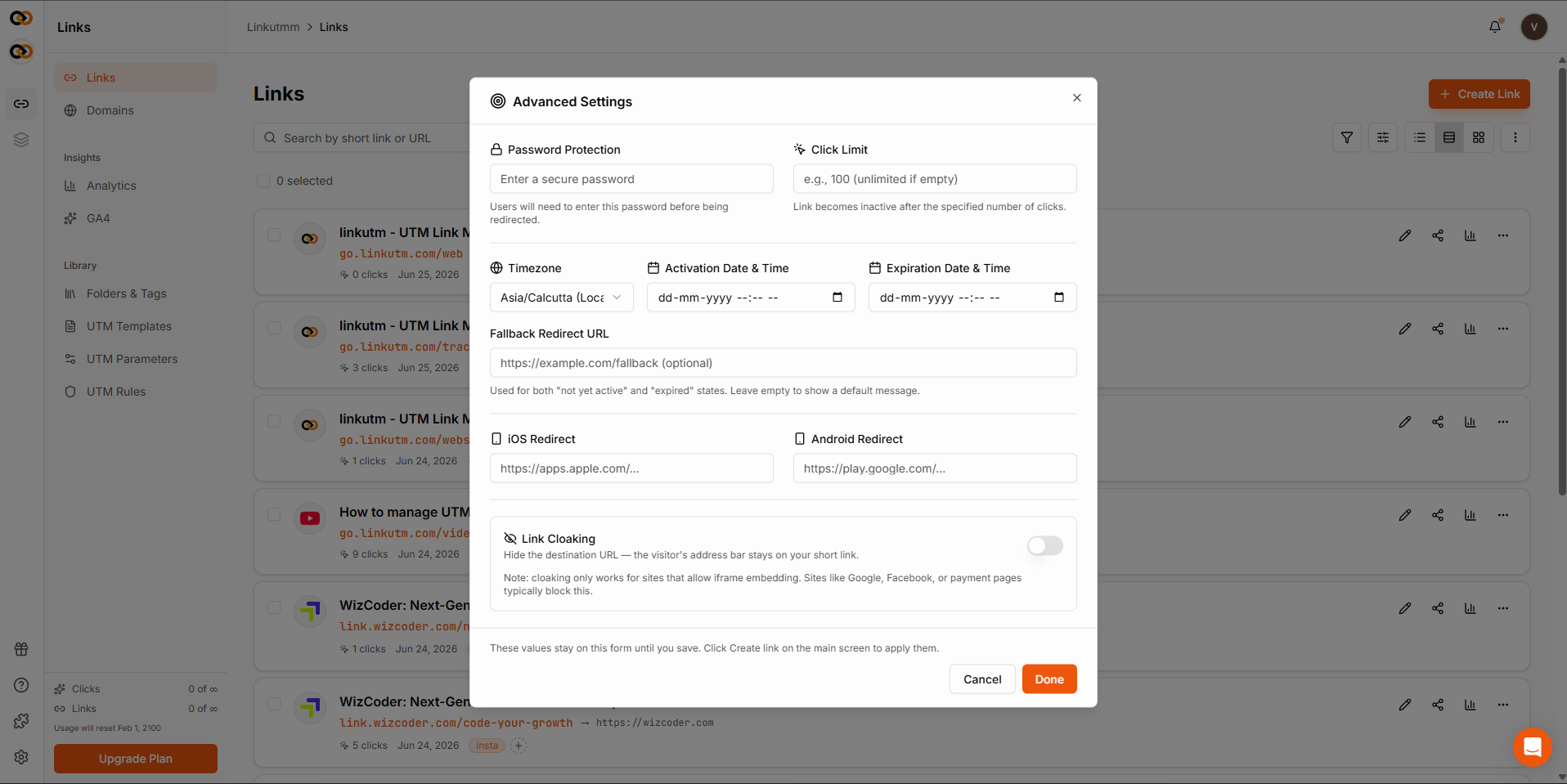
 Open the advanced section for password, expiration, click limits, scheduling, link cloaking, iOS/Android redirect, fallback URL, and link preview overrides.
 Hit **Create**. Link is live, Short URL is active, click count starts at zero.
## Real-world example
Running a Google Ads campaign for a Q2 product launch, brand keywords variant:
```
Destination: https://acme.com/products/widget
Title: Q2 Launch - Google Search - Brand
utm_source: google
utm_medium: cpc
utm_campaign: q2_launch
utm_term: acme_widget
utm_content: headline_a
Custom slug: q2-acme
Folder: Q2 Launch
Tags: google-ads, paid-search
```
Final short URL: `go.acme.com/q2-acme` → redirects to the full UTM-tagged destination.
## Common mistakes
`Summer Sale` becomes `summer_sale` automatically (force-lowercase + space-replacement are on by default). But if you turned those rules off, you'll get split campaign rows in GA. Leave the rules on unless you have a reason.
Required. The builder won't accept a bare `example.com`.
Slugs are global, not workspace-local. Creative slugs avoid collisions: `acme-q2` beats `launch`.
## Edge cases
**Workspace usage limits.** Workspaces have a maximum number of total links. When you hit the limit, link creation fails with a clear message and the workspace owner is notified by email when the link creation quota is near maximum.
**Unverified domain.** You cannot create a link on a custom domain that hasn't been verified yet. Use the system default until [verification](/link-shortening/custom-domains) succeeds.
## Filtering and bulk actions
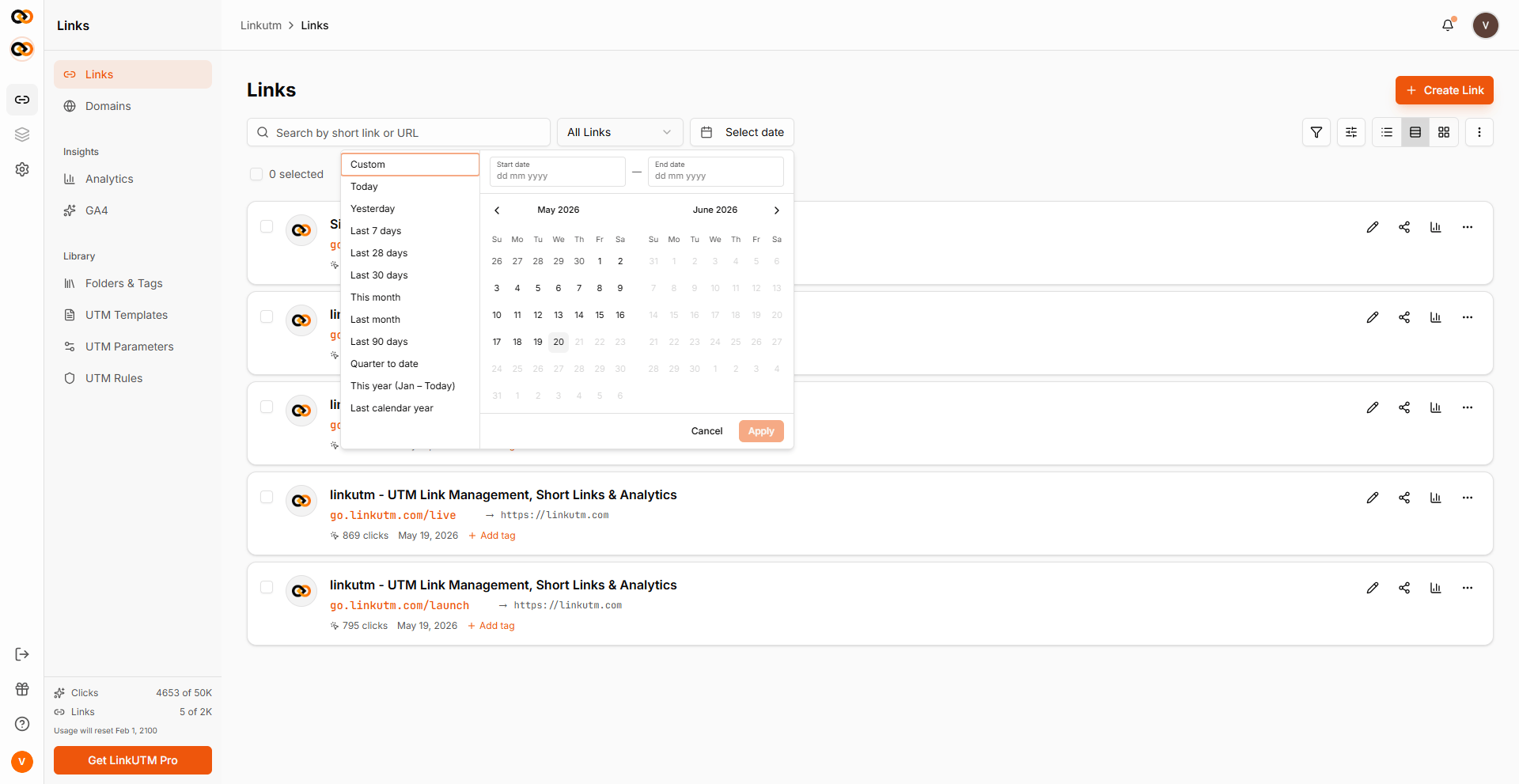
Use the links dashboard to filter, sort, and act on multiple links at once.
Hit **Create**. Link is live, Short URL is active, click count starts at zero.
## Real-world example
Running a Google Ads campaign for a Q2 product launch, brand keywords variant:
```
Destination: https://acme.com/products/widget
Title: Q2 Launch - Google Search - Brand
utm_source: google
utm_medium: cpc
utm_campaign: q2_launch
utm_term: acme_widget
utm_content: headline_a
Custom slug: q2-acme
Folder: Q2 Launch
Tags: google-ads, paid-search
```
Final short URL: `go.acme.com/q2-acme` → redirects to the full UTM-tagged destination.
## Common mistakes
`Summer Sale` becomes `summer_sale` automatically (force-lowercase + space-replacement are on by default). But if you turned those rules off, you'll get split campaign rows in GA. Leave the rules on unless you have a reason.
Required. The builder won't accept a bare `example.com`.
Slugs are global, not workspace-local. Creative slugs avoid collisions: `acme-q2` beats `launch`.
## Edge cases
**Workspace usage limits.** Workspaces have a maximum number of total links. When you hit the limit, link creation fails with a clear message and the workspace owner is notified by email when the link creation quota is near maximum.
**Unverified domain.** You cannot create a link on a custom domain that hasn't been verified yet. Use the system default until [verification](/link-shortening/custom-domains) succeeds.
## Filtering and bulk actions
Use the links dashboard to filter, sort, and act on multiple links at once.
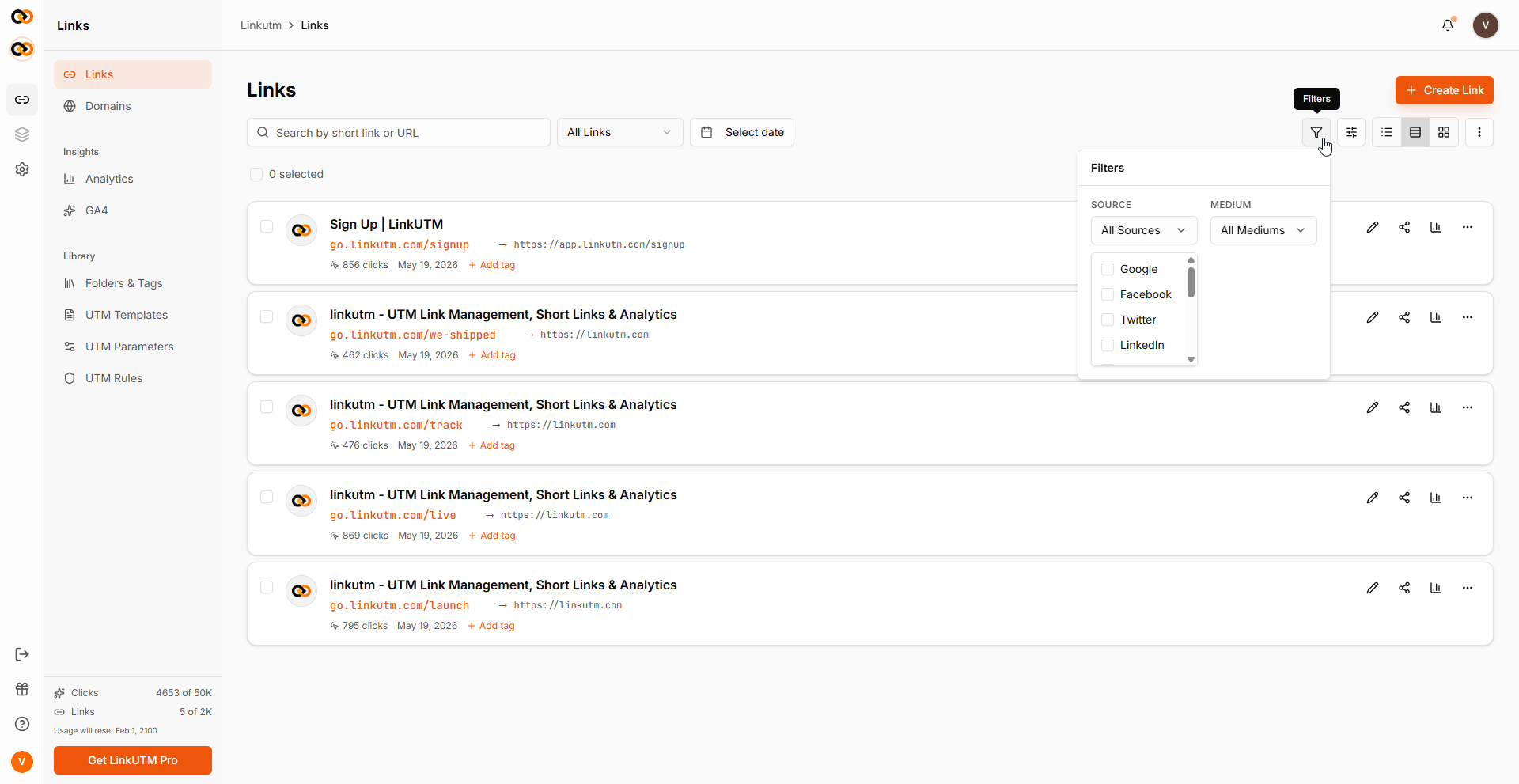
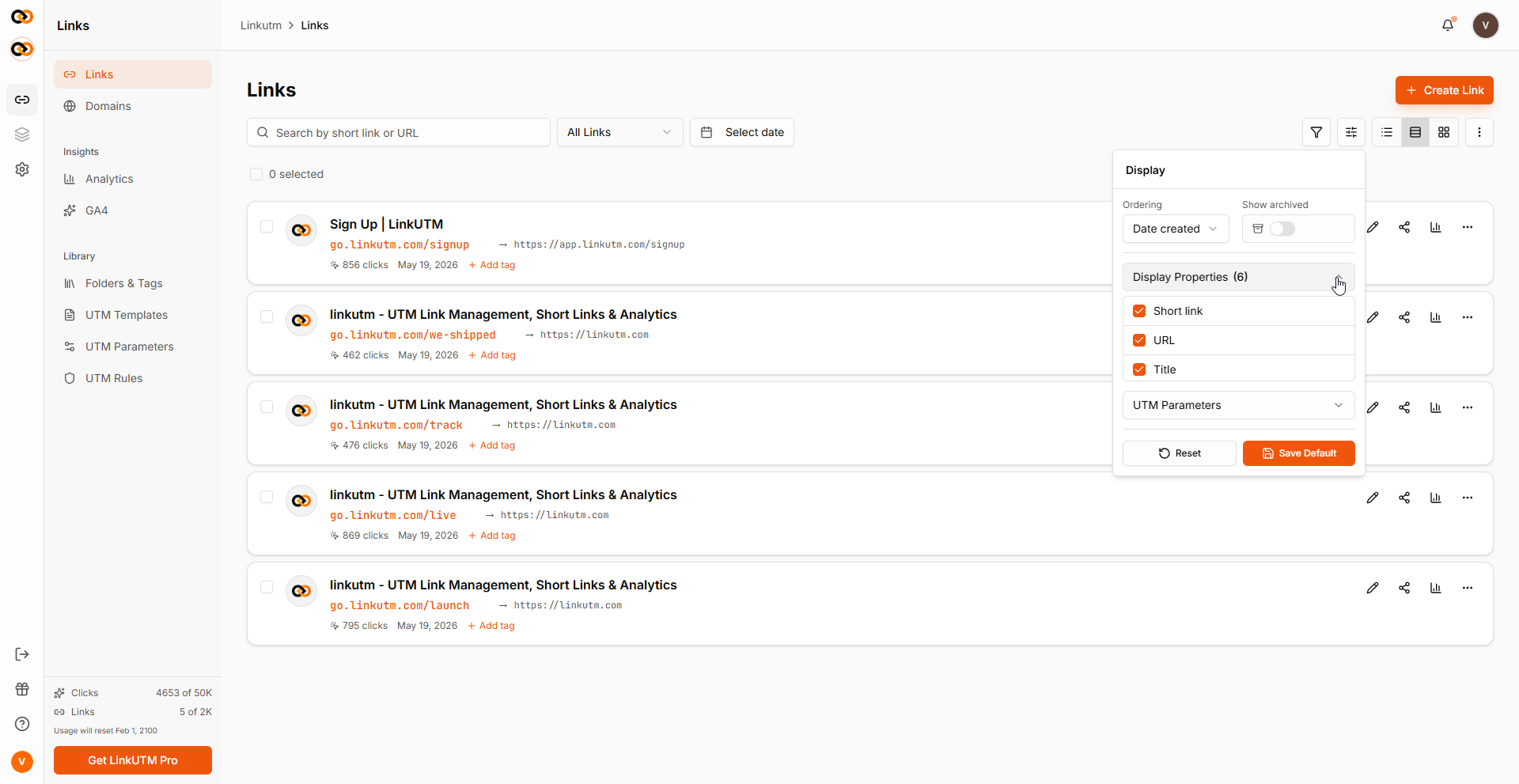
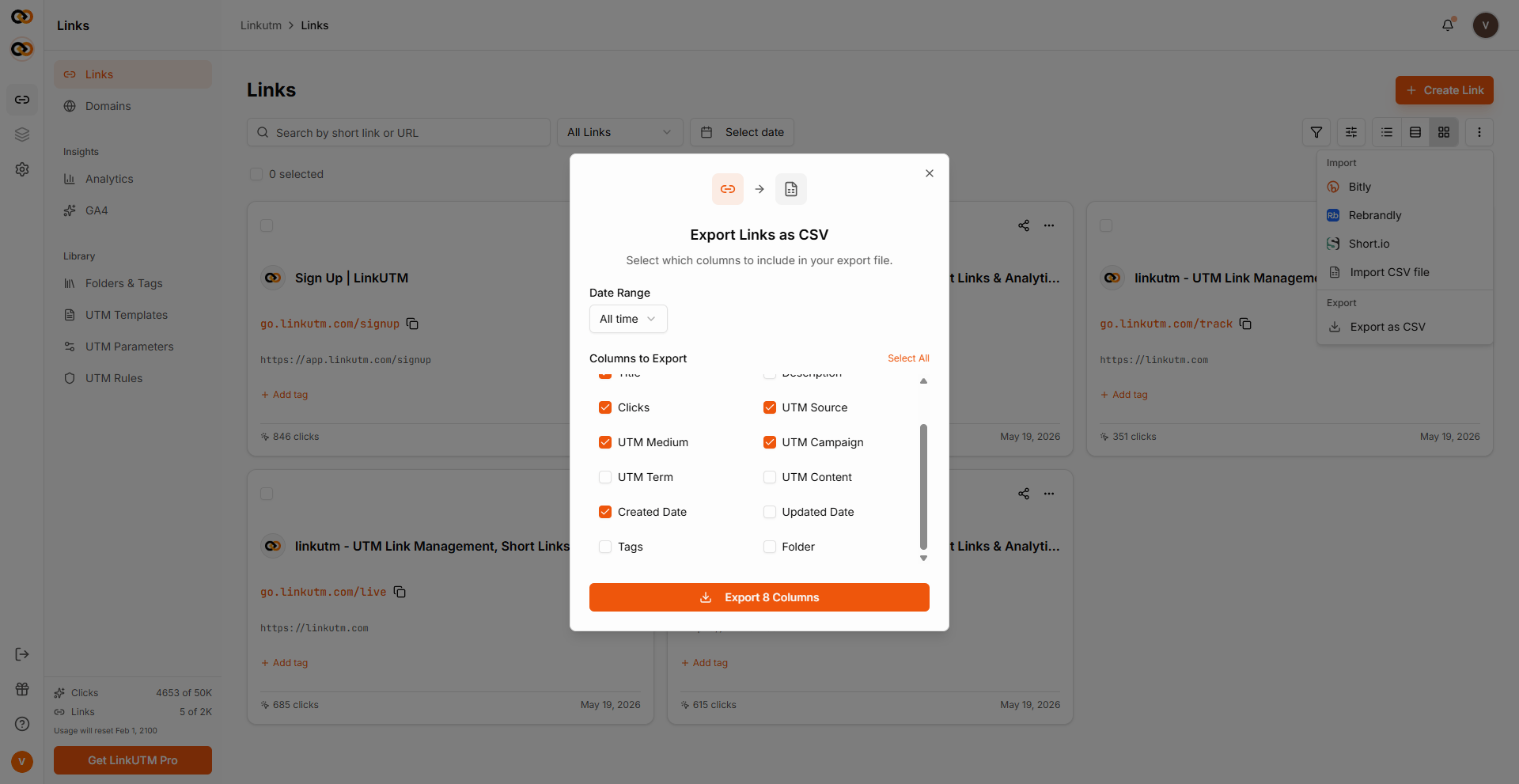
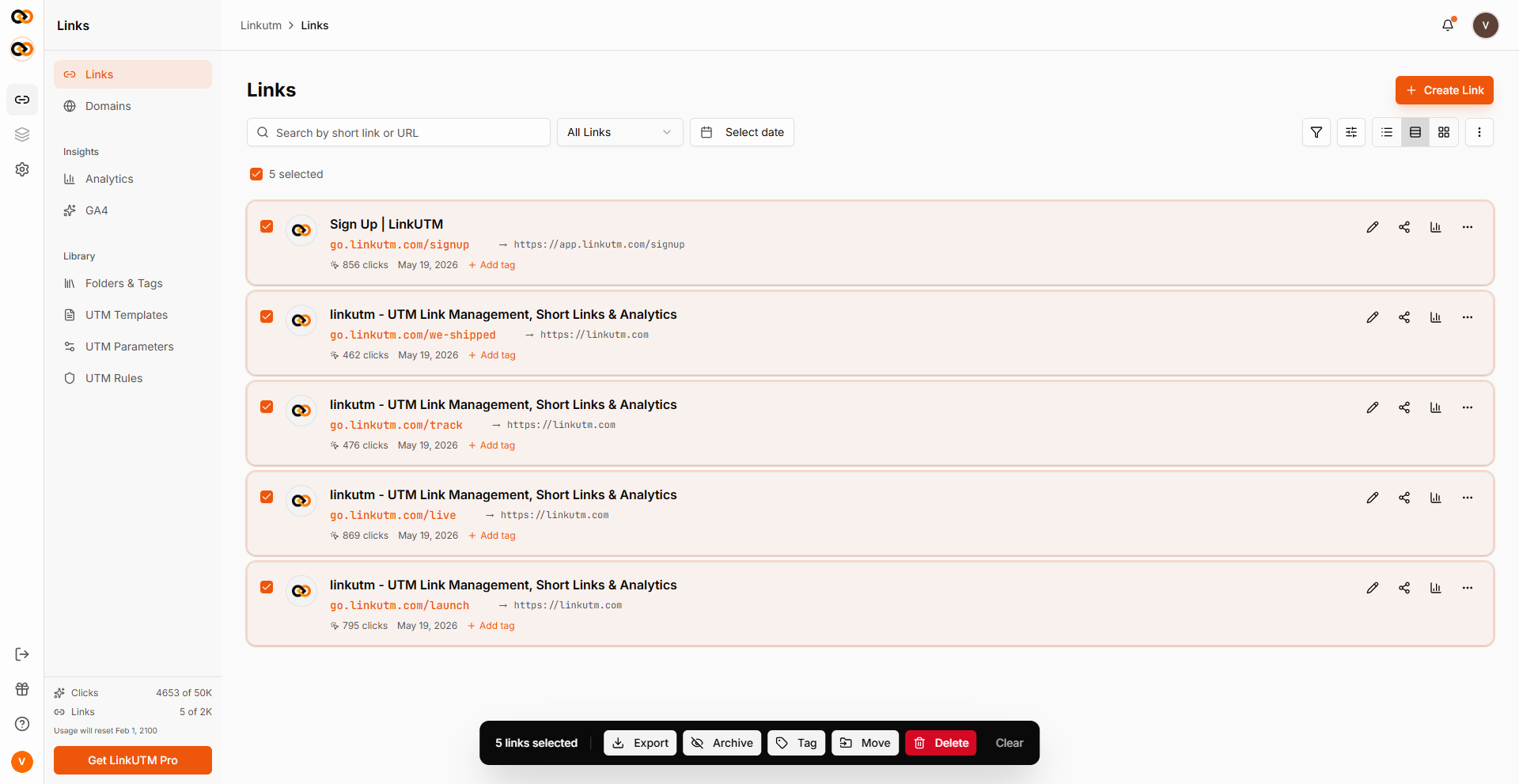
 Select links in the list to reveal bulk actions - Export, Archive, Tag, Move, Delete.
 ## Bulk and import
For 50+ links, use:
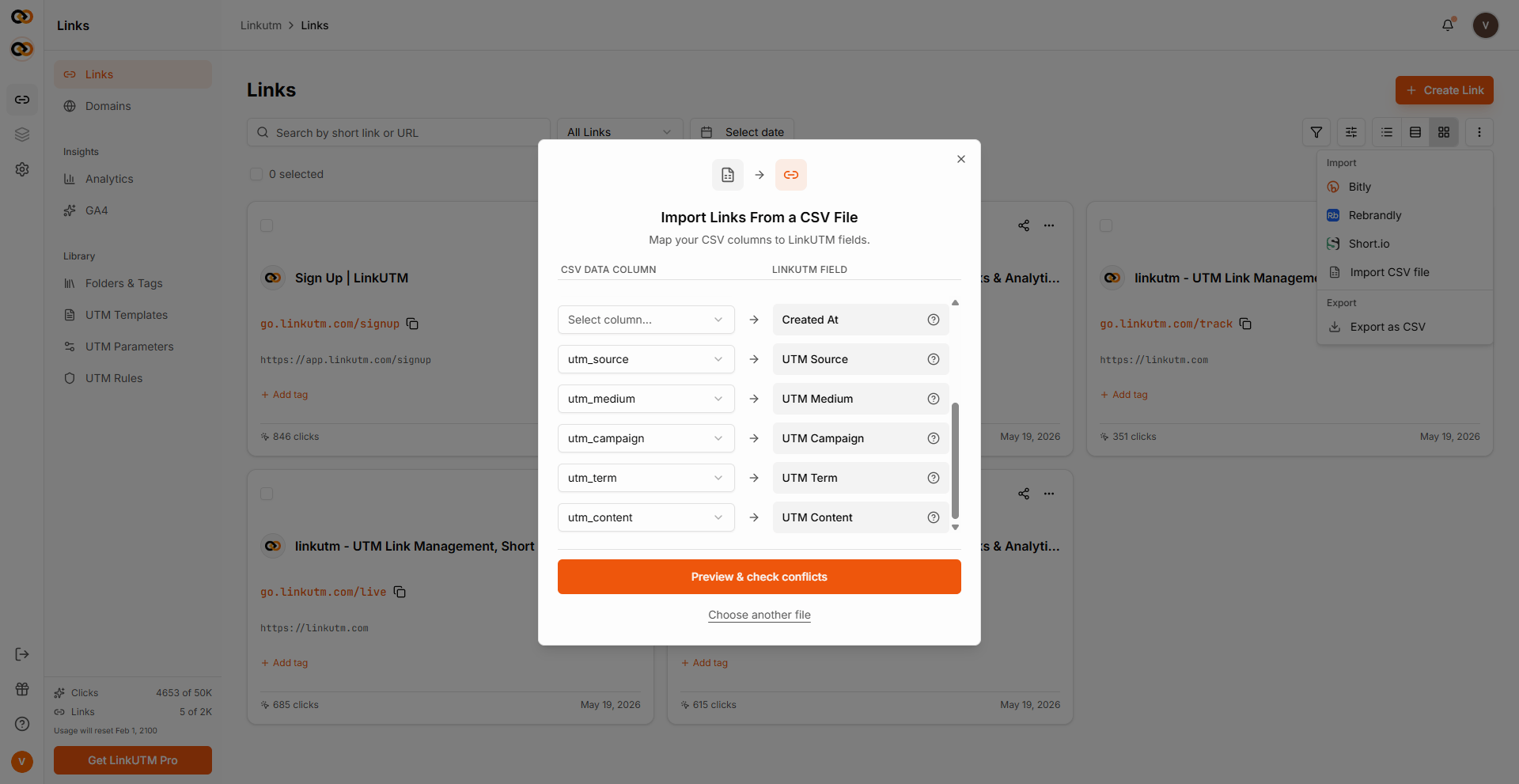
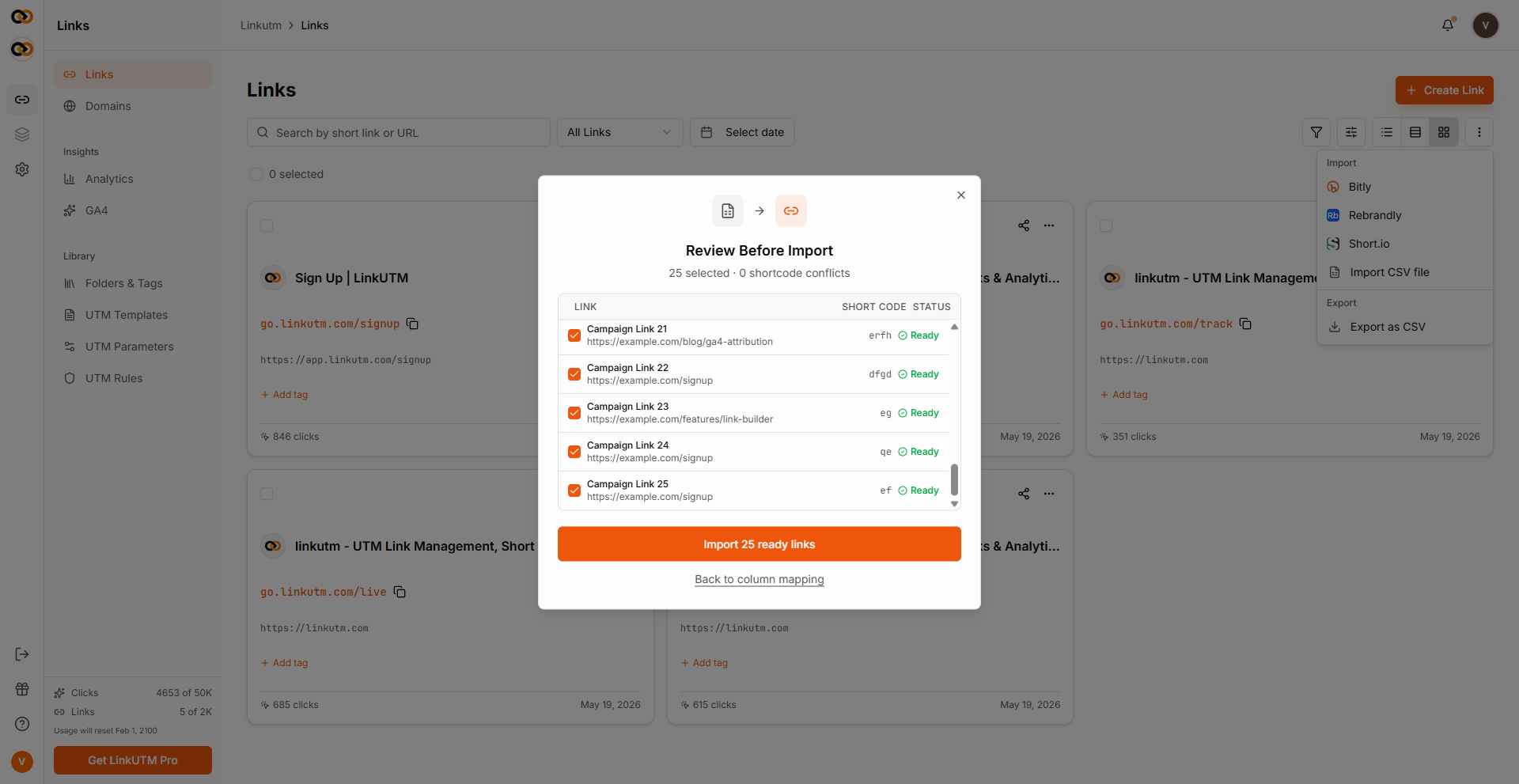
* **CSV import** - UI flow under Links → Import.
* **Bitly / Rebrandly / Short.io migration** - paste your API key, the system pulls links and recreates them. Original slugs are preserved when not taken; conflicts are skipped with a per-link error.
## Bulk and import
For 50+ links, use:
* **CSV import** - UI flow under Links → Import.
* **Bitly / Rebrandly / Short.io migration** - paste your API key, the system pulls links and recreates them. Original slugs are preserved when not taken; conflicts are skipped with a per-link error.
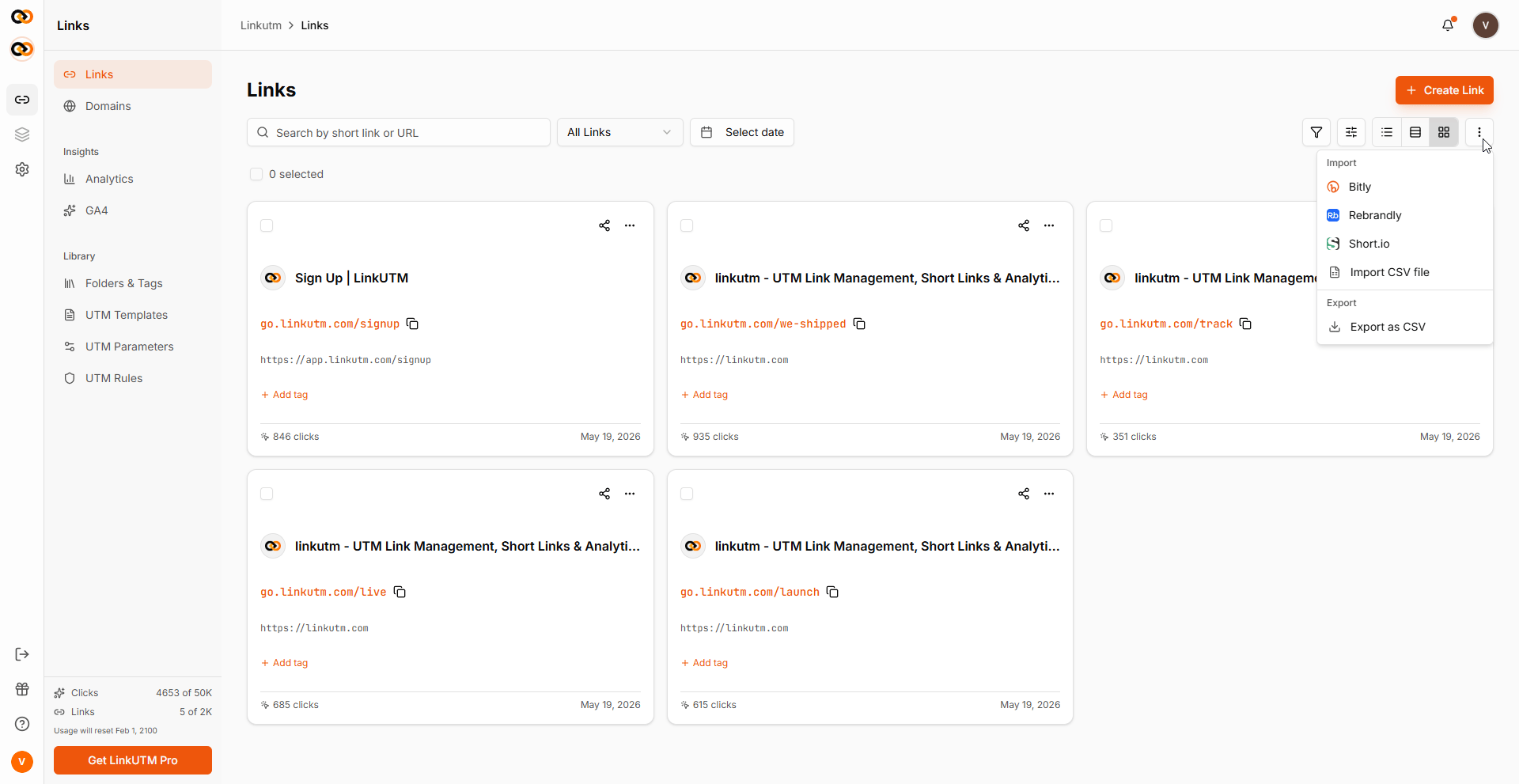 **CSV import flow:**
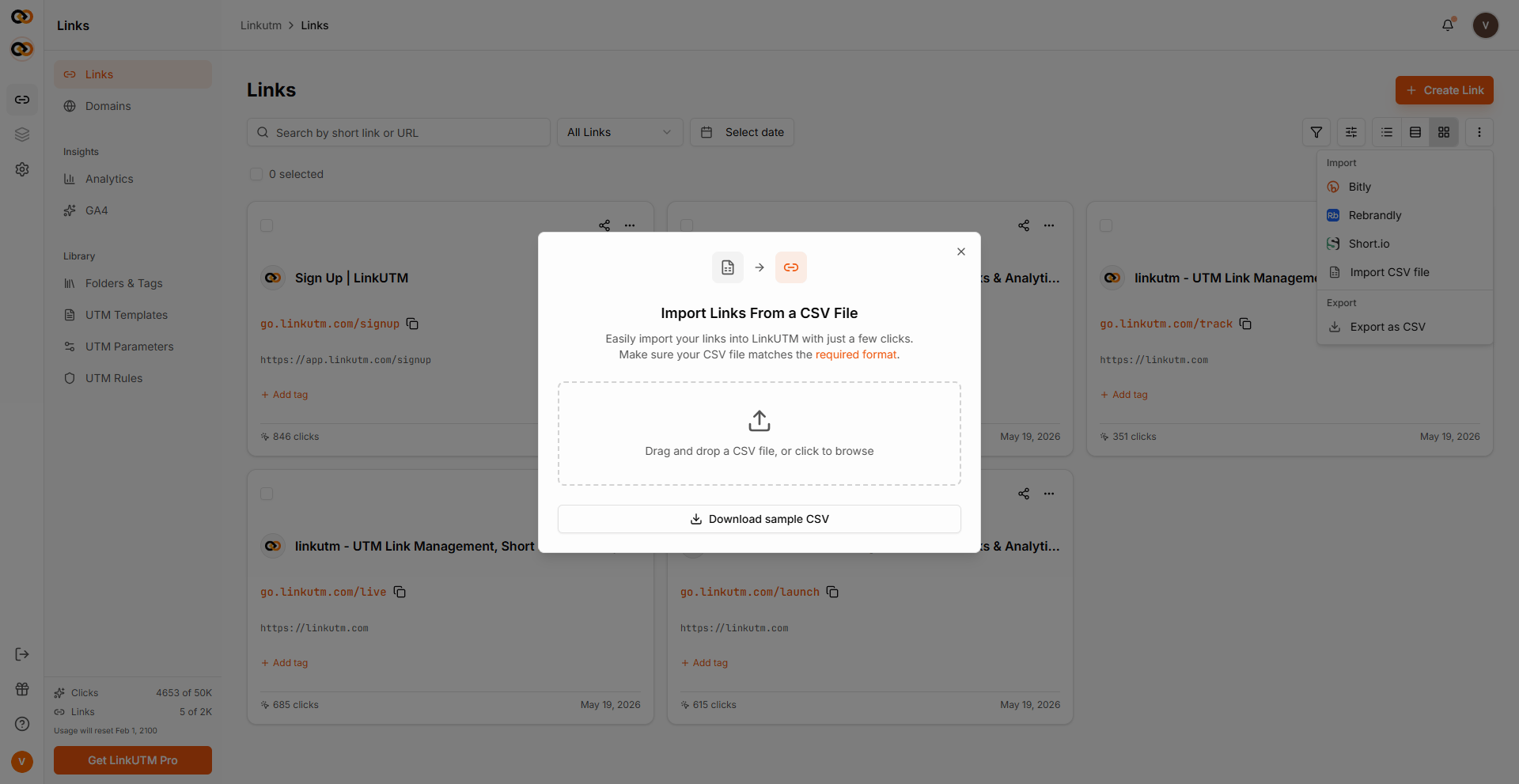
 **Export:**