> ## Documentation Index
> Fetch the complete documentation index at: https://docs.linkutm.com/llms.txt
> Use this file to discover all available pages before exploring further.
# Folders & Tags
> Organize and label links using folders for primary grouping and tags for cross-cutting attributes.
**Folders vs tags:** Use folders for primary grouping (one per link), such as campaign, client, or channel. Use tags for cross-cutting labels a link can belong to many of, such as status, quarter, or experiment flag. Think of a folder as the filing cabinet drawer and tags as sticky notes on the file.
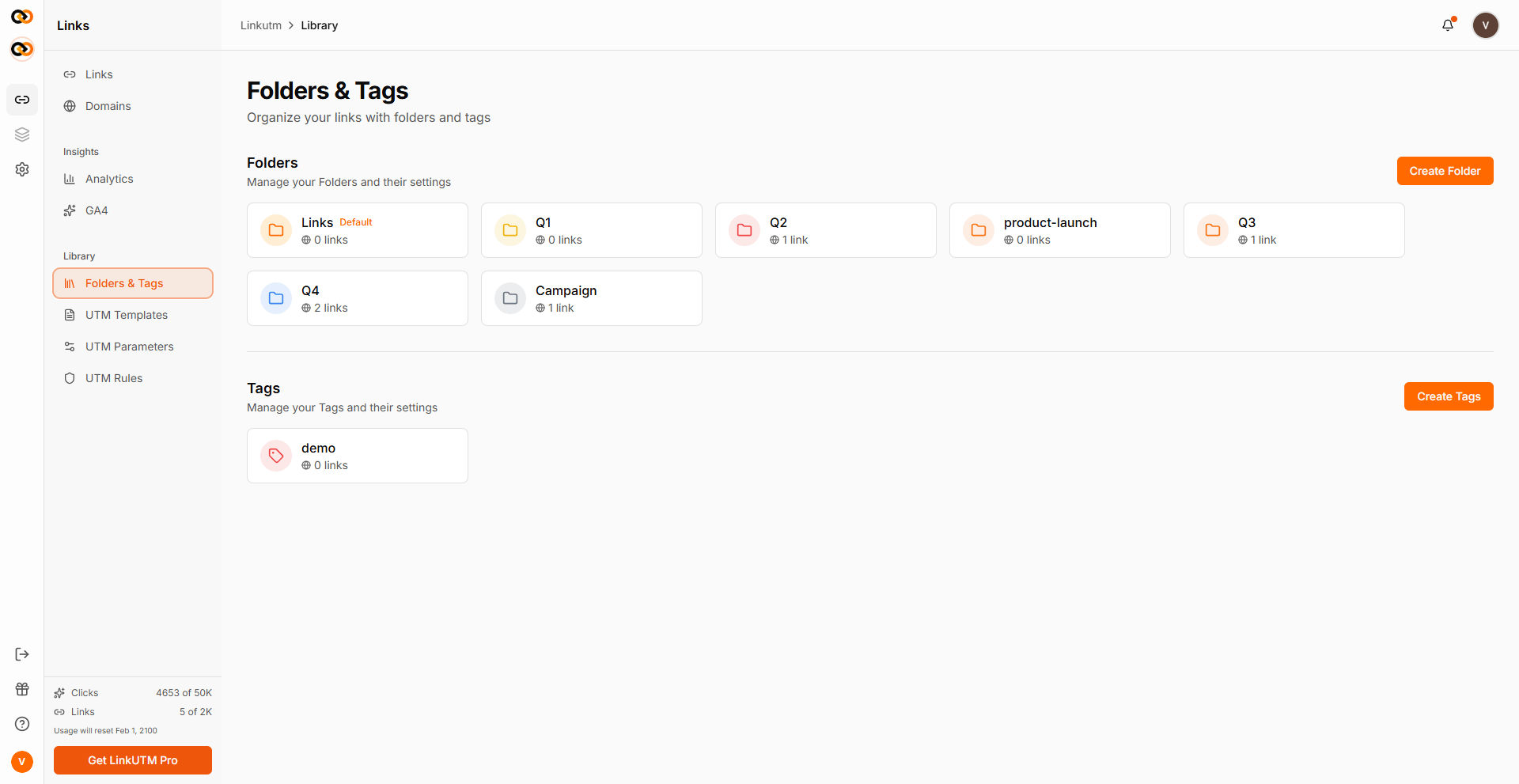
Both folders and tags are managed from **Sidebar → Folders & Tags**.
 ## Folders
Folders are flat containers for organizing links inside a workspace. Each folder is separate; folders don't support nesting. Each link belongs to zero or one folder. Unfiled links live in **Unsorted**.
### When to use folders
* 30+ links per workspace.
* Per-campaign or per-client grouping.
* Anytime your link list takes more than a glance to scan.
If you only need light grouping, tags are cheaper - links can have many tags but only one folder.
### How to use folders
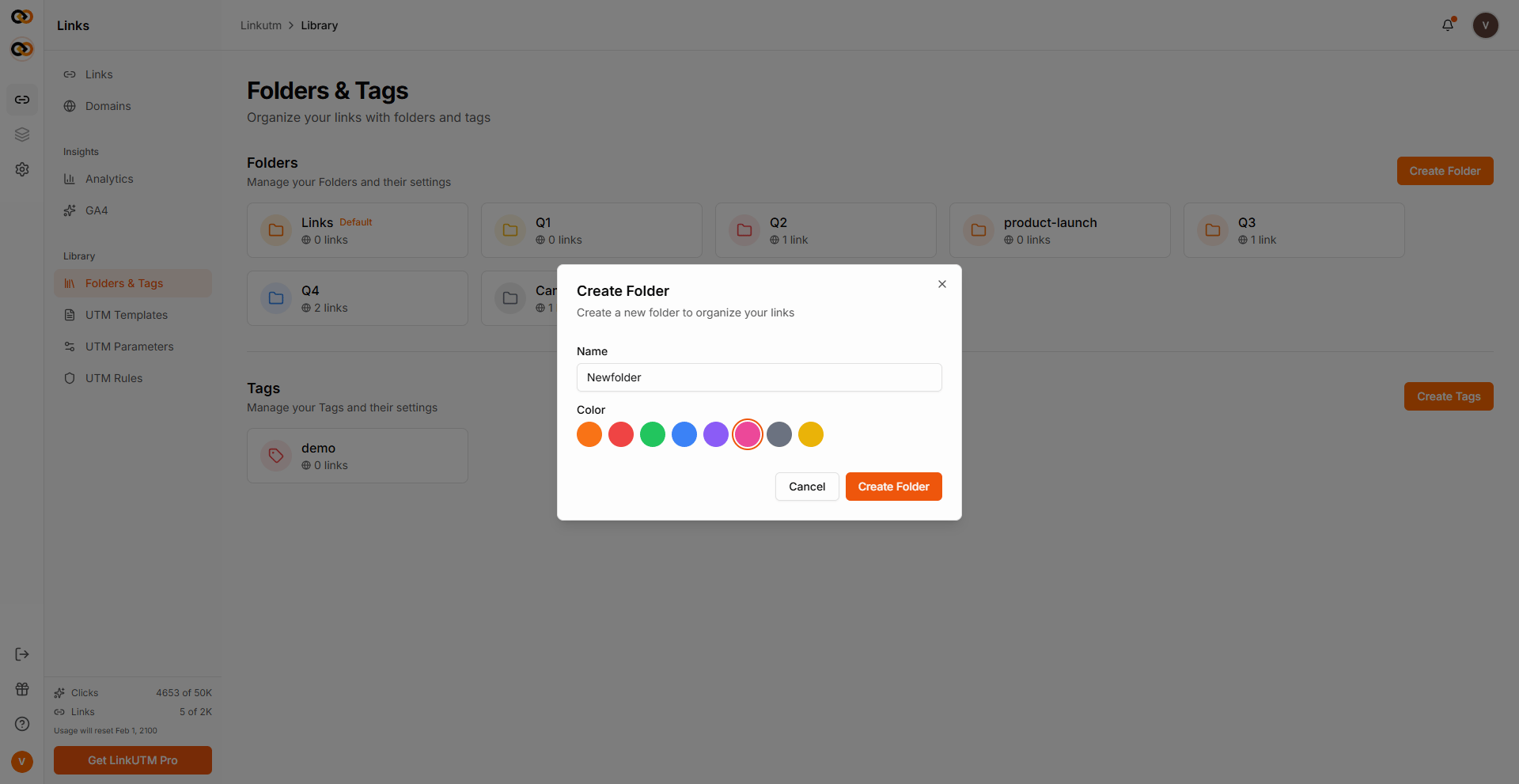
Sidebar → **Folders & Tags**. Name it (case-insensitive unique per workspace), pick a color.
Mark one folder as **Default**. The link builder uses this as the pre-selected folder when you create a new link. Only one default at a time per workspace.
From the link list: select links → **Move to folder**.
## Folders
Folders are flat containers for organizing links inside a workspace. Each folder is separate; folders don't support nesting. Each link belongs to zero or one folder. Unfiled links live in **Unsorted**.
### When to use folders
* 30+ links per workspace.
* Per-campaign or per-client grouping.
* Anytime your link list takes more than a glance to scan.
If you only need light grouping, tags are cheaper - links can have many tags but only one folder.
### How to use folders
Sidebar → **Folders & Tags**. Name it (case-insensitive unique per workspace), pick a color.
Mark one folder as **Default**. The link builder uses this as the pre-selected folder when you create a new link. Only one default at a time per workspace.
From the link list: select links → **Move to folder**.
 ### Folder common mistakes
Putting 800 links in "All Campaigns" defeats the point. Split links into separate folders by campaign, client, or quarter.
Folder names are case-insensitive unique per workspace. `Email` and `email` collide.
Folders don't contain other folders. Use clear folder names, such as `Q2 Launch - Email`, or use tags for cross-cutting labels.
***
## Tags
Tags are color-coded labels on links. Each link can have many tags. Each tag belongs to one workspace. Use them for any cross-cutting attribute that doesn't fit a single flat folder.
### When to use tags
* Status: `active`, `paused`, `draft`.
* Channel cohort: `paid-search`, `paid-social`, `email`.
* Quarterly review: `q2-2025`, `q3-2025`.
* A/B variants you might compare across campaigns.
### How to use tags
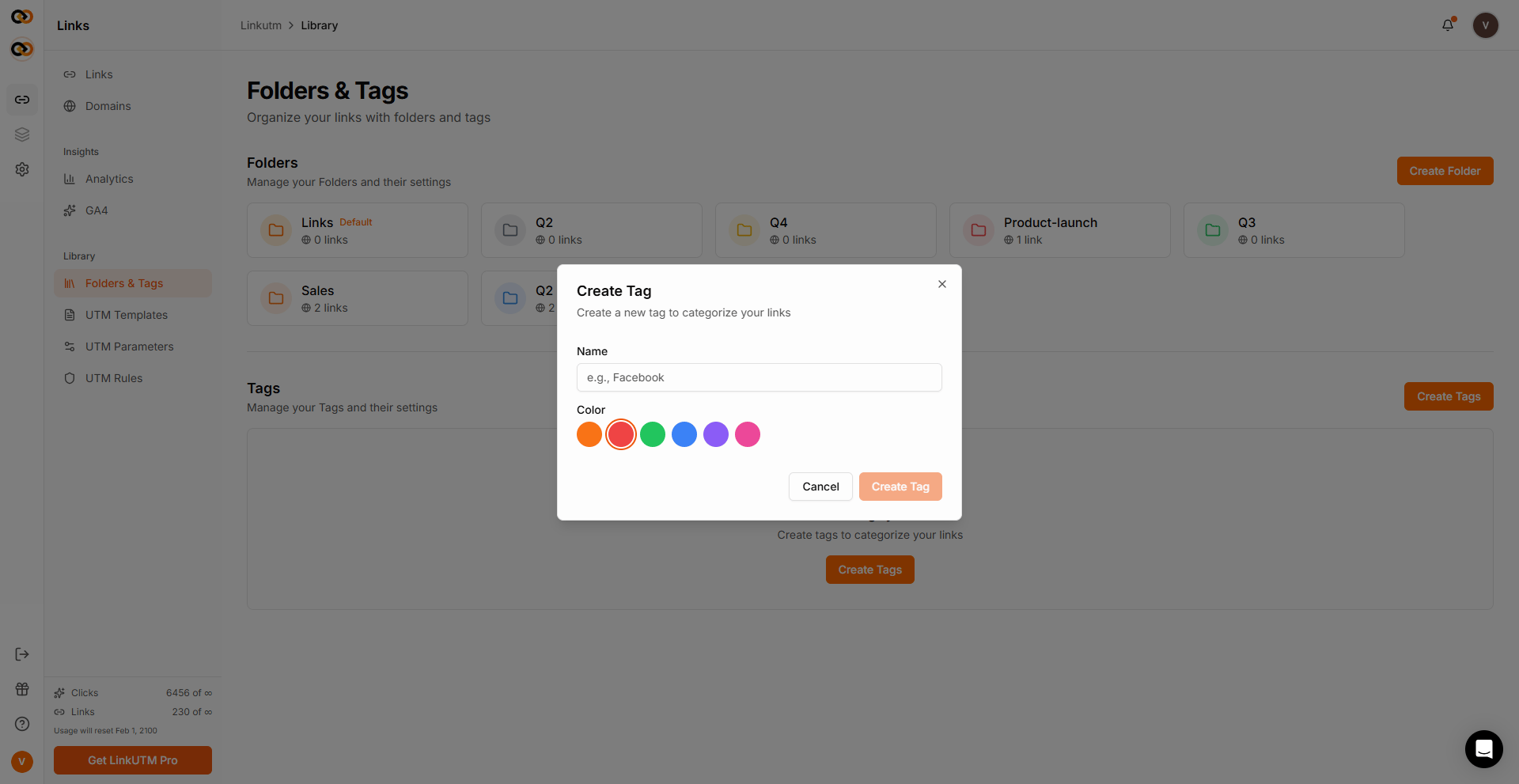
Sidebar → **Folders & Tags** → **Create tag**. Name it (case-insensitive unique per workspace), pick a color (default orange).
From the link builder or the Links list: select the link → **Tags** → pick one or more.
On the Links list: select multiple links → **Bulk Tag** → add tags.
* **Add** mode appends without removing existing tags.
### Folder common mistakes
Putting 800 links in "All Campaigns" defeats the point. Split links into separate folders by campaign, client, or quarter.
Folder names are case-insensitive unique per workspace. `Email` and `email` collide.
Folders don't contain other folders. Use clear folder names, such as `Q2 Launch - Email`, or use tags for cross-cutting labels.
***
## Tags
Tags are color-coded labels on links. Each link can have many tags. Each tag belongs to one workspace. Use them for any cross-cutting attribute that doesn't fit a single flat folder.
### When to use tags
* Status: `active`, `paused`, `draft`.
* Channel cohort: `paid-search`, `paid-social`, `email`.
* Quarterly review: `q2-2025`, `q3-2025`.
* A/B variants you might compare across campaigns.
### How to use tags
Sidebar → **Folders & Tags** → **Create tag**. Name it (case-insensitive unique per workspace), pick a color (default orange).
From the link builder or the Links list: select the link → **Tags** → pick one or more.
On the Links list: select multiple links → **Bulk Tag** → add tags.
* **Add** mode appends without removing existing tags.
 ### Tag common mistakes
Creating folders for each status (`active`, `paused`)? Use tags. Folders are separate containers for links, not nested hierarchies.
Tag names are case-insensitive unique per workspace. `Email` and `email` collide.
More than 8-10 colors becomes visual noise. Reuse colors with distinct names.
## Edge cases
Both tags and Folders can be renamed from the 3 dot menu in the Folders & Tags panel.
**Deleting a tag** removes it from every link automatically. Click history is unaffected.
## Real-world example
Agency managing a client campaign:
```text theme={null}
Folders:
Acme Corp - Paid Search
Acme Corp - Paid Social
Acme Corp - Email
Tags applied across folders:
experiment (purple) - A/B test variants
seasonal (yellow) - tied to a season or holiday
archive-q1 (gray) - last quarter, kept for reporting
```
A single link can live in `Acme Corp - Email` and also carry `experiment` + `seasonal` tags. Filter by tag to see cross-folder cohorts instantly.
### Tag common mistakes
Creating folders for each status (`active`, `paused`)? Use tags. Folders are separate containers for links, not nested hierarchies.
Tag names are case-insensitive unique per workspace. `Email` and `email` collide.
More than 8-10 colors becomes visual noise. Reuse colors with distinct names.
## Edge cases
Both tags and Folders can be renamed from the 3 dot menu in the Folders & Tags panel.
**Deleting a tag** removes it from every link automatically. Click history is unaffected.
## Real-world example
Agency managing a client campaign:
```text theme={null}
Folders:
Acme Corp - Paid Search
Acme Corp - Paid Social
Acme Corp - Email
Tags applied across folders:
experiment (purple) - A/B test variants
seasonal (yellow) - tied to a season or holiday
archive-q1 (gray) - last quarter, kept for reporting
```
A single link can live in `Acme Corp - Email` and also carry `experiment` + `seasonal` tags. Filter by tag to see cross-folder cohorts instantly.