> ## Documentation Index
> Fetch the complete documentation index at: https://docs.linkutm.com/llms.txt
> Use this file to discover all available pages before exploring further.
# Password-protected links
> Require a password before visitors are redirected to your destination URL.
When you set a password on a link, visitors who click it are shown a password entry page. They must enter the correct password to be redirected to the destination URL.
## How to use it
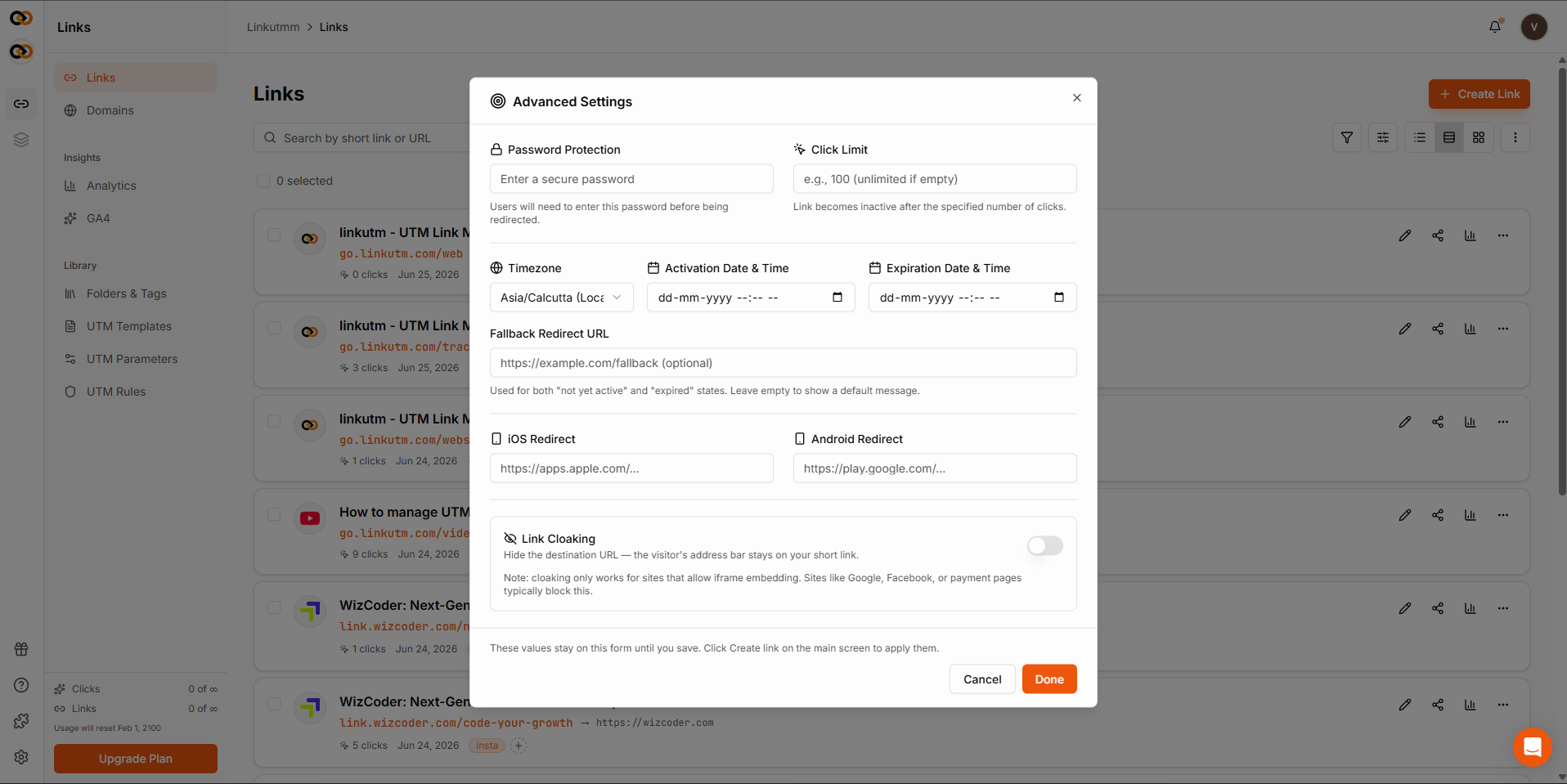
In the create new link panel, click the **Advanced** button in the bottom bar.
In the **Password Protection** field, type a password.
The password is saved on the link.
Send the password to your intended recipients through a separate channel.
 ## Common mistakes
If one link leaks, all leak. Use a different password per link or per campaign.
## Edge cases
**Password and expiration.** Once a link passes its expiration date, it redirects to the fallback URL (or shows an error if none is set), regardless of any password stored on it.
## Common mistakes
If one link leaks, all leak. Use a different password per link or per campaign.
## Edge cases
**Password and expiration.** Once a link passes its expiration date, it redirects to the fallback URL (or shows an error if none is set), regardless of any password stored on it.