> ## Documentation Index
> Fetch the complete documentation index at: https://docs.linkutm.com/llms.txt
> Use this file to discover all available pages before exploring further.
# QR Code Generator
> Create scannable codes for links, contacts, wifi, events and more, each with built-in tracking
The QR Code Generator creates standalone QR codes from 13 content types, such as a website, a contact card, a wifi network, or a calendar event. Every code is backed by a linkutm short link, so every scan is tracked the same way a link click is. This is separate from the QR on a single short link. For that, see [QR codes for links](/links/qr-codes).
**Same design, different inputs.** The design step is identical to the link QR customization. What changes is the content: a QR code here can hold a contact, a wifi login, or an event, not just a URL.
## When to use it
* Print and packaging: a menu URL, a product PDF, a review link.
* Contact sharing: a vCard on a business card or booth banner.
* Events: an add-to-calendar code on a poster.
* Wifi: a scan-to-join code for a cafe or office.
* One code, many destinations: a Multi-URL list for a campaign hub.
## How to use it
Sidebar → **QR Code Generator** → **Create code**.
Pick a content type. **Website** links to any URL. **Contact**, **Wi-Fi**, **Event**, and **Plain text** are held inside the code itself. Others compose an action, such as **WhatsApp**, **Email**, **SMS**, or **Phone**.
Enter the fields for the type you picked. Add a **Title** (required), and optional **Tags** and **Folder** to organize it.
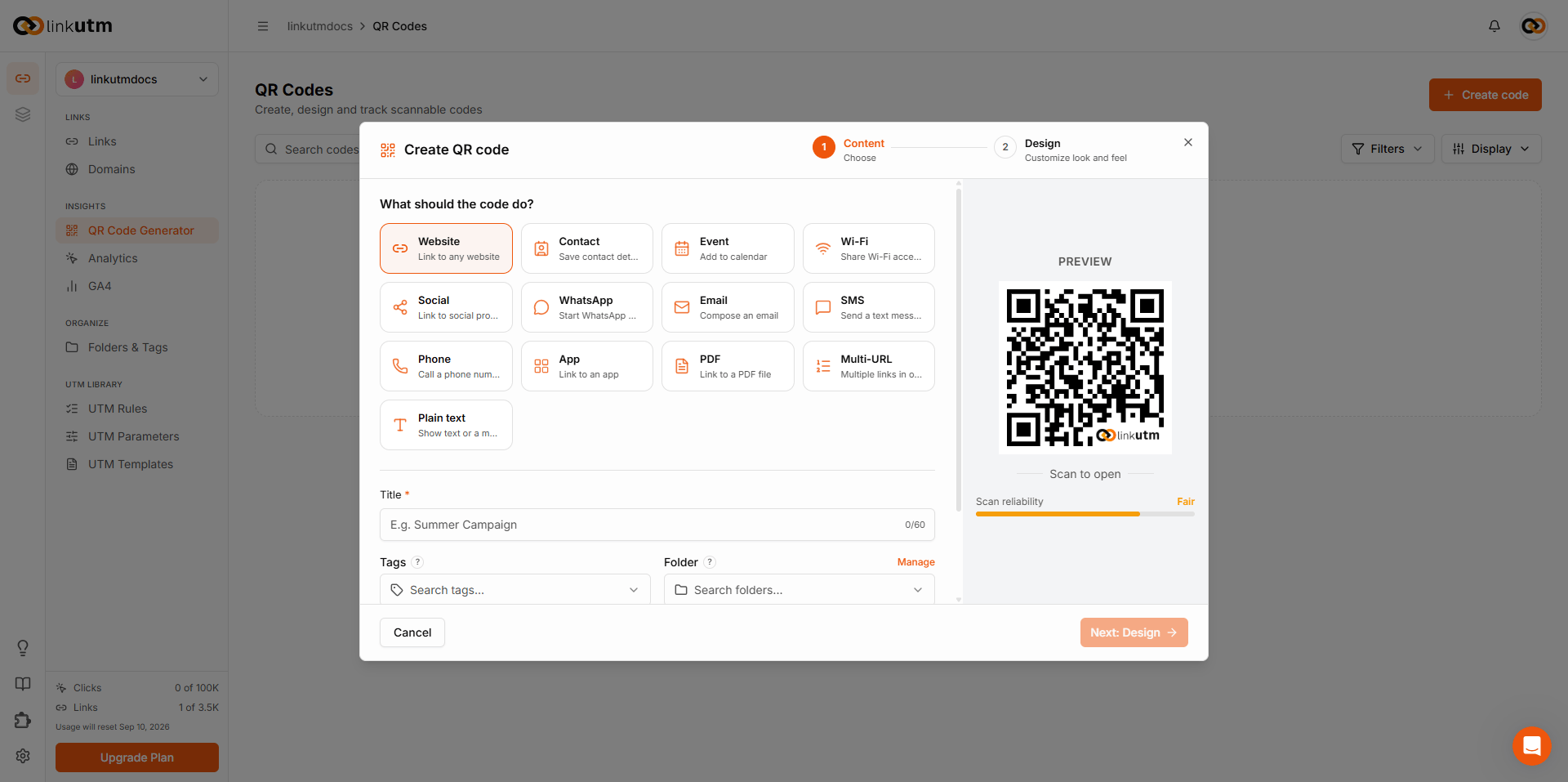 Click **Next: Design** and customize the look. The controls match the link QR panel. The preview updates in real time and shows a scan reliability meter.
Click **Save**. Download as PNG, SVG, or JPEG for print or screen.
## Content types
Two groups. Redirect types send the scanner to a destination and behave like a normal short link. Hosted types carry their data in the code, and linkutm serves a page for them on scan. Both run through the short link, so both are tracked.
| Type | What it does |
| ---------- | ------------------------------------------------------ |
| Website | Opens a URL |
| PDF | Opens a PDF |
| Social | Opens a social profile |
| App | Opens an app store listing |
| WhatsApp | Starts a WhatsApp chat |
| Email | Opens a prefilled email |
| SMS | Opens a prefilled text message |
| Phone | Dials a number |
| Contact | Shows a contact card to save |
| Event | Shows event details to add to a calendar |
| Wi-Fi | Shows the network name and password with a copy button |
| Plain text | Shows text |
| Multi-URL | Shows a list of links |
## Design
The design step is the same as the [link QR customization](/links/qr-codes). Seven tabs, each controlling a different visual aspect of the code, plus export.
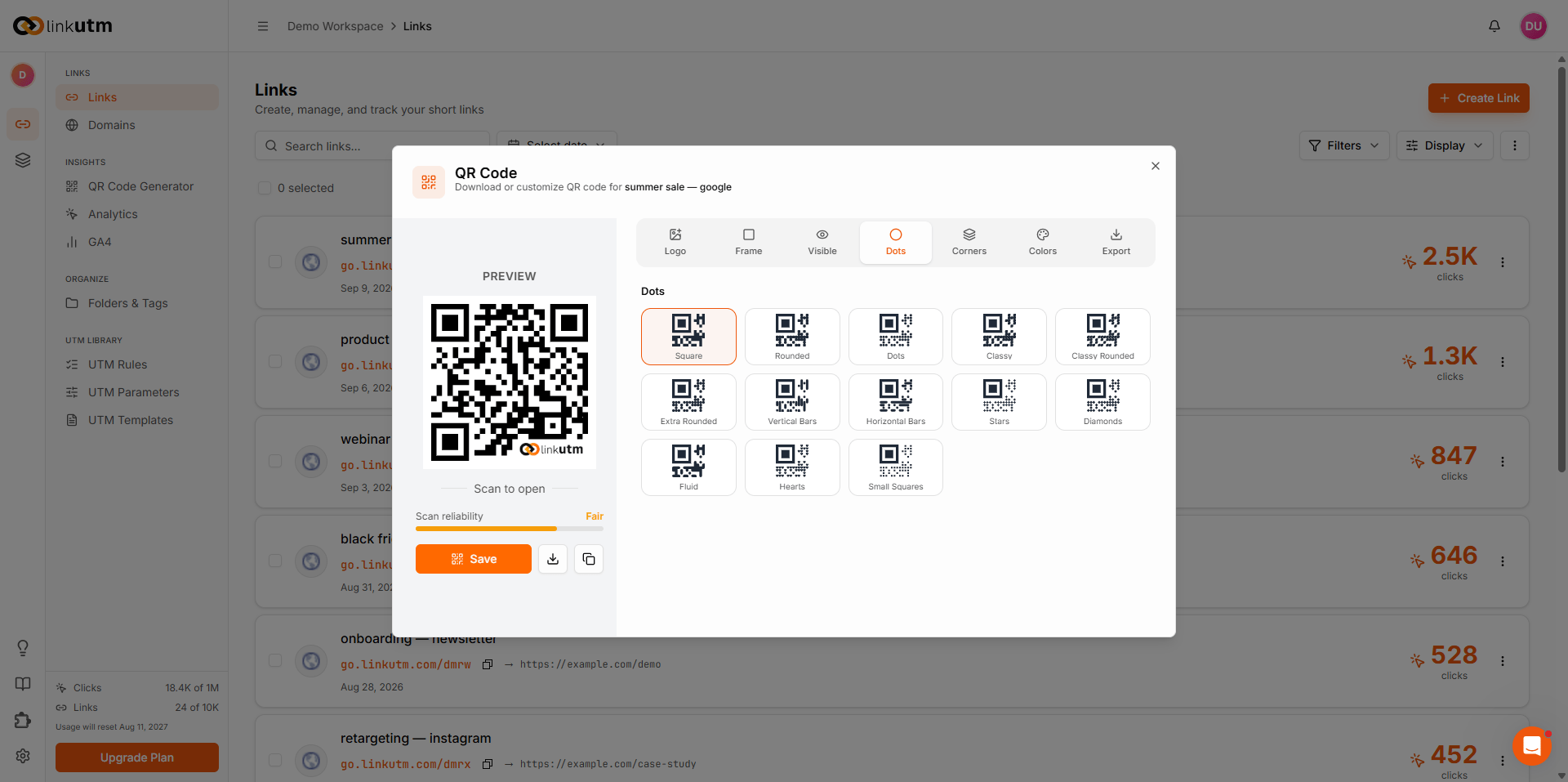
**Logo.** Place a logo or icon in the center. Upload an image, enter text, or pick a social media preset: linkutm, WhatsApp, Facebook, Instagram, Twitter/X, YouTube, LinkedIn, Telegram, or TikTok.
Click **Next: Design** and customize the look. The controls match the link QR panel. The preview updates in real time and shows a scan reliability meter.
Click **Save**. Download as PNG, SVG, or JPEG for print or screen.
## Content types
Two groups. Redirect types send the scanner to a destination and behave like a normal short link. Hosted types carry their data in the code, and linkutm serves a page for them on scan. Both run through the short link, so both are tracked.
| Type | What it does |
| ---------- | ------------------------------------------------------ |
| Website | Opens a URL |
| PDF | Opens a PDF |
| Social | Opens a social profile |
| App | Opens an app store listing |
| WhatsApp | Starts a WhatsApp chat |
| Email | Opens a prefilled email |
| SMS | Opens a prefilled text message |
| Phone | Dials a number |
| Contact | Shows a contact card to save |
| Event | Shows event details to add to a calendar |
| Wi-Fi | Shows the network name and password with a copy button |
| Plain text | Shows text |
| Multi-URL | Shows a list of links |
## Design
The design step is the same as the [link QR customization](/links/qr-codes). Seven tabs, each controlling a different visual aspect of the code, plus export.
**Logo.** Place a logo or icon in the center. Upload an image, enter text, or pick a social media preset: linkutm, WhatsApp, Facebook, Instagram, Twitter/X, YouTube, LinkedIn, Telegram, or TikTok.
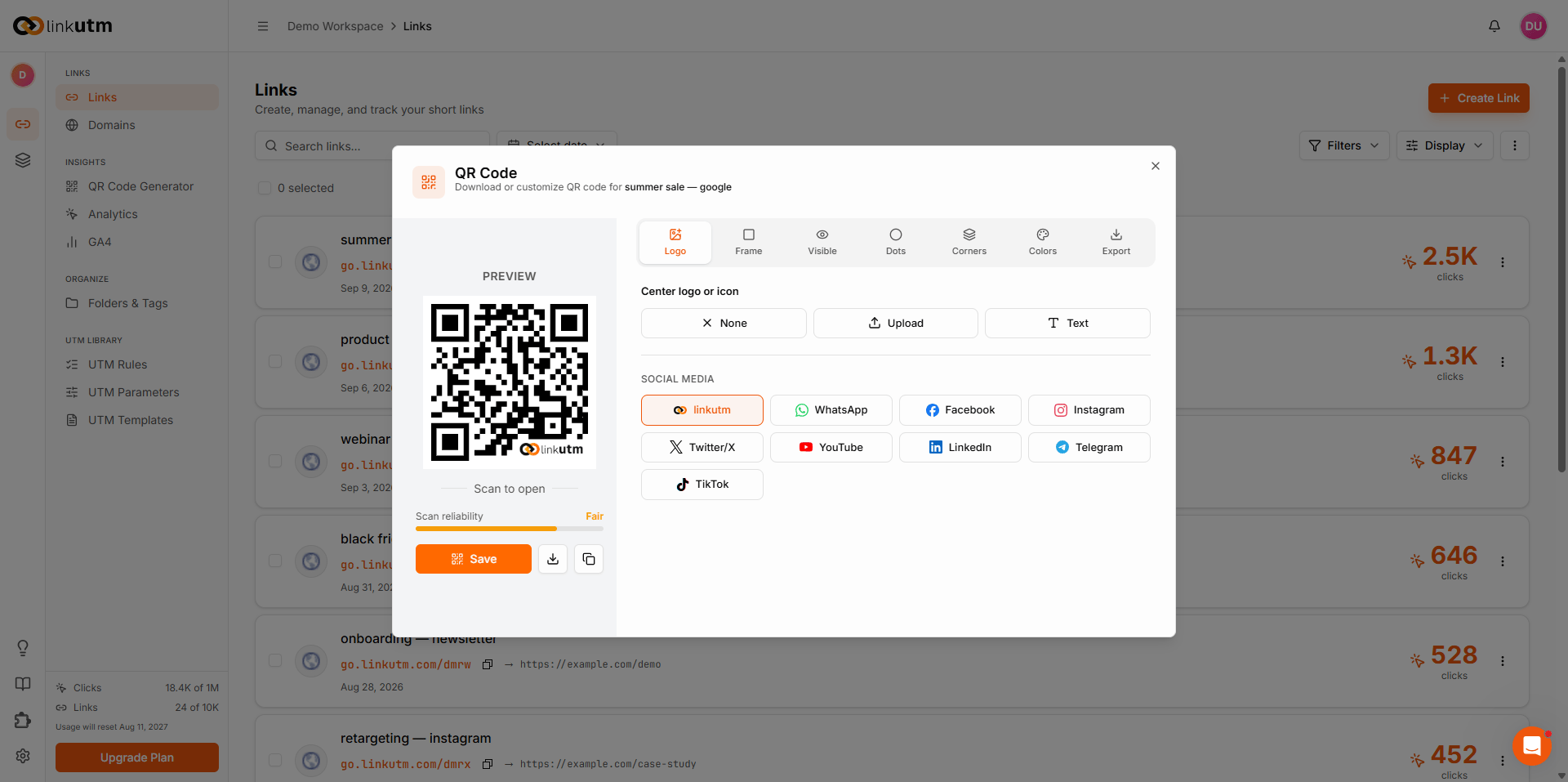 **Frame.** Add a border around the code. Choose from 11 frame styles or leave it frameless.
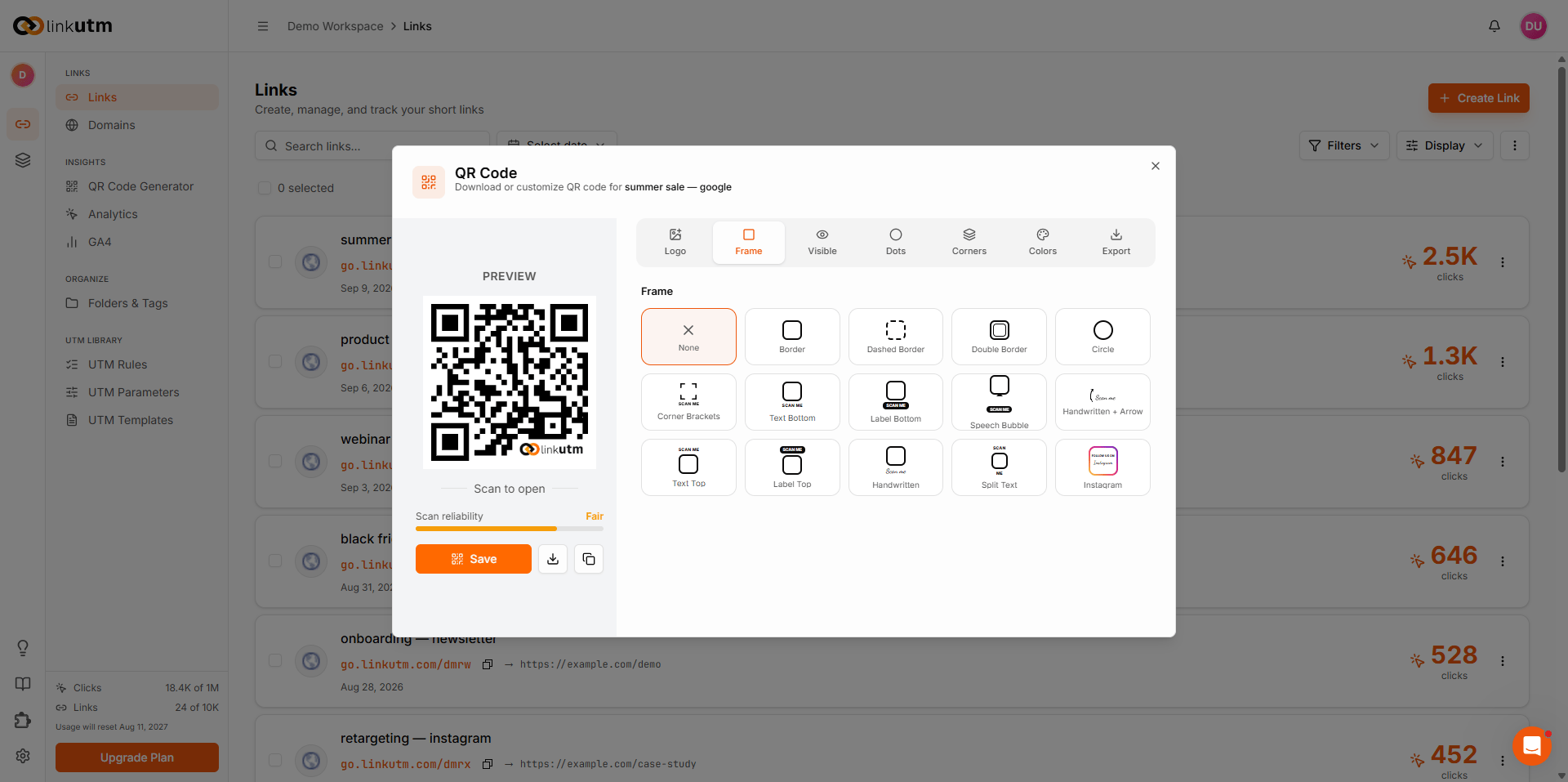 **Dots.** Change the shape of the dot pattern. 11 styles available.
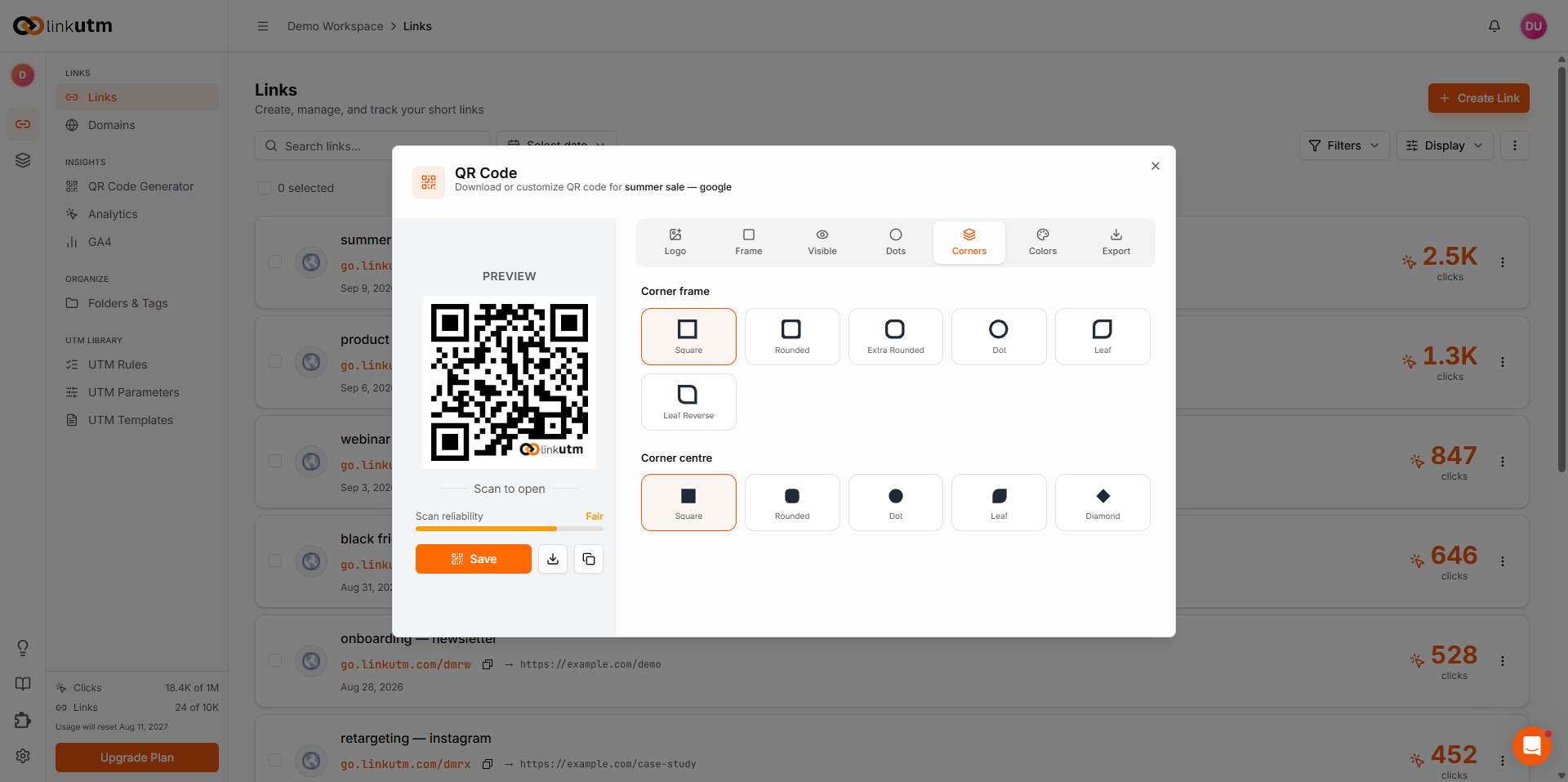
 **Corners.** Style the three corner markers. Set corner square shape (6 options) and corner dot shape (5 options) independently.
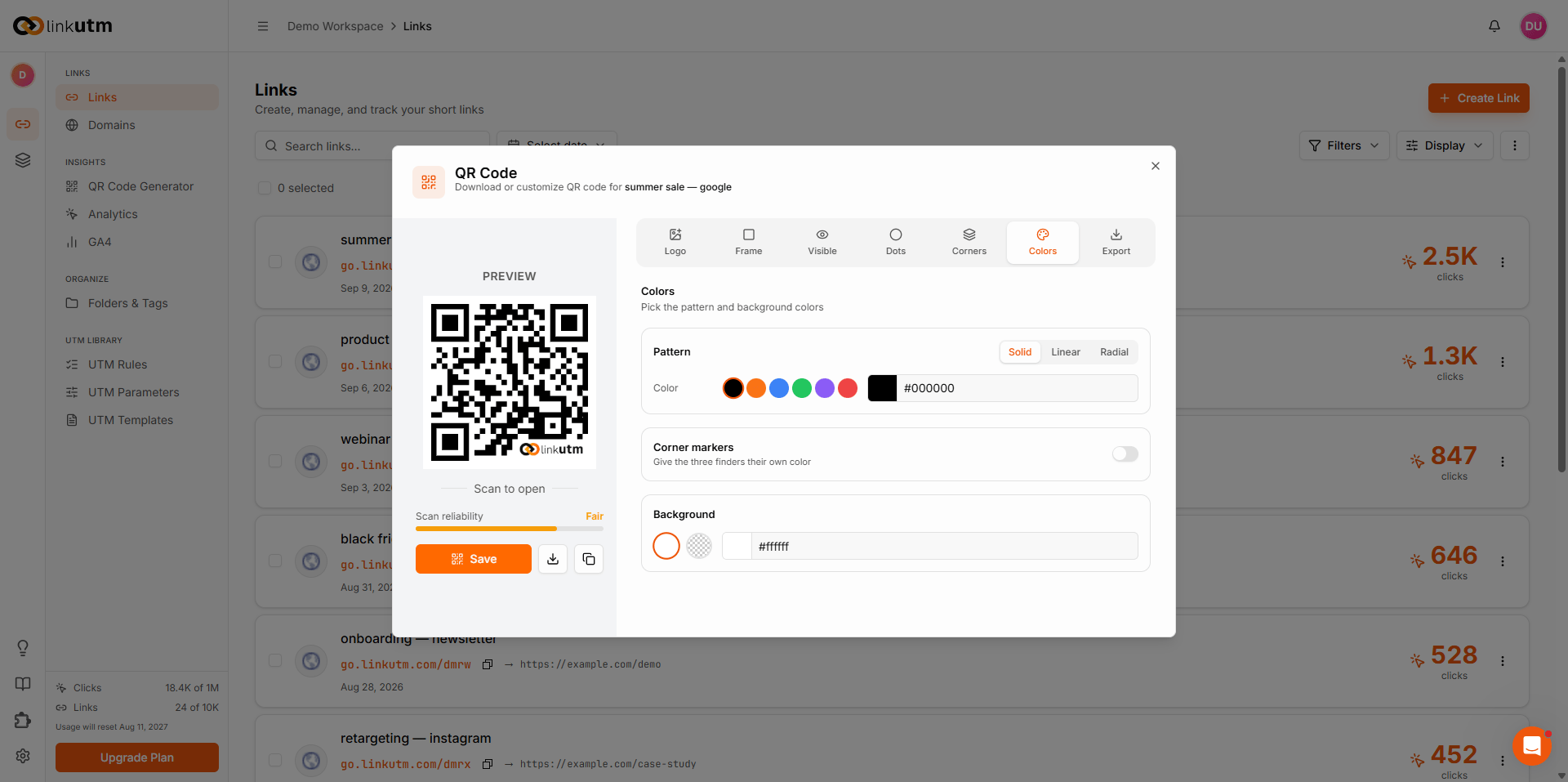
 **Colors.** Set foreground, corner, and background colors. Foreground supports solid, linear gradient, and radial gradient fills. Toggle corner color on to set it separately from the foreground.
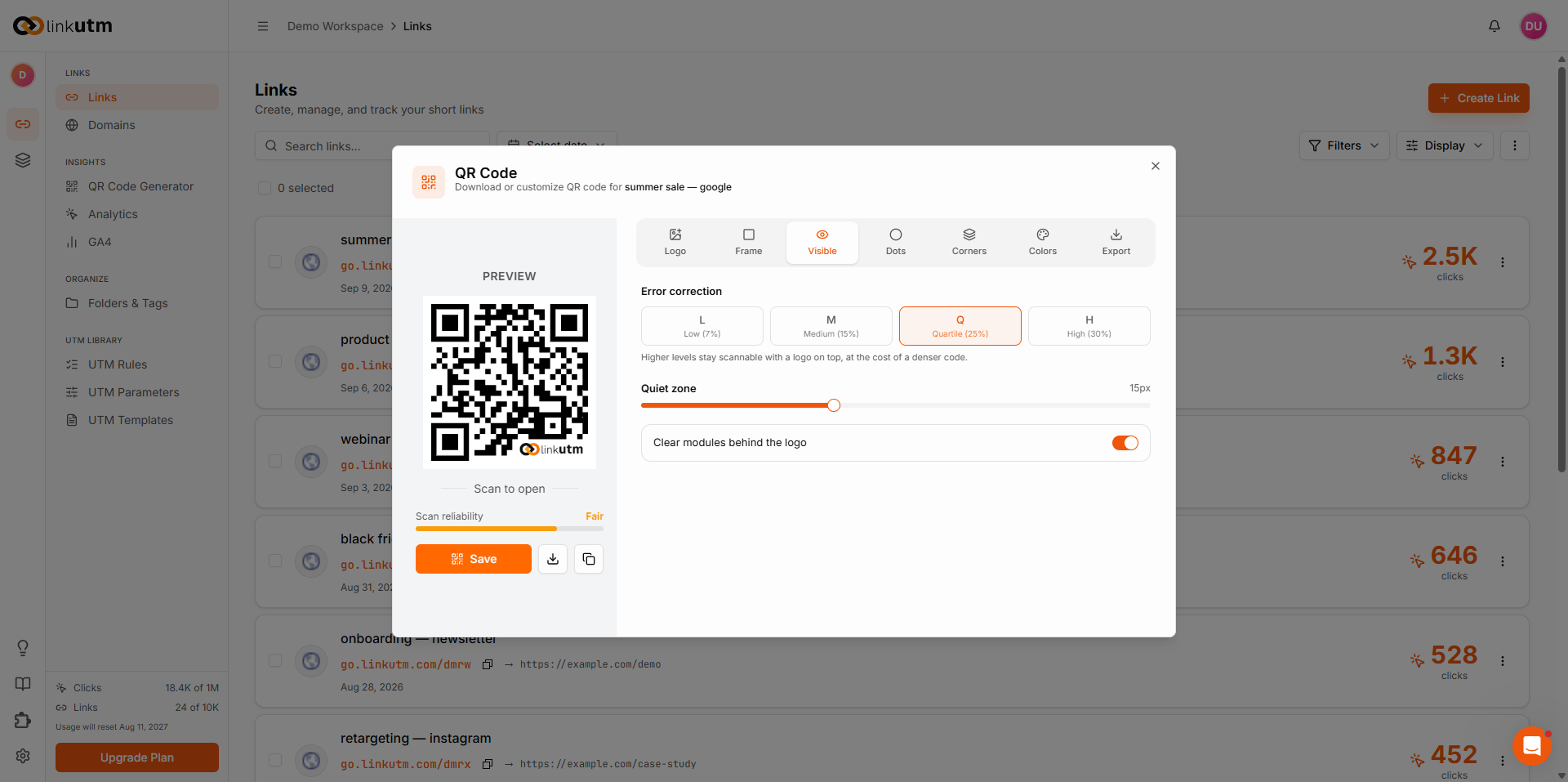
 **Visibility.** Control quiet zone size, error correction level, and whether the dots behind the center logo are hidden.
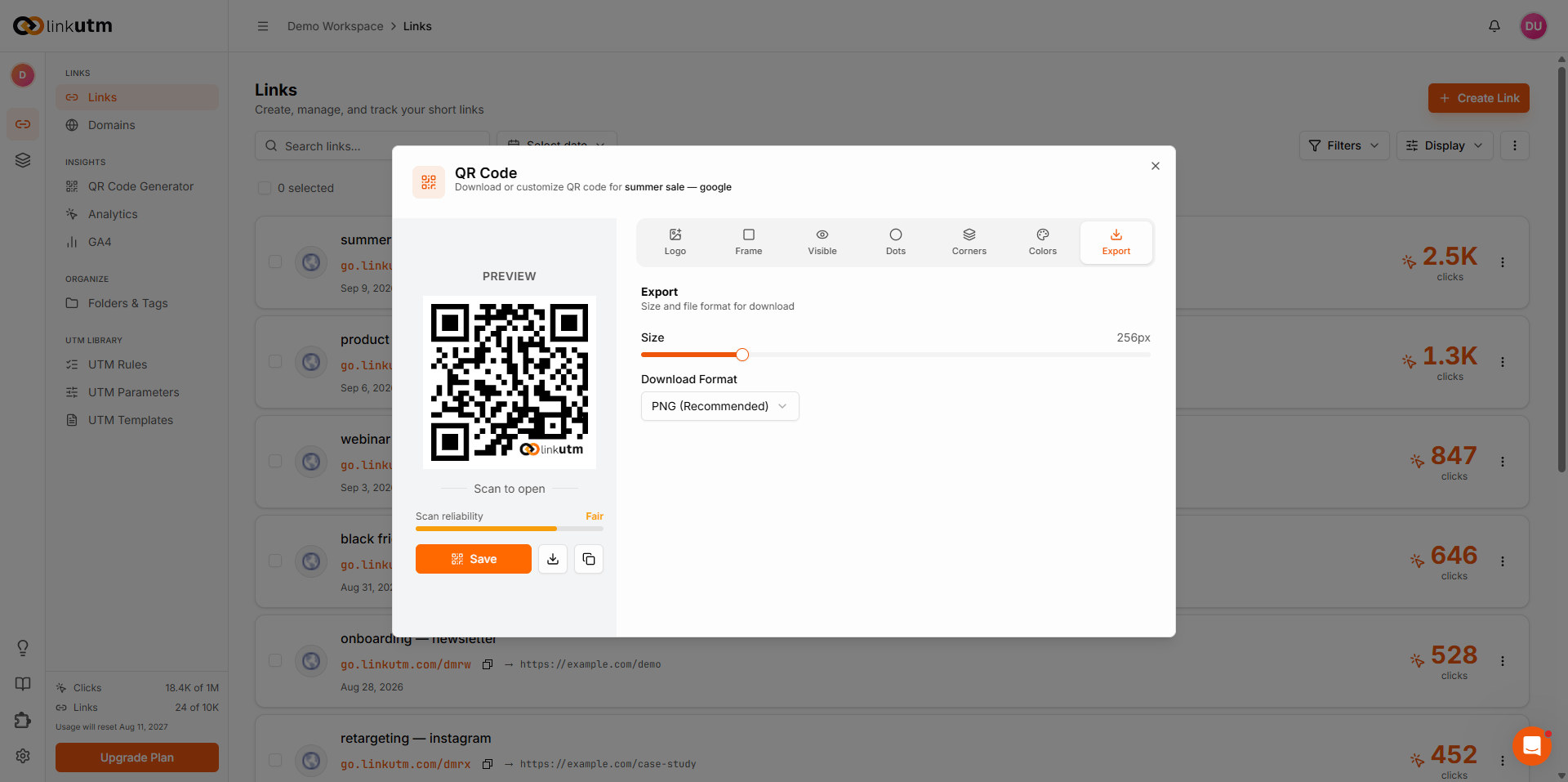
 **Export.** Set the download size, then export the code as PNG, SVG, or JPEG.
 ## Tracking and quota
Every QR code creates a short link on your workspace domain (for example `go.linkutm.com/menu-2025`). Scans are logged as clicks, with location, device, browser, and referrer, the same as a link. Because each code is a short link, it counts toward your plan's link allowance.
View scan analytics under **Analytics**, using the **Links / QR** selector to switch between short link clicks and QR scans. See [Analytics](/analytics/overview). To see one code on its own, click its tile in the QR Codes list.
## Organize
QR codes use the same folders and tags as links. In **Folders & Tags**, each folder and tag shows two counts: links and QR codes. QR codes are counted separately from links, so a folder can hold both. See [Folders & Tags](/links/folders-and-tags).
## Real-world example
Restaurant table QR for the menu:
```
Type: PDF
File URL: https://acme-cafe.com/menu.pdf
Title: Spring menu
Folder: In-store
```
A scan opens the menu PDF. The short link behind it records each scan, so you can see which locations and times drive the most menu views under QR analytics.
## Common mistakes
Editing a code's content or design keeps the same short link, so printed codes keep working. Changing the slug does not. Lock the slug before you print.
A large or busy center logo lowers scan reliability. Keep the logo small and watch the reliability meter in the preview. It warns before the code stops scanning.
QR codes do not appear on the Links page. They live under QR Code Generator. The Links list shows short links you created directly.
## Edge cases
**Deleting a code deletes its short link.** Scans stop resolving. Scan history already recorded is kept for reporting.
**Archiving keeps a code active.** An archived code still resolves and tracks scans. It is hidden from the QR Codes list until you turn on **Show archived** in the display filters.
## Tracking and quota
Every QR code creates a short link on your workspace domain (for example `go.linkutm.com/menu-2025`). Scans are logged as clicks, with location, device, browser, and referrer, the same as a link. Because each code is a short link, it counts toward your plan's link allowance.
View scan analytics under **Analytics**, using the **Links / QR** selector to switch between short link clicks and QR scans. See [Analytics](/analytics/overview). To see one code on its own, click its tile in the QR Codes list.
## Organize
QR codes use the same folders and tags as links. In **Folders & Tags**, each folder and tag shows two counts: links and QR codes. QR codes are counted separately from links, so a folder can hold both. See [Folders & Tags](/links/folders-and-tags).
## Real-world example
Restaurant table QR for the menu:
```
Type: PDF
File URL: https://acme-cafe.com/menu.pdf
Title: Spring menu
Folder: In-store
```
A scan opens the menu PDF. The short link behind it records each scan, so you can see which locations and times drive the most menu views under QR analytics.
## Common mistakes
Editing a code's content or design keeps the same short link, so printed codes keep working. Changing the slug does not. Lock the slug before you print.
A large or busy center logo lowers scan reliability. Keep the logo small and watch the reliability meter in the preview. It warns before the code stops scanning.
QR codes do not appear on the Links page. They live under QR Code Generator. The Links list shows short links you created directly.
## Edge cases
**Deleting a code deletes its short link.** Scans stop resolving. Scan history already recorded is kept for reporting.
**Archiving keeps a code active.** An archived code still resolves and tracks scans. It is hidden from the QR Codes list until you turn on **Show archived** in the display filters.