> ## Documentation Index
> Fetch the complete documentation index at: https://docs.linkutm.com/llms.txt
> Use this file to discover all available pages before exploring further.
# QR codes
> Generate a QR for any link to use on print, packaging, or events.
Any short link in linkutm can be rendered as a QR code. The QR encodes the short URL - scanning it triggers the same redirect (and the same UTM tracking) as a click.
## When to use it
* Print: flyers, business cards, packaging.
* Events: trade-show booths, conference signage.
* TV / video overlays.
* Restaurants, retail - anywhere the audience holds a phone but can't type.
## How to use it
Sidebar → **Links**.
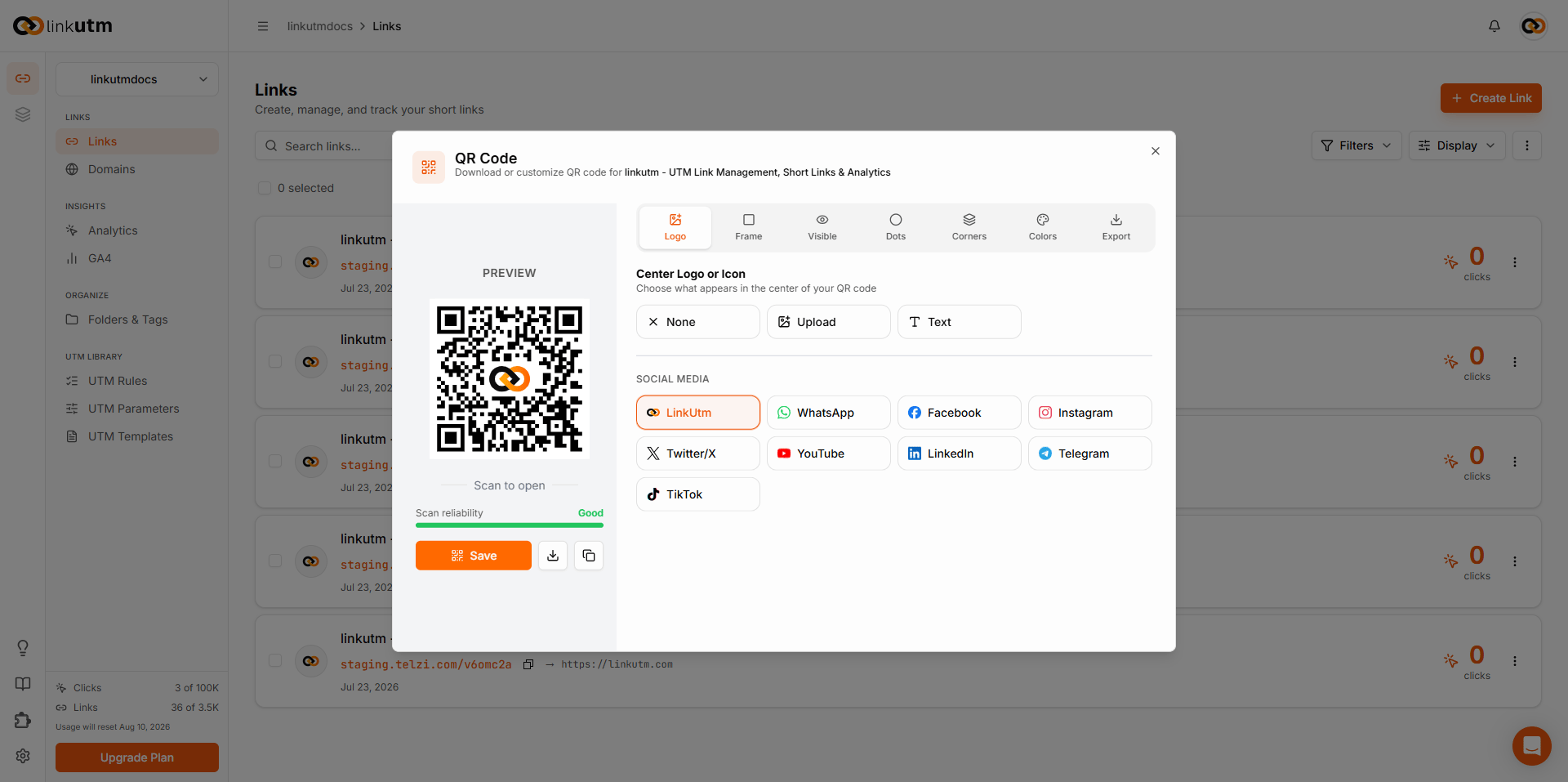
On the link row, click **More options**, then select **QR Code**. The panel opens with a live preview and customization tabs.
Adjust settings across the tabs. The preview updates in real time. Click **Save** or use the download button to export as PNG, SVG, or JPEG.
## Customization
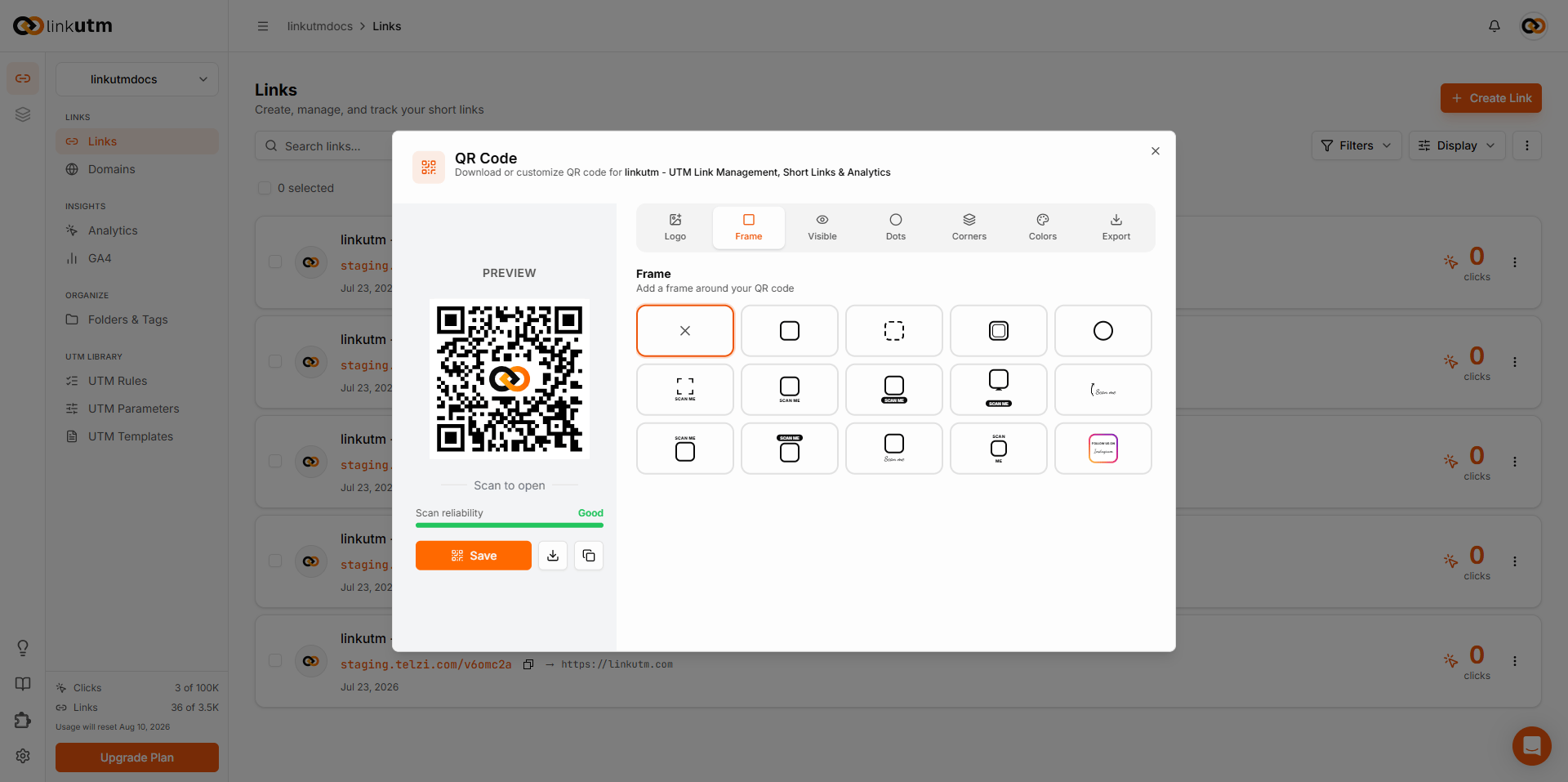
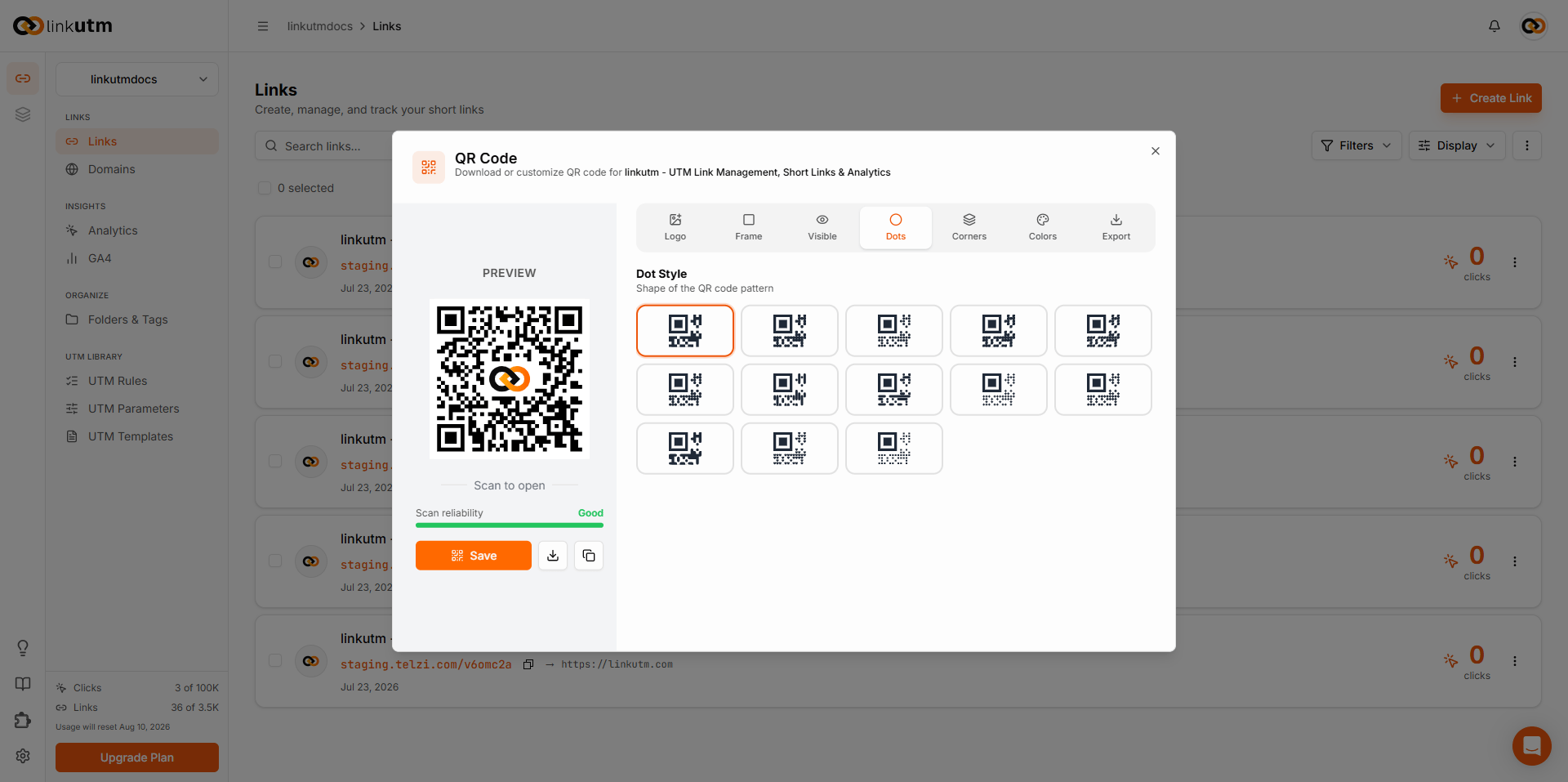
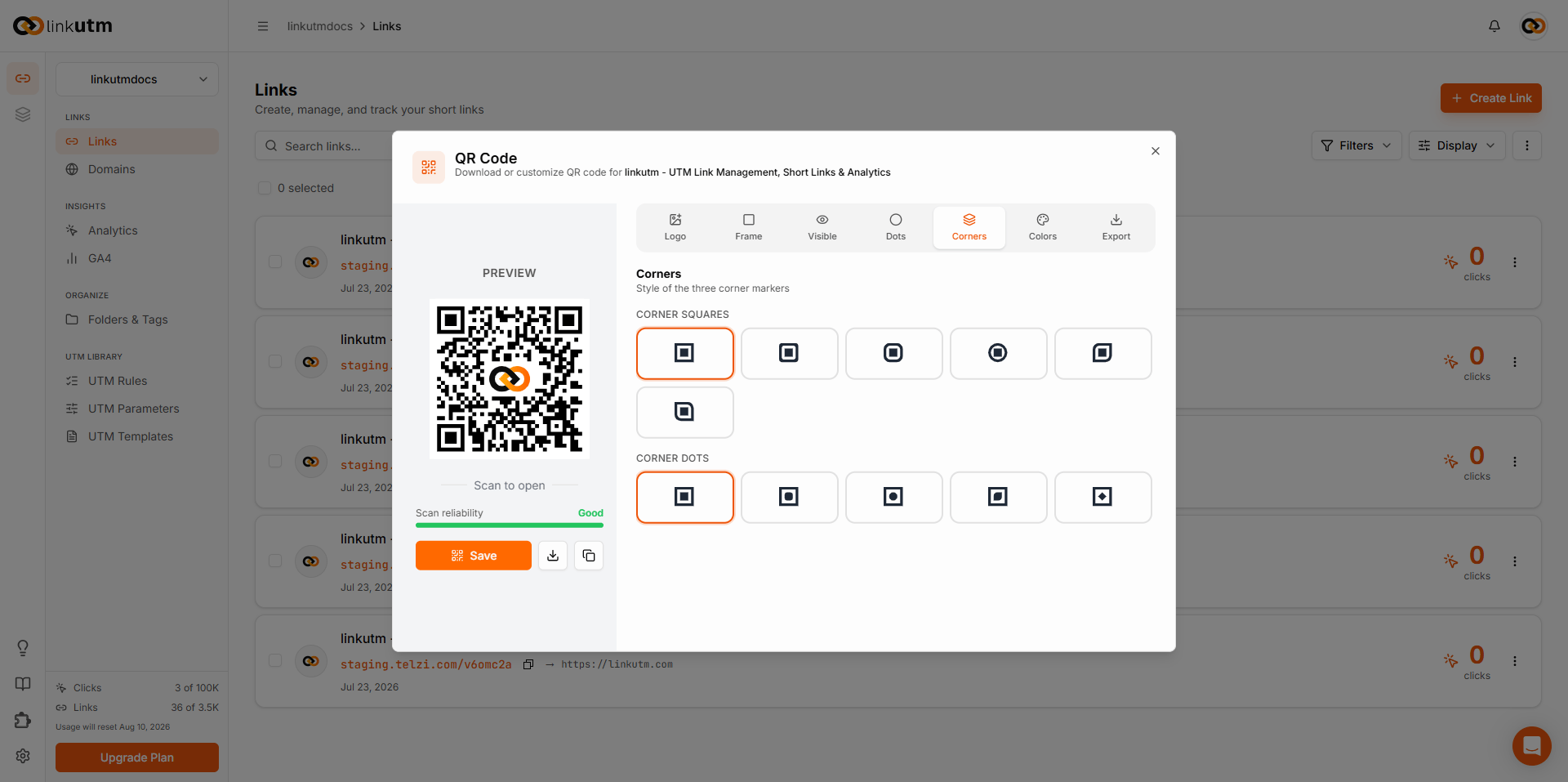
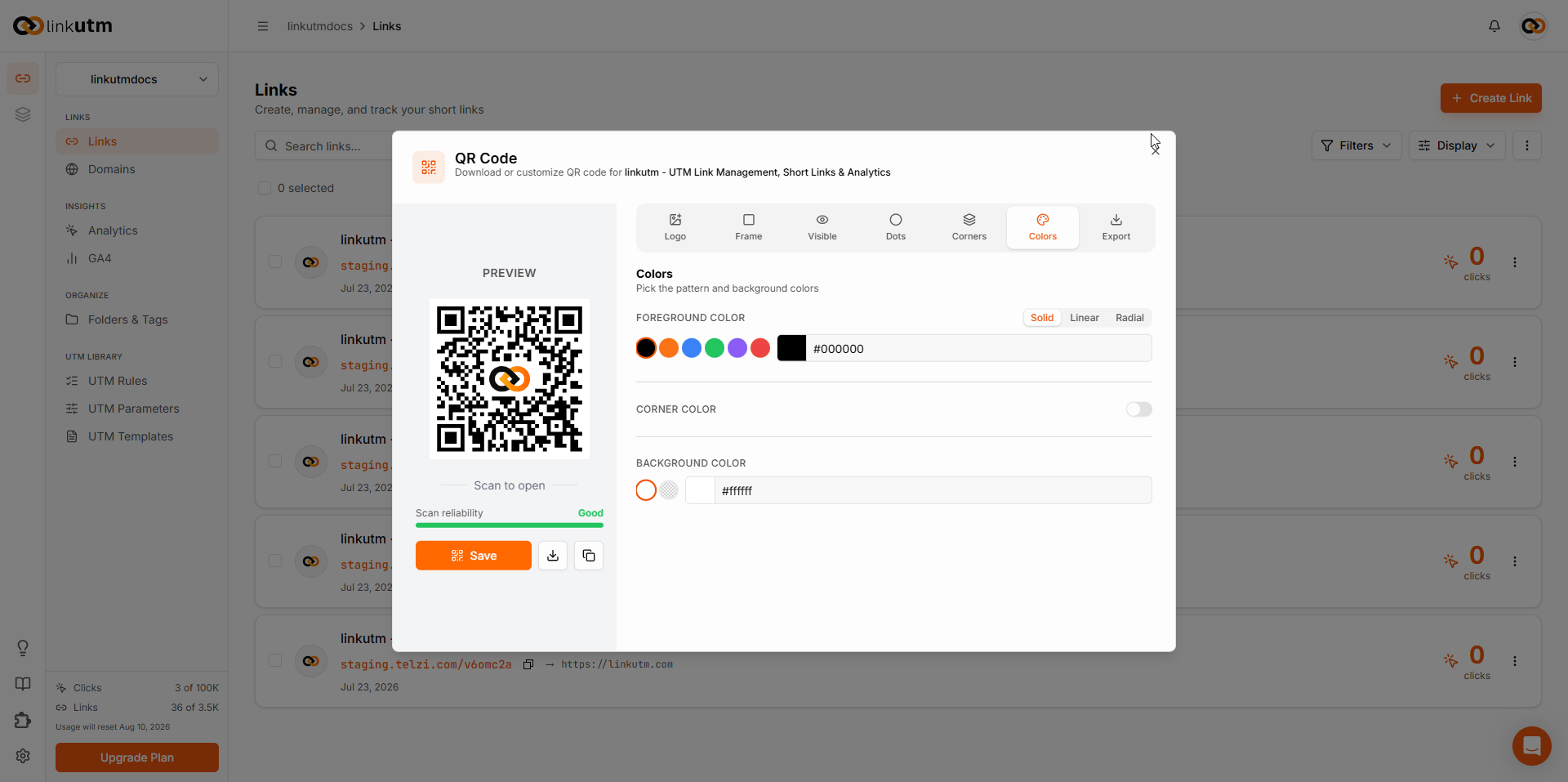
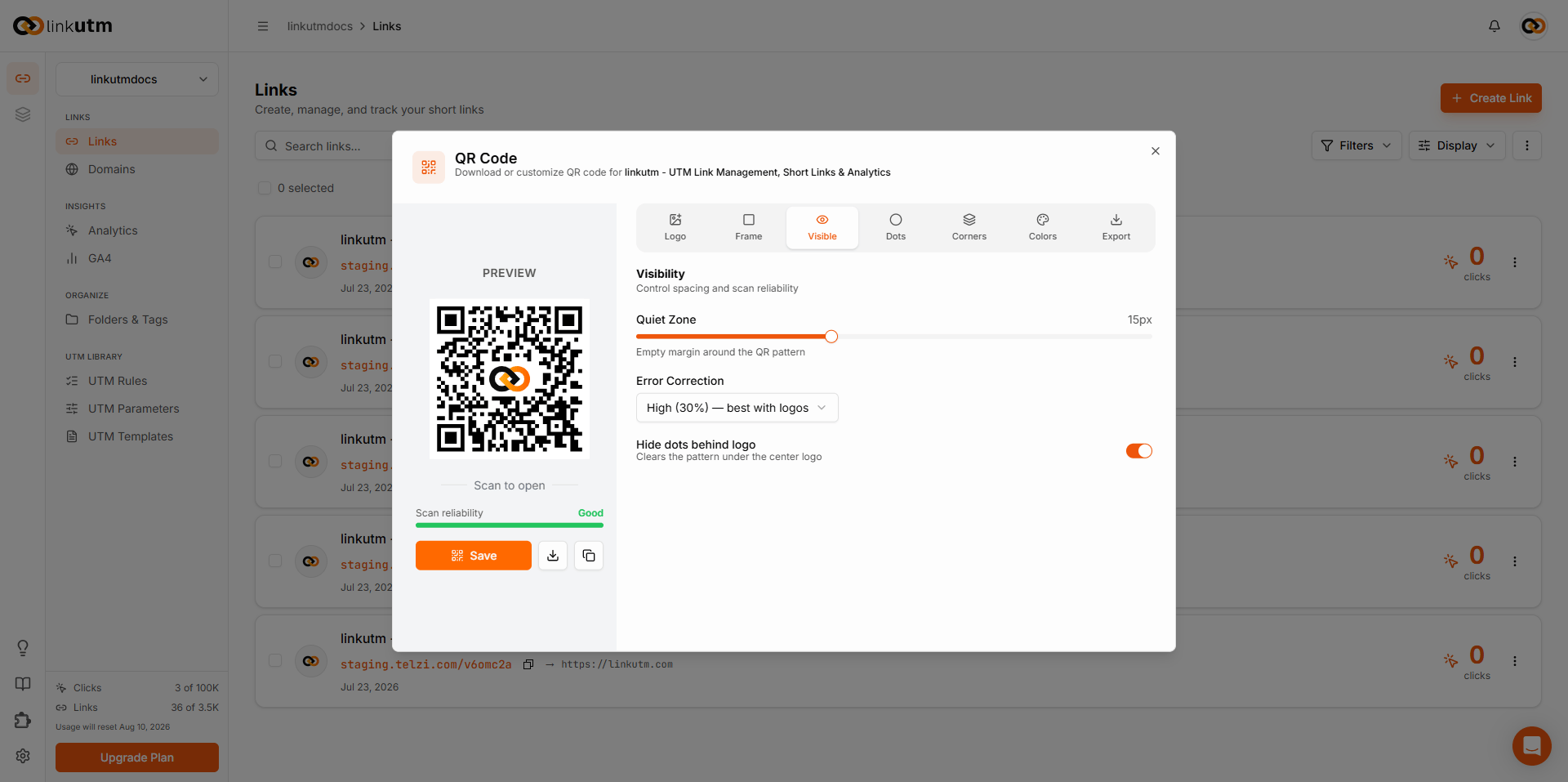
The QR panel has six tabs. Each controls a different visual aspect of the code.
**Logo** — Place a logo or icon in the center. Upload an image, enter text, or pick a social media preset: linkutm, WhatsApp, Facebook, Instagram, Twitter/X, YouTube, LinkedIn, Telegram, or TikTok.
 **Frame** — Add a border around the QR. Choose from 11 frame styles or leave it frameless.
 **Dots** — Change the shape of the QR dot pattern. 11 styles available.
 **Corners** — Style the three corner markers. Set corner square shape (6 options) and corner dot shape (5 options) independently.
 **Colors** — Set foreground, corner, and background colors. Foreground supports solid, linear gradient, and radial gradient fills. Toggle corner color on to set it separately from the foreground.
 **Visibility** — Control quiet zone size, error correction level, and whether the dots behind the center logo are hidden.
 ## Real-world example
Coffee shop loyalty stamp card:
```
Destination: https://acme-cafe.com/loyalty
utm_source: in_store
utm_medium: qr_code
utm_campaign: loyalty_v2
Custom slug: cafe-loyalty
```
Print QR for `go.acme-cafe.com/cafe-loyalty` on every receipt. Analytics shows scans by region (which store), device (iOS vs Android), time of day.
## Common mistakes
Bypasses linkutm - no click tracking, no UTM consistency. Always encode the **short URL**, not the long destination.
Changing the slug breaks every printed QR. Lock the slug before you commit to print.
A large or complex logo reduces scan reliability. Keep the logo small and set error correction to High. The scan reliability indicator in the panel turns red when the code is at risk.
## Edge cases
**Links with pixels enabled** show a brief loading page before the redirect. QR scans inside an in-app browser may show this page. Tracking accuracy is not affected.
## Real-world example
Coffee shop loyalty stamp card:
```
Destination: https://acme-cafe.com/loyalty
utm_source: in_store
utm_medium: qr_code
utm_campaign: loyalty_v2
Custom slug: cafe-loyalty
```
Print QR for `go.acme-cafe.com/cafe-loyalty` on every receipt. Analytics shows scans by region (which store), device (iOS vs Android), time of day.
## Common mistakes
Bypasses linkutm - no click tracking, no UTM consistency. Always encode the **short URL**, not the long destination.
Changing the slug breaks every printed QR. Lock the slug before you commit to print.
A large or complex logo reduces scan reliability. Keep the logo small and set error correction to High. The scan reliability indicator in the panel turns red when the code is at risk.
## Edge cases
**Links with pixels enabled** show a brief loading page before the redirect. QR scans inside an in-app browser may show this page. Tracking accuracy is not affected.