> ## Documentation Index
> Fetch the complete documentation index at: https://docs.linkutm.com/llms.txt
> Use this file to discover all available pages before exploring further.
# Managing workspaces
> Create, rename, soft-delete, restore, or permanently delete a workspace.
Operations on a workspace: create, update name/slug/logo, switch between workspaces, soft-delete (trash), restore, permanent delete.
## How to create
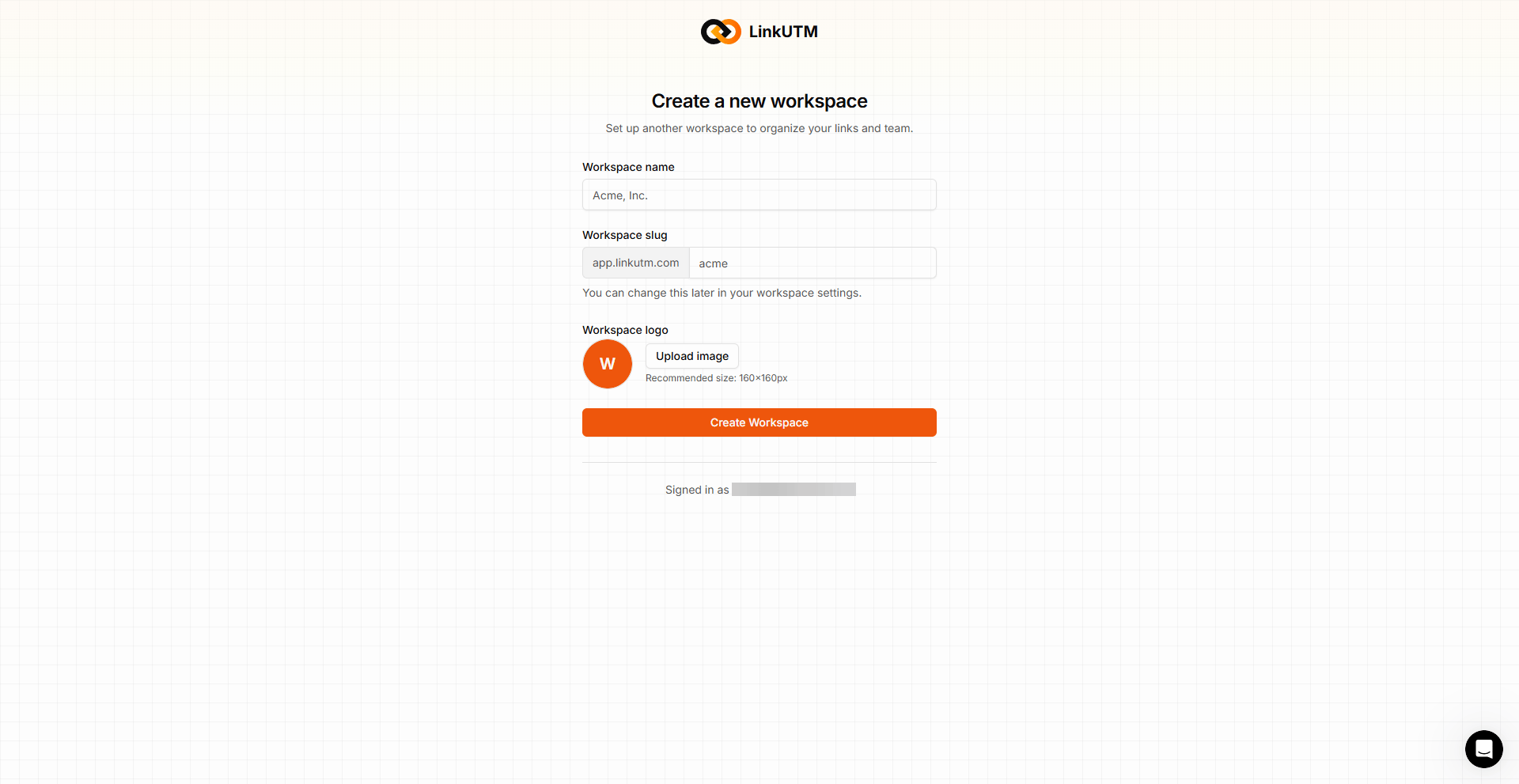
Top-left of the dashboard → **+ New workspace**.
Name is the display name. Slug must be lowercase letters, numbers, and hyphens; if you don't specify one, the system generates it from the name.
You become the **owner**. The workspace gets the system default short domain attached automatically. UTM rules start at defaults.
 ## How to update
Sidebar → **Settings** → **Workspace** (or `/{slug}/settings`).
* Name: case-insensitive unique per owner.
* Slug: must remain unique globally.
* Logo: image upload.
## How to delete
Two-stage delete process for safety:
## How to update
Sidebar → **Settings** → **Workspace** (or `/{slug}/settings`).
* Name: case-insensitive unique per owner.
* Slug: must remain unique globally.
* Logo: image upload.
## How to delete
Two-stage delete process for safety:
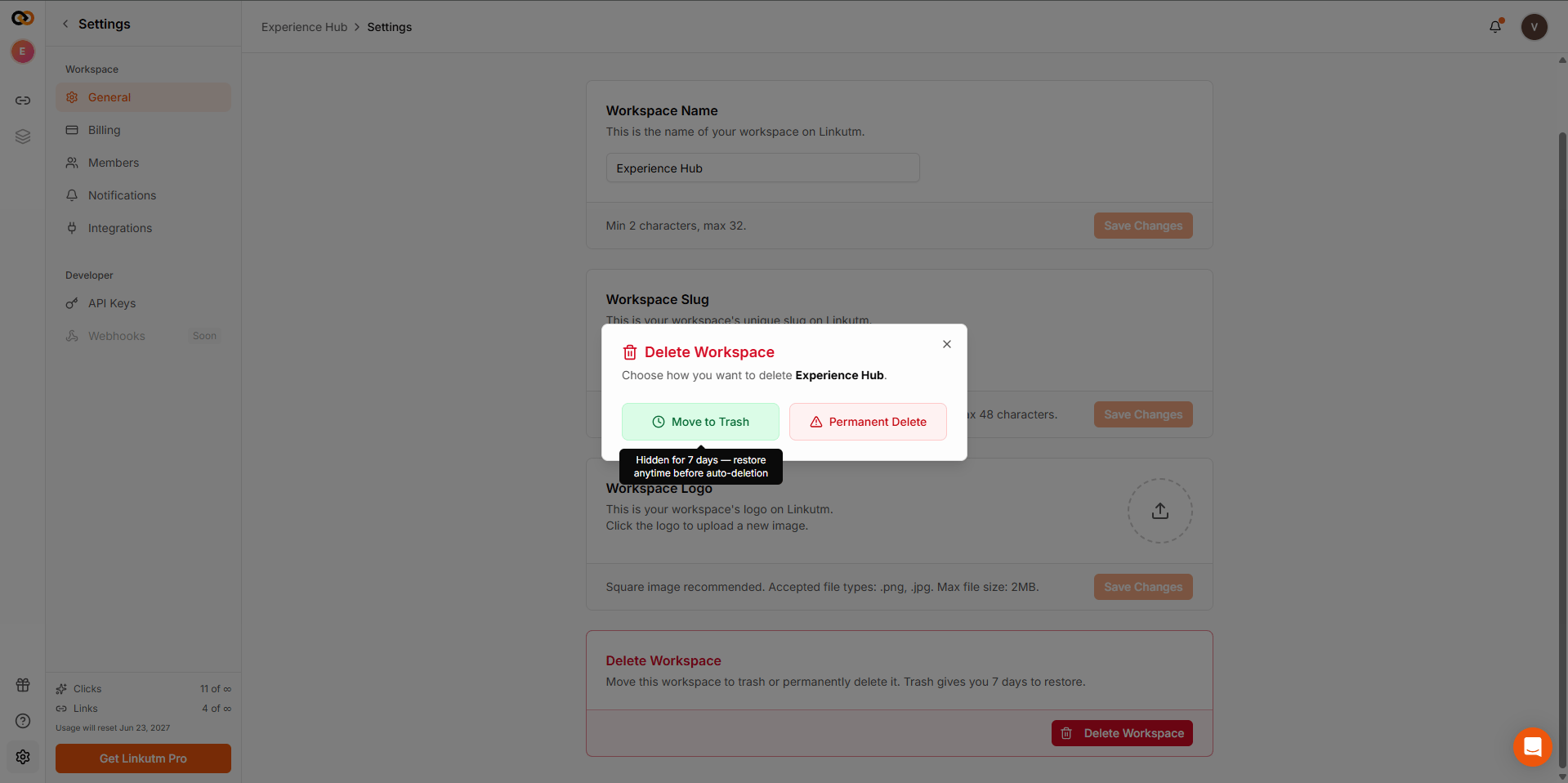 Settings → **Danger zone** → **Delete workspace**. Type `delete/{slug}` to confirm.
The workspace moves to trash. Members get a notification email. **Workspace remains restorable for 7 days.**
The next time you log in, soft-deleted workspaces appear in the workspace selector as **Deactivated workspaces**. Select it and click **Restore**. Owner only. Workspace becomes active again, members regain access.
After 7 days, the workspace is purged automatically. Or owner can hard-delete immediately by confirming again - owner email gets a final confirmation.
All data is gone: links, click history, templates, domains, members. Cannot be recovered.
Permanent delete is irreversible. Click history, custom domains (DNS records remain - you must reassign), member access, and billing history are removed. Export anything you need first.
## Real-world example
Closing out an agency client:
```text theme={null}
Day 0: Soft-delete "Client: Soylent". Members get email.
Day 1-6: Client requests final reports - restore, export, soft-delete again.
Day 7+: Auto-purged. Custom domain (soy.link) becomes orphan; client takes it back via DNS.
```
## Common mistakes
Soft-delete blocks workspace use. There's no "pause" mode short of removing members and not creating new links.
Soft-delete doesn't cancel subscriptions automatically. Cancel billing first via the billing page.
## Edge cases
**Only the owner can delete.** Even an `admin` cannot delete the workspace or manage billing - those two are owner-only. `member` and `viewer` roles cannot delete either.
**Soft-deleted workspace links still redirect**, until the 7-day purge. After purge, they stop working and show a "not found" page. If your custom domain is on the workspace, plan the cutover.
Settings → **Danger zone** → **Delete workspace**. Type `delete/{slug}` to confirm.
The workspace moves to trash. Members get a notification email. **Workspace remains restorable for 7 days.**
The next time you log in, soft-deleted workspaces appear in the workspace selector as **Deactivated workspaces**. Select it and click **Restore**. Owner only. Workspace becomes active again, members regain access.
After 7 days, the workspace is purged automatically. Or owner can hard-delete immediately by confirming again - owner email gets a final confirmation.
All data is gone: links, click history, templates, domains, members. Cannot be recovered.
Permanent delete is irreversible. Click history, custom domains (DNS records remain - you must reassign), member access, and billing history are removed. Export anything you need first.
## Real-world example
Closing out an agency client:
```text theme={null}
Day 0: Soft-delete "Client: Soylent". Members get email.
Day 1-6: Client requests final reports - restore, export, soft-delete again.
Day 7+: Auto-purged. Custom domain (soy.link) becomes orphan; client takes it back via DNS.
```
## Common mistakes
Soft-delete blocks workspace use. There's no "pause" mode short of removing members and not creating new links.
Soft-delete doesn't cancel subscriptions automatically. Cancel billing first via the billing page.
## Edge cases
**Only the owner can delete.** Even an `admin` cannot delete the workspace or manage billing - those two are owner-only. `member` and `viewer` roles cannot delete either.
**Soft-deleted workspace links still redirect**, until the 7-day purge. After purge, they stop working and show a "not found" page. If your custom domain is on the workspace, plan the cutover.