> ## Documentation Index
> Fetch the complete documentation index at: https://docs.linkutm.com/llms.txt
> Use this file to discover all available pages before exploring further.
# Team collaboration
> Invite members, assign roles, configure notifications.
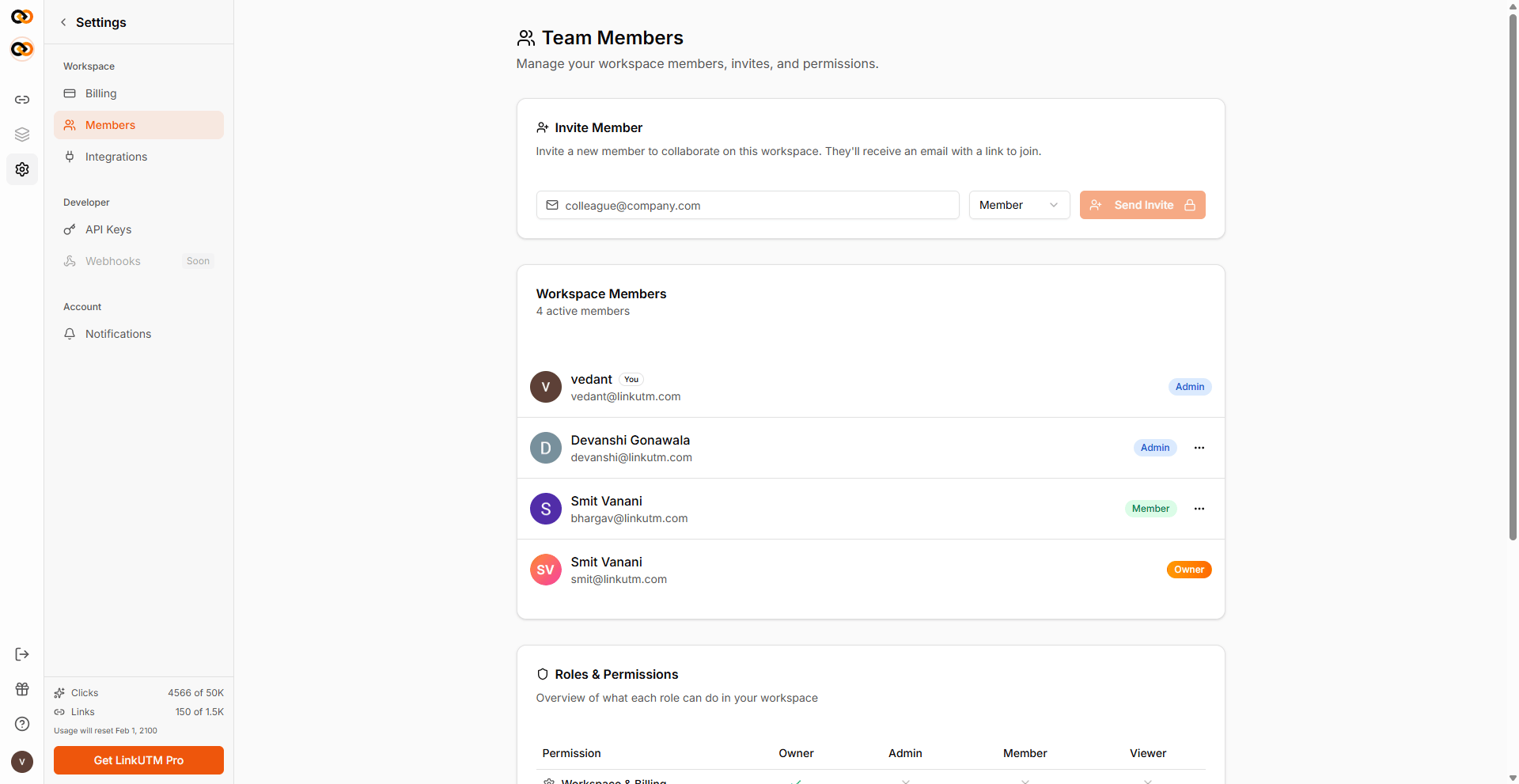
You can invite anyone to your workspace. Each person gets a role that controls what they can view and edit. Members manage their own notification preferences per workspace and can be removed at any time by the owner.
## Roles
| Role | What they can do |
| ---------- | ------------------------------------------------------------------------------------------------------------------------------------------------------------ |
| **Owner** | Full access to everything, including billing and deleting the workspace. The person who created the workspace. Cannot be removed or have their role changed. |
| **Admin** | Full access except billing and deleting the workspace. Everything else an owner can do. |
| **Member** | Default role when invited. Can create and edit links, manage folders, tags, and templates. |
| **Viewer** | Read-only access. Can view links and analytics but cannot create or edit. |
## How to invite
Sidebar → **Settings** → **Members** (or **Team**).
Enter their email and select a role. The invite is sent by email and expires after 7 days.
The invite is tied to the email it was sent to. The person must sign in with that exact email address to accept it.
Resend to reset the 7-day expiry, or cancel to remove the invite.
 ## How to accept an invite
The invitee clicks the link in the email. They sign in (or create an account with the same email) and confirm.
## Removing members
The owner and admin can remove any member except themselves.
The member loses access immediately. Links they created stay in the workspace.
## Per-member notifications
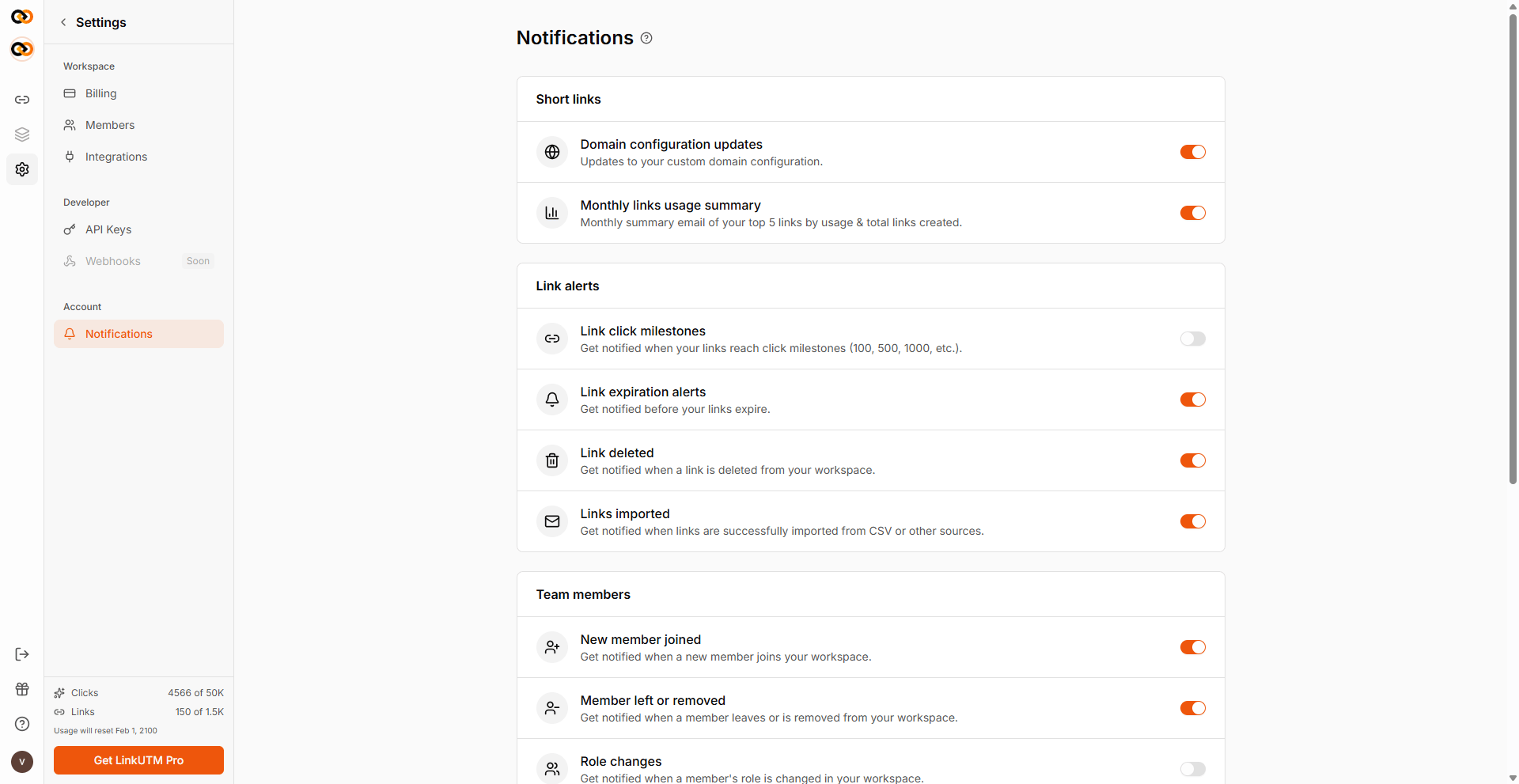
Each member controls what triggers an email notification for them:
| Notification | When you get it |
| ---------------- | ------------------------------------------------------------------- |
| New link created | A teammate creates a link in this workspace |
| Click milestones | Your link hits 100, 500, 1k, 5k, 10k, 50k, 100k, 500k, or 1M clicks |
| Team changes | A member joins, leaves, or has their role changed |
| Weekly report | Weekly digest of workspace activity |
## How to accept an invite
The invitee clicks the link in the email. They sign in (or create an account with the same email) and confirm.
## Removing members
The owner and admin can remove any member except themselves.
The member loses access immediately. Links they created stay in the workspace.
## Per-member notifications
Each member controls what triggers an email notification for them:
| Notification | When you get it |
| ---------------- | ------------------------------------------------------------------- |
| New link created | A teammate creates a link in this workspace |
| Click milestones | Your link hits 100, 500, 1k, 5k, 10k, 50k, 100k, 500k, or 1M clicks |
| Team changes | A member joins, leaves, or has their role changed |
| Weekly report | Weekly digest of workspace activity |
 ## Account-level notifications
Under **Account → Notifications**, each user has separate settings for system-wide events: domain updates, link expiry, billing alerts, and security alerts.
## Real-world example
Agency client team:
```text theme={null}
Workspace: Client: Globex
Members:
- jane@acme-agency.com - owner (account manager)
- kim@acme-agency.com - member (campaign analyst)
- nick@acme-agency.com - member (designer)
```
Jane gets all notifications. Kim gets click milestones and weekly report. Nick disables everything except weekly report.
## Common mistakes
Each workspace has a maximum number of members. New invites are blocked once the workspace is at capacity.
You cannot invite someone who is already a member. Change their role directly from the Members page instead.
The owner cannot be removed from their own workspace.
## Edge cases
**Invite expiry.** Invites expire after 7 days. Resend the invite from the Members page to generate a new one.
**Email matching.** Invites match the exact email address sent. If the person signs in with a different address, the invite will not connect.
**Lowering the member limit.** If a workspace's member limit drops below the current count, existing members keep access. The new limit only blocks new invites until headcount comes down.
## Account-level notifications
Under **Account → Notifications**, each user has separate settings for system-wide events: domain updates, link expiry, billing alerts, and security alerts.
## Real-world example
Agency client team:
```text theme={null}
Workspace: Client: Globex
Members:
- jane@acme-agency.com - owner (account manager)
- kim@acme-agency.com - member (campaign analyst)
- nick@acme-agency.com - member (designer)
```
Jane gets all notifications. Kim gets click milestones and weekly report. Nick disables everything except weekly report.
## Common mistakes
Each workspace has a maximum number of members. New invites are blocked once the workspace is at capacity.
You cannot invite someone who is already a member. Change their role directly from the Members page instead.
The owner cannot be removed from their own workspace.
## Edge cases
**Invite expiry.** Invites expire after 7 days. Resend the invite from the Members page to generate a new one.
**Email matching.** Invites match the exact email address sent. If the person signs in with a different address, the invite will not connect.
**Lowering the member limit.** If a workspace's member limit drops below the current count, existing members keep access. The new limit only blocks new invites until headcount comes down.