> ## Documentation Index
> Fetch the complete documentation index at: https://docs.linkutm.com/llms.txt
> Use this file to discover all available pages before exploring further.
# UTM Parameter library
> The workspace dictionary of allowed UTM values. Powers autocomplete and consistency.
## What are UTMs?
UTMs (Urchin Tracking Modules) are short tags you add to the end of any URL so your analytics tool can tell you exactly where each visitor came from. Without them, GA4 and other tools report most traffic as "Direct," which means the origin is unknown.
A UTM-tagged link looks like this:
```
https://yoursite.com/pricing?utm_source=newsletter&utm_medium=email&utm_campaign=q2-launch
```
When someone clicks it, GA4 reads those tags and records: this session came from `newsletter`, via `email`, for campaign `q2-launch`. You can then compare newsletter vs Google Ads vs LinkedIn in one report, for the same campaign.
The five standard parameters are: `utm_source` (platform), `utm_medium` (channel type), `utm_campaign` (campaign name), `utm_content` (creative variant), and `utm_term` (paid keyword). The first three are the ones that matter most.
***
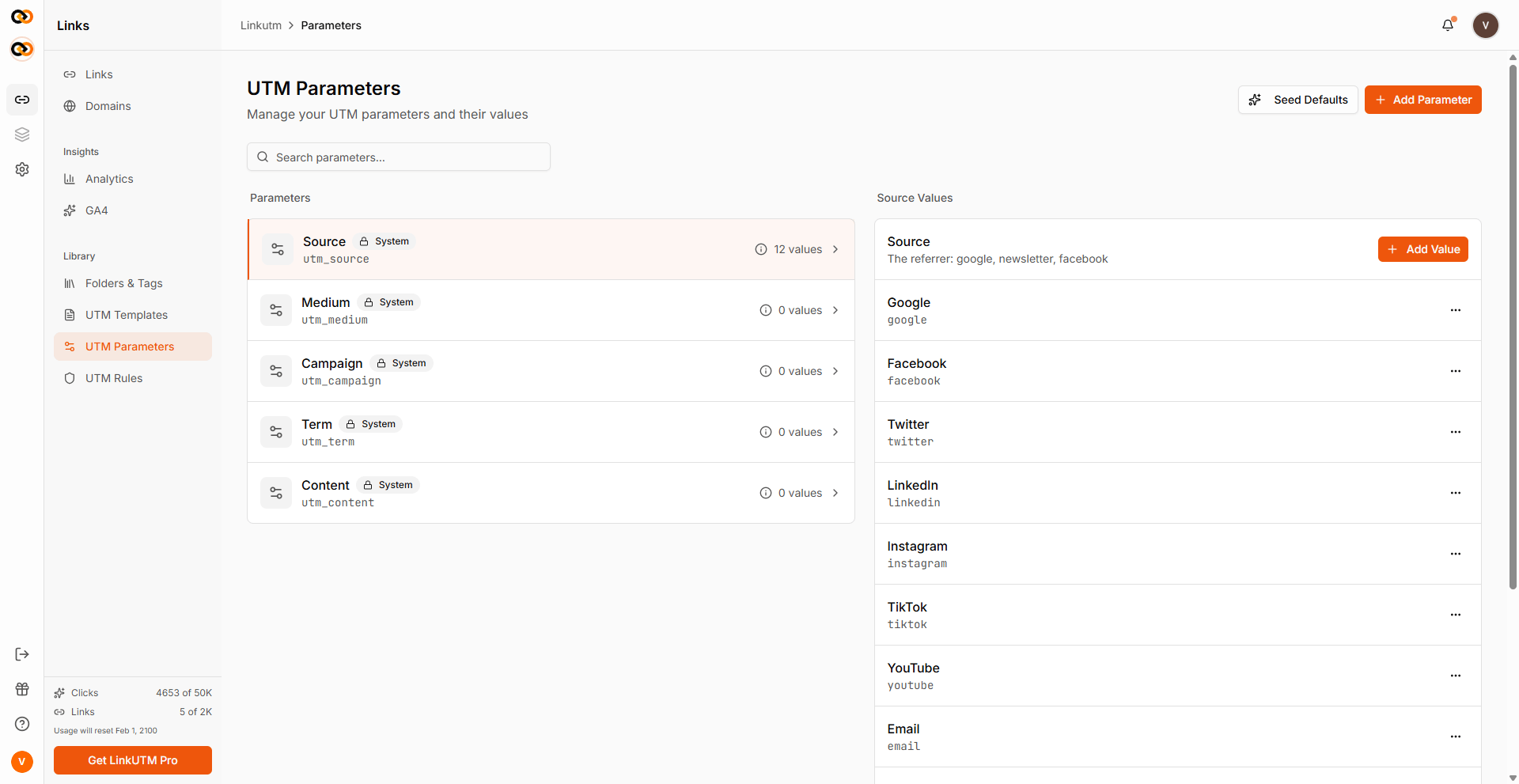
The Parameter library is your workspace's hierarchical dictionary of UTM values:
* **Parents**: the five standard fields - `source`, `medium`, `campaign`, `term`, `content`.
* **Children**: the allowed values under each parent - e.g., under `source`: `google`, `facebook`, `newsletter`, etc.
The link builder's autocomplete pulls from this library.
## When to use it
* You want autocomplete suggestions when team members fill UTMs.
* You want a canonical list of acceptable values that everyone sees.
* You're enforcing values via UTM Rules.
The five parents (`source`/`medium`/`campaign`/`term`/`content`) are built-in and can't be deleted. Only their display name and tooltip can be edited. All child values are fully editable. Common values are pre-loaded when your workspace is created.
## How to manage it
Sidebar → **UTM Parameters**. Tree view: parents on top, children nested.
Click a parent (e.g., `source`) → **Add value**. Required: `name` (display) + `code` (lowercase identifier, becomes the actual UTM value). Optional: `tooltip`, `description`.
* Edit name and metadata anytime.
* Delete only if no children depend on it.
 ## Real-world example
A B2B SaaS company customizes the library:
```
source/
├── google
├── linkedin
├── product_hunt
├── partner_capterra
├── partner_g2
└── newsletter
medium/
├── cpc
├── paid_social
├── email
├── content_partnership ← custom
└── webinar ← custom
```
The autocomplete now reflects how this team actually drives traffic - partner sites, content partnerships, webinars - not generic SaaS defaults.
## Common mistakes
Codes are forced lowercase on insert. `Newsletter` becomes `newsletter`. Don't try to maintain casing here.
Codes are unique per workspace. If you try to add a value that already exists (e.g., `google` when it's already there), the save will fail. Check the existing list first.
You can't delete a parent parameter (like `source`) while it still has child values under it. Delete the child values first, then the parent.
Library powers autocomplete. It suggests values but doesn't block anything. To enforce naming standards, configure [UTM Rules](/utm-rules/overview) with prohibited values and character restrictions.
## Real-world example
A B2B SaaS company customizes the library:
```
source/
├── google
├── linkedin
├── product_hunt
├── partner_capterra
├── partner_g2
└── newsletter
medium/
├── cpc
├── paid_social
├── email
├── content_partnership ← custom
└── webinar ← custom
```
The autocomplete now reflects how this team actually drives traffic - partner sites, content partnerships, webinars - not generic SaaS defaults.
## Common mistakes
Codes are forced lowercase on insert. `Newsletter` becomes `newsletter`. Don't try to maintain casing here.
Codes are unique per workspace. If you try to add a value that already exists (e.g., `google` when it's already there), the save will fail. Check the existing list first.
You can't delete a parent parameter (like `source`) while it still has child values under it. Delete the child values first, then the parent.
Library powers autocomplete. It suggests values but doesn't block anything. To enforce naming standards, configure [UTM Rules](/utm-rules/overview) with prohibited values and character restrictions.