

What it is
Tags are color-coded labels on links. Each link can have many tags. Each tag belongs to one workspace. Use them for any cross-cutting attribute that doesn’t fit a single flat folder.When to use it
- Status:
active,paused,draft. - Channel cohort:
paid-search,paid-social,email. - Quarterly review:
q2-2025,q3-2025. - A/B variants you might compare across campaigns.
How to use it
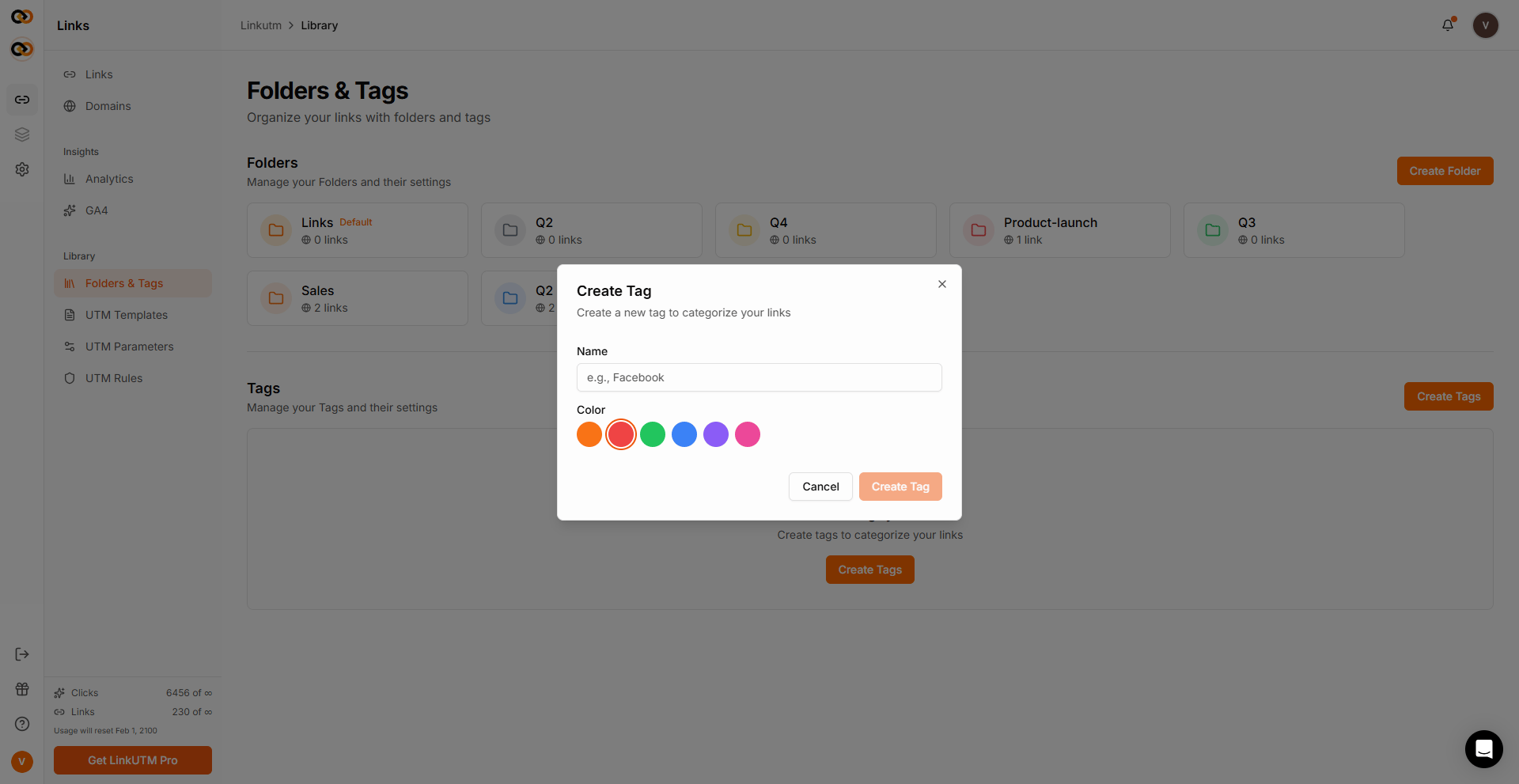
Create a tag
Sidebar → Folders & Tags → Create tag. Name it (case-insensitive unique per workspace), pick a hex color (default orange).
Real-world example
Content team running a quarterly content audit:| Tag | Color | Meaning |
|---|---|---|
evergreen | Green | Always-on content |
seasonal | Yellow | Tied to a season/holiday |
experiment | Purple | A/B test variants |
archive-q1-2025 | Gray | Last quarter, retained for reporting |
seasonal + experiment. Folder might be Email Campaigns.
Common mistakes
Folders pretending to be tags
Folders pretending to be tags
Duplicate names
Duplicate names
Tag names are case-insensitive unique per workspace.
Email and email collide.Color overload
Color overload
More than 8-10 colors becomes visual noise. Reuse colors with distinct names.
Edge cases
Tag limit. Each workspace has a maximum number of tags. Hitting it returns a clear error.
Deleting a tag removes it from every link automatically. Click history is unaffected.