Documentation Index

Fetch the complete documentation index at: https://docs.linkutm.com/llms.txt

Use this file to discover all available pages before exploring further.

Folders

Learn how to organize your links using folders in linkutm for better campaign management.

Overview

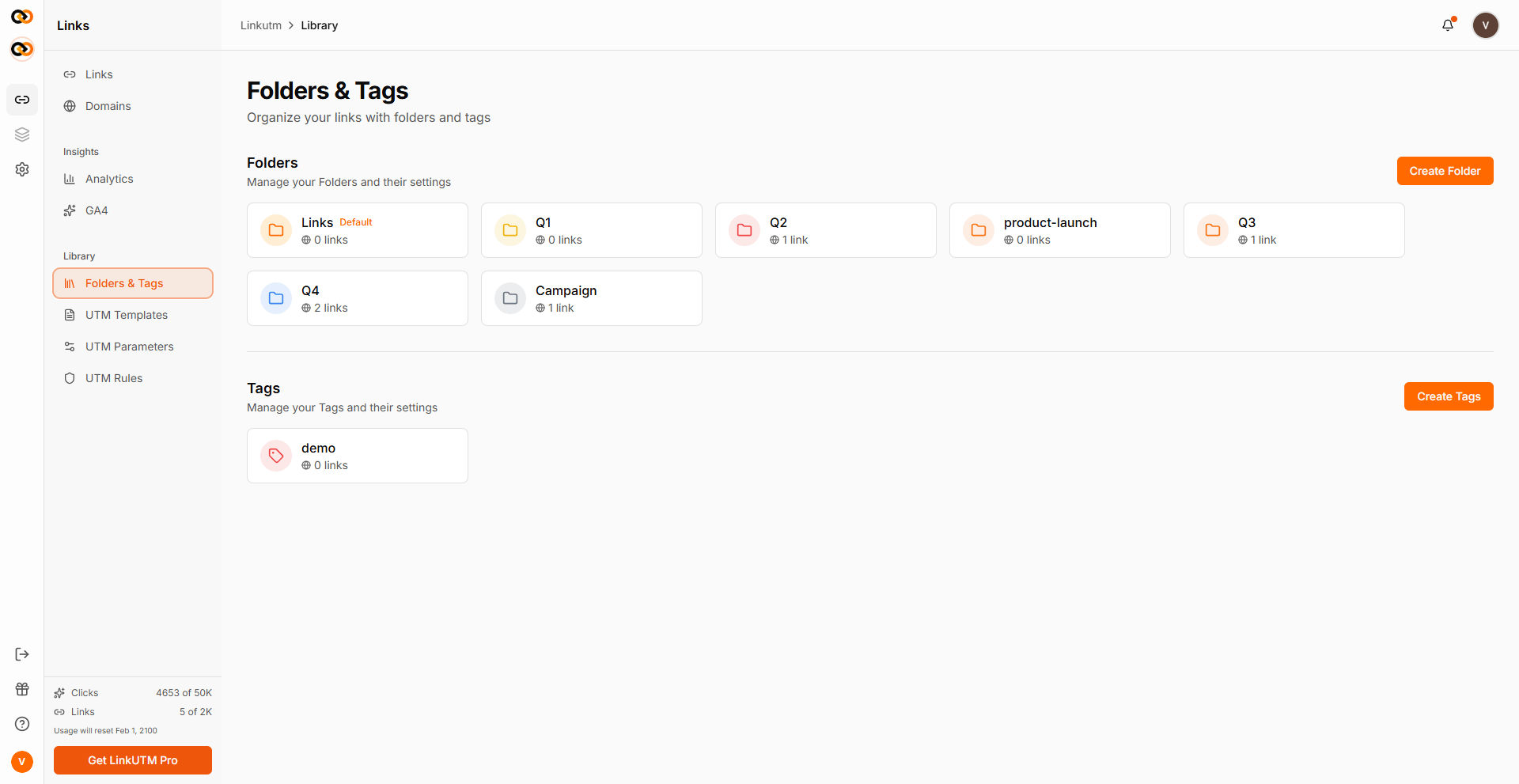
Folders help you organize your links into logical groups, making it easy to find, manage, and analyze links for specific campaigns, clients, or time periods. With folders, you can keep your workspace clean and your links well-organized.

Why Use Folders?

Benefits

Better Organization
  • Group related links together
  • Separate campaigns or projects
  • Keep workspace clean and organized
Easier Navigation
  • Quickly find specific campaign links
  • Filter by folder
  • Reduce clutter
Team Collaboration
  • Clear project structure
  • Easy handoffs between team members
  • Organized workspace for everyone
Better Analytics
  • View metrics by folder
  • Compare folder performance
  • Track campaign groups

Creating Folders

  1. When creating a new link, find the Folder dropdown
  2. Click Create New Folder
  3. Enter folder name
  4. Click Save or Create
  5. The folder is now available for this and future links

Method 2: From Folders Page

  1. Navigate to Folders in the sidebar (if available)
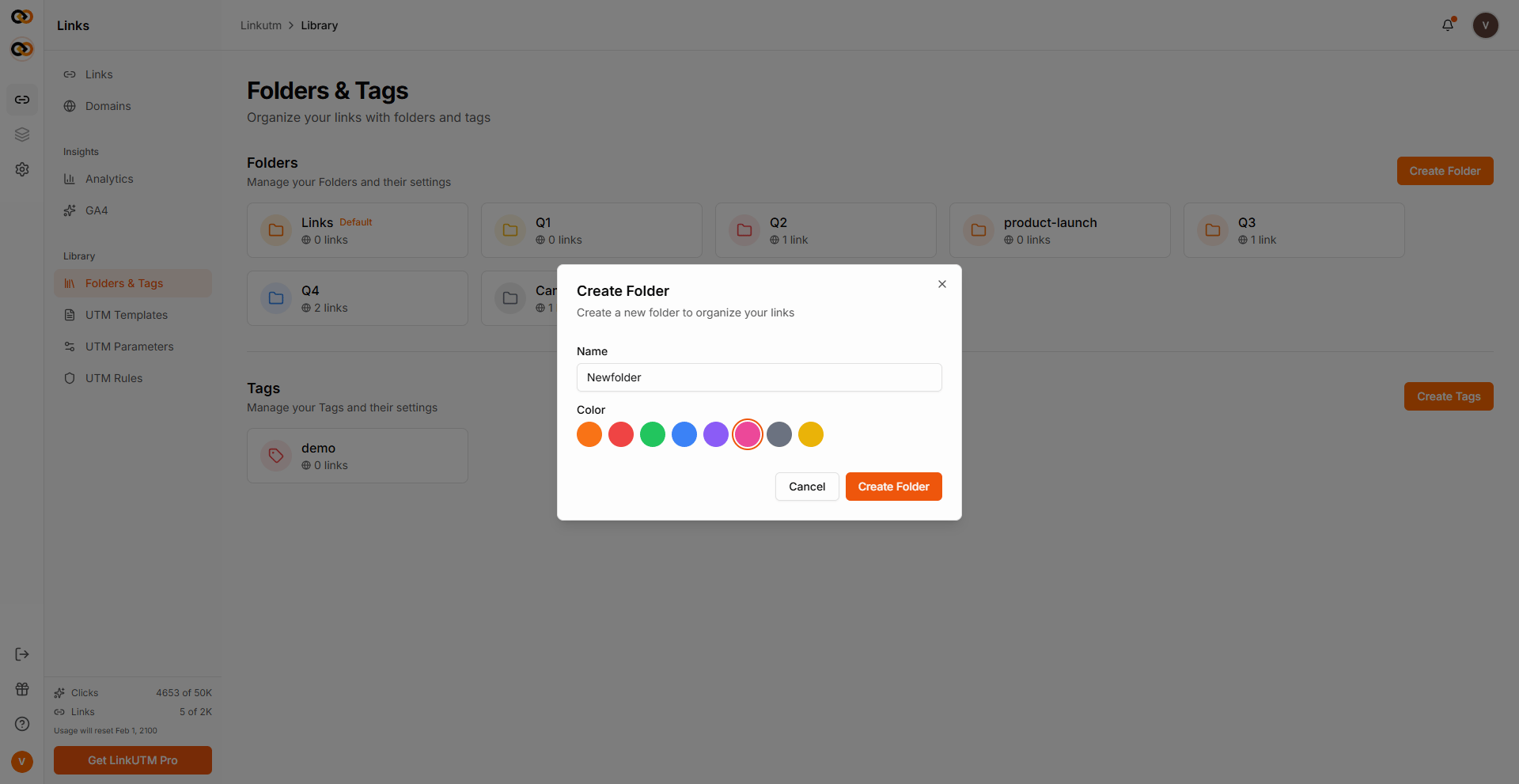
  2. Click Create Folder or + New Folder
  3. Enter folder details:
    • Name: Descriptive folder name
    • Description: Optional folder description (if supported)
  4. Click Create
  1. Go to your Links page
  2. Look for folder management options
  3. Click Add Folder or similar option
  4. Name your folder
  5. Save

Folder Organization Strategies

By Campaign Type

Organize folders based on marketing channel:
πŸ“ Email Campaigns
πŸ“ Social Media Ads
πŸ“ Google Ads
πŸ“ Content Marketing
πŸ“ Partner Referrals
πŸ“ Offline Marketing

By Time Period

Organize folders chronologically:
πŸ“ 2024 Q1 Campaigns
πŸ“ 2024 Q2 Campaigns
πŸ“ January 2024
πŸ“ February 2024

By Client or Project

Ideal for agencies:
πŸ“ Client A - Fashion Brand
πŸ“ Client B - Tech Startup
πŸ“ Client C - Restaurant Chain
πŸ“ Internal Marketing

By Campaign Goal

Organize by objective:
πŸ“ Lead Generation
πŸ“ Product Launches
πŸ“ Brand Awareness
πŸ“ Conversions
πŸ“ Retargeting

By Status

Track campaign stages:
πŸ“ Active Campaigns
πŸ“ Scheduled Campaigns
πŸ“ Completed Campaigns
πŸ“ Testing & Draft

Hybrid Approach

Combine strategies:
πŸ“ 2024 Q1 / Social Media
πŸ“ 2024 Q1 / Email
πŸ“ 2024 Q2 / Social Media
πŸ“ Client A / Active
πŸ“ Client A / Archive

Managing Folders

Viewing Folder Contents

  1. Go to Links page
  2. Click the Folder dropdown or filter
  3. Select a folder to view its links
  4. See all links within that folder

Default Folder

Set a default folder for new links:
  1. Go to folder settings
  2. Mark a folder as Default
  3. All new links automatically assigned to this folder
  4. Can be changed during link creation
Benefits of Default Folder:
  • Streamlines link creation
  • Ensures no links are unorganized
  • Can be changed per-link as needed
Single Link:
  1. Find the link to move
  2. Click Edit on the link
  3. Change the Folder dropdown
  4. Click Save
Multiple Links:
  1. Select multiple links (if bulk actions supported)
  2. Click Bulk Actions or Move
  3. Choose destination folder
  4. Confirm move

Renaming Folders

  1. Navigate to folder settings
  2. Find the folder to rename
  3. Click Edit or Rename
  4. Enter new name
  5. Save changes
Note: Renaming doesn’t affect links or analytics

Deleting Folders

Empty Folders

  1. Ensure folder has no links
  2. Navigate to folder settings
  3. Click Delete or trash icon
  4. Confirm deletion
Option 1: Move Links First
  1. Move all links to another folder
  2. Delete the now-empty folder
Option 2: Delete with Reassignment
  1. Delete the folder
  2. System prompts to reassign links
  3. Choose a destination folder
  4. Confirm deletion
Warning: Some systems may delete links with folder. Always check before confirming!

Folder Features

Folder Statistics

View key metrics for each folder:
  • Total Links: Number of links in folder
  • Total Clicks: Aggregate clicks across all links
  • Active Links: Links currently active
  • Created Date: When folder was created
Find folders quickly:
  1. Use the search bar
  2. Type folder name
  3. Filter results

Folder Filtering

Filter your links page by folder:
  1. Click Folder filter
  2. Select one or more folders
  3. View only links from those folders

Folder Sorting

Sort folders by:
  • Name (A-Z or Z-A)
  • Date Created (Newest or Oldest)
  • Link Count (Most to Least)
  • Recent Activity (Most Recent)

Folder Best Practices

Naming Conventions

Use Clear, Descriptive Names
  • βœ… Good: β€œ2024 Q1 Facebook Ads”
  • βœ… Good: β€œClient - Acme Corp”
  • ❌ Avoid: β€œFolder 1”, β€œMisc”, β€œStuff”
Include Context
  • Add time periods
  • Include campaign type
  • Specify client or project
Be Consistent
  • Use the same format across all folders
  • Establish naming rules for your team
  • Document your conventions

Folder Structure

Don’t Over-Organize
  • Too many folders can be overwhelming
  • Aim for 5-15 main folders
  • Use tags for additional categorization
Regular Maintenance
  • Archive old campaigns
  • Delete unused folders
  • Consolidate similar folders
Use Folders + Tags
  • Folders for broad categories
  • Tags for specific attributes
  • Combine for powerful filtering

Example Folder Structures

For Marketing Teams

πŸ“ Email Marketing
   - Newsletter links
   - Promotional emails
   - Drip campaigns

πŸ“ Paid Social
   - Facebook Ads
   - Instagram Ads
   - LinkedIn Ads

πŸ“ Paid Search
   - Google Ads
   - Bing Ads

πŸ“ Content Marketing
   - Blog CTAs
   - E-book downloads
   - Webinar registrations

πŸ“ Events
   - Conference links
   - Webinar links
   - Sponsorships

For Agencies

πŸ“ Client: TechStartup Inc
   - Q1 2024 Campaigns
   - Q2 2024 Campaigns

πŸ“ Client: Fashion Brand Co
   - Spring Collection
   - Summer Sale

πŸ“ Client: Local Restaurant
   - Social Media
   - Email Promotions

πŸ“ Internal Marketing
   - Agency blog
   - Lead generation

For E-commerce

πŸ“ Product Launches
   - New arrivals
   - Feature announcements

πŸ“ Seasonal Sales
   - Summer Sale 2024
   - Black Friday 2024
   - Holiday Season

πŸ“ Abandoned Cart
   - Email series
   - Retargeting ads

πŸ“ Loyalty Program
   - Member emails
   - Exclusive offers

For SaaS Companies

πŸ“ Lead Generation
   - Trial signups
   - Demo requests
   - Webinar registrations

πŸ“ Customer Onboarding
   - Welcome emails
   - Tutorial links
   - Resource center

πŸ“ Product Updates
   - Feature announcements
   - Release notes
   - Update notifications

πŸ“ Customer Retention
   - Upgrade campaigns
   - Re-engagement
   - Success stories

Combining Folders with Other Features

Folders + Tags

Use both for multi-dimensional organization: Example:
  • Folder: β€œ2024 Q1 Campaigns”
  • Tags: β€œFacebook” (Blue), β€œActive” (Green), β€œHigh Priority” (Red)
Benefits:
  • Folder for time/project context
  • Tags for status, platform, priority
  • Filter by both for precise results

Folders + Templates

Create templates with default folders:
  1. Create a UTM template
  2. Include default folder assignment
  3. New links from template auto-assign to folder

Folders + Analytics

Analyze performance by folder:
  1. Navigate to Analytics
  2. Filter by specific folder
  3. View aggregate metrics
  4. Compare folder performance

Troubleshooting

Can’t Find a Folder

Solutions:
  • Use folder search
  • Check if folder was deleted
  • Verify you have access permissions
  • Ensure you’re in the correct project
Solutions:
  • Check link’s folder assignment
  • Move link to correct folder
  • Verify default folder setting
  • Review recent edits in activity log

Folder Deleted Accidentally

Solutions:
  • Check if undo is available (immediately after deletion)
  • Contact support for recovery (if available)
  • Links may have been moved to default folder
  • Check folder archive (if available)

Can’t Delete Folder

Possible Reasons:
  • Folder contains links (move or delete them first)
  • Folder is set as default (change default first)
  • Insufficient permissions
  • System default folder (cannot be deleted)

Permissions & Access

Team Access

Project-Level Folders

  • Folders are typically project-specific
  • Create separate folders per project
  • Keeps projects organized and separate

Tips for Success

  1. Start Simple: Begin with a few main folders
  2. Grow Organically: Add folders as needed
  3. Review Regularly: Archive or delete old folders
  4. Document Structure: Share folder conventions with team
  5. Use Templates: Automate folder assignment
  6. Combine with Tags: Use both for best organization
  7. Regular Cleanup: Keep folder list manageable

Need Help?

For questions about folder organization or best practices, contact our support team.