

When to use it
- Quarterly cleanup of unused templates.
- Renaming templates after a brand/strategy shift.
How to manage them
1
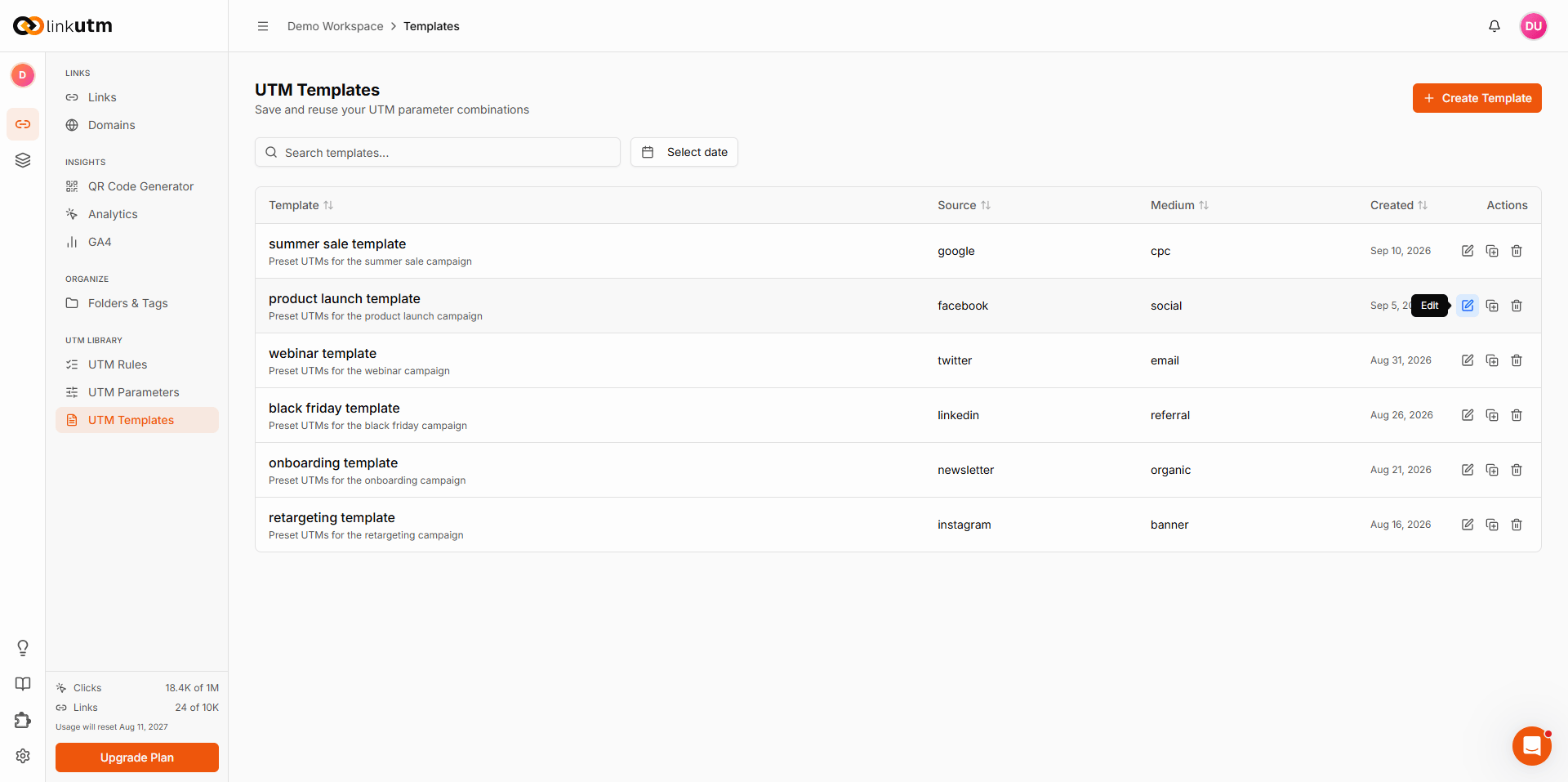
List view
Sidebar → UTM Templates. Default sort: active templates first, then most-recently-created.
2
Search
Search matches name, description, source, medium, campaign - useful when you have 50+ templates.
3
Edit
Click any template → Edit. Update name, description, or any UTM field. Past links unaffected.
4
Delete
Delete: permanent. Past links keep their values, but the template is gone.
Real-world example
Quarterly cleanup of an agency workspace:Common mistakes
Editing a template assuming retroactive changes
Editing a template assuming retroactive changes
Past links keep their original values. Edits affect future applications only.