

Stack at a glance. linkutm = workspace + links + UTMs + analytics. Everything is scoped to a workspace. Run multiple workspaces (e.g., one per client) and switch between them from the workspace picker.
1. Create an account
1
Sign up
Go to app.linkutm.com and sign in with email/password or Google. Verify your email if prompted.
2
Name your workspace
During onboarding you pick a workspace name (your company or client) and a slug. The slug becomes part of your URL:
app.linkutm.com/{slug}/links.3
Done
You land in the workspace with a default short domain attached. Add a custom domain later for branded links.
2. Create your first link
1
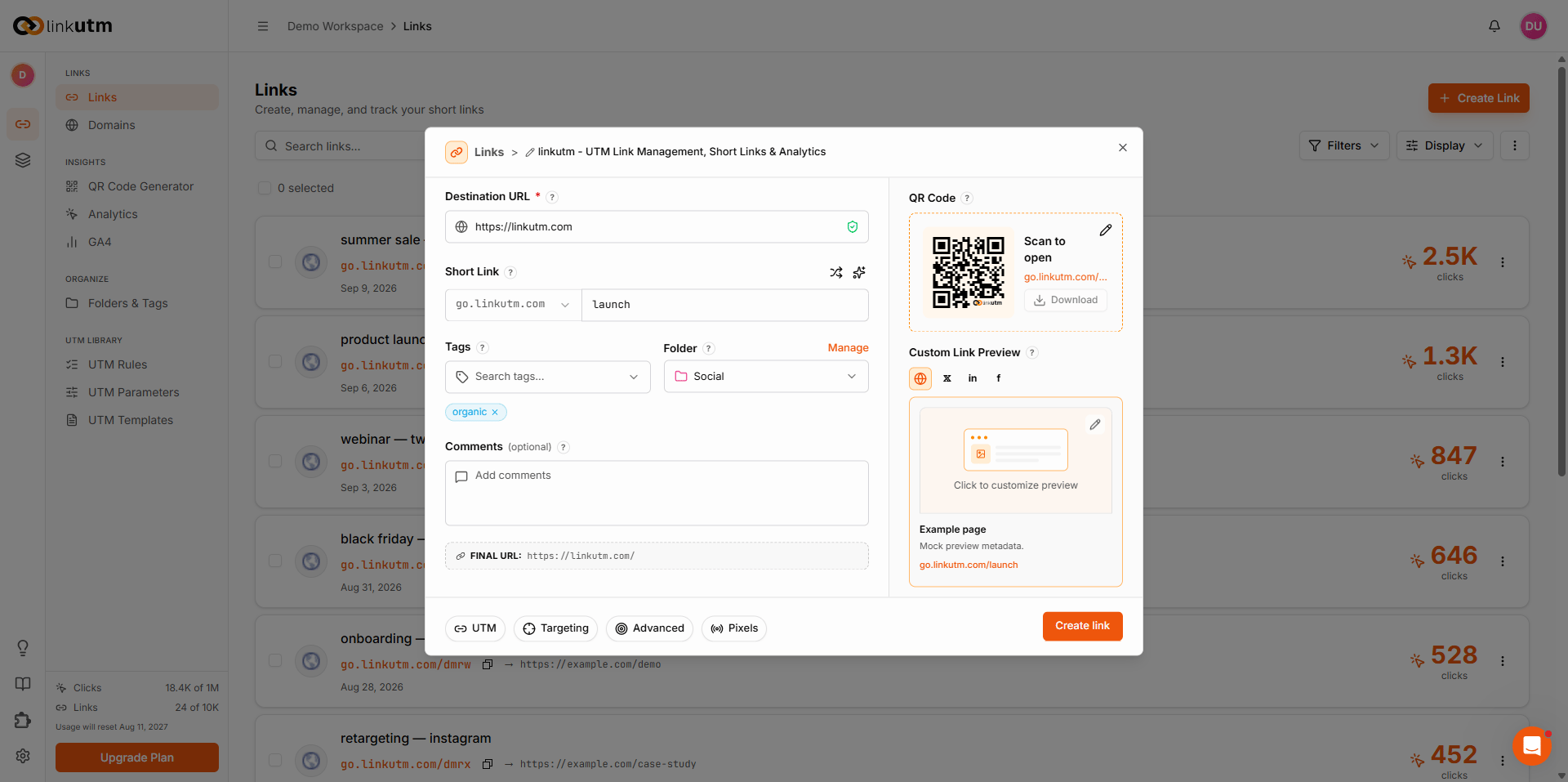
Open the link builder
From the sidebar: Links → Create Link (or press the + button).
2
Paste destination URL
Full URL with
https://. Example: https://example.com/pricing.3
Fill UTMs
The five standard fields:
4
(Optional) custom slug
Leave blank for auto-generated short code. Type your own for branded slugs like
q2-launch.5
Create
Click Create. The link is live immediately.
3. Test the redirect
Open the short link in a private window. You’ll be redirected to your destination URL with all UTMs appended: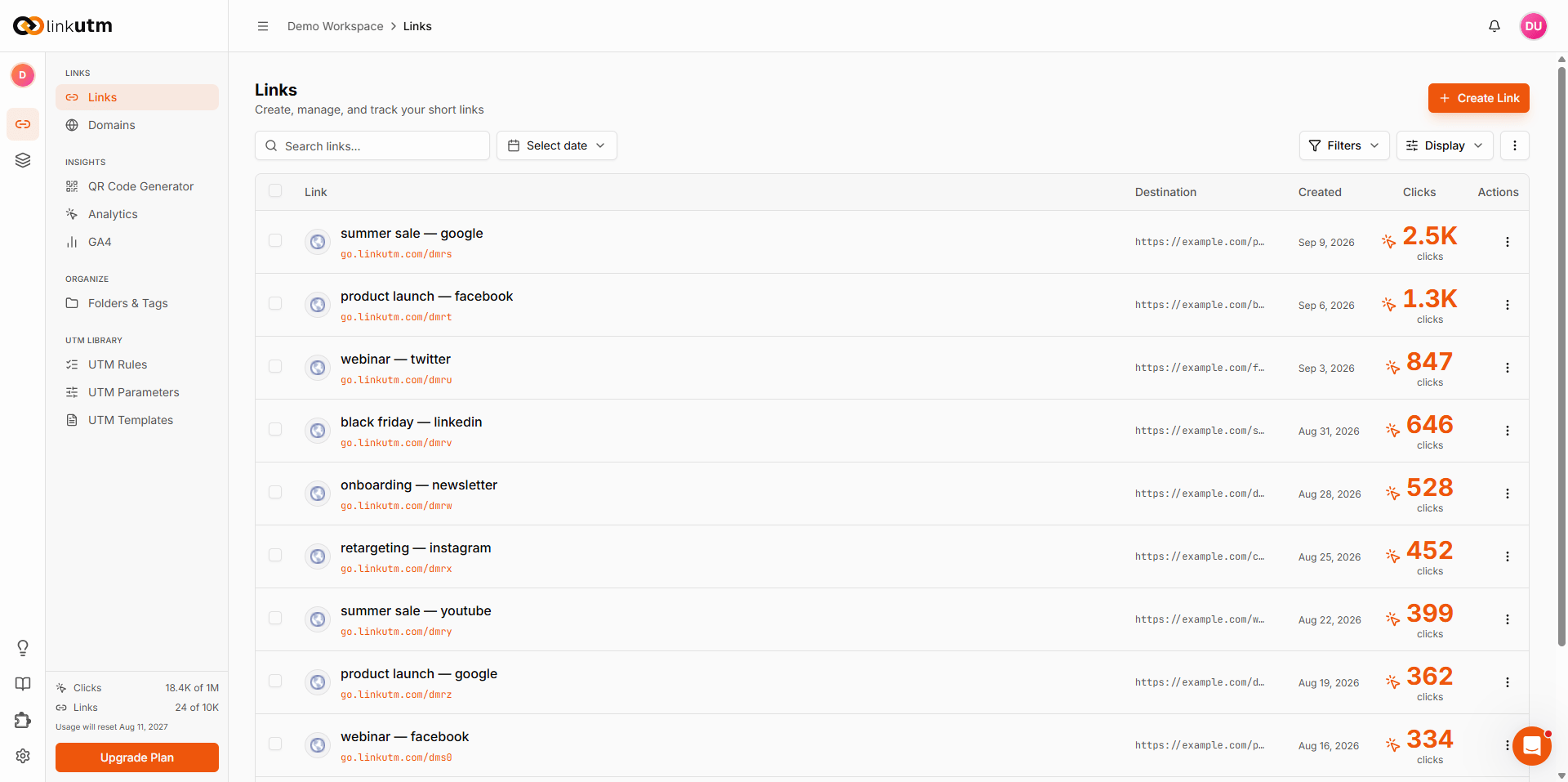
4. Next steps
Set UTM standards
Approved source, medium, and campaign values - the convention your team follows.
Save a template
Lock in source/medium for a channel so the team can’t drift.
Add a custom domain
go.yourbrand.com/q2-launch instead of the default.Invite teammates
Roles, permissions, notification preferences.
Generate QR codes
Scannable codes for links, contacts, wifi, and events, each tracked.
How linkutm thinks about your data
Workspaces are the unit of isolation
Workspaces are the unit of isolation
Links, folders, tags, templates, UTM rules, custom domains, pixels, API keys, analytics - all scoped per workspace. A user in one workspace cannot access the links, analytics, or settings of any other workspace. Useful for agency-style multi-client setups.
Short codes are globally unique
Short codes are globally unique
Even though links are workspace-scoped, the short code (the part after
yourshort.link/) is unique across the system. If you try to use a slug another workspace already grabbed, creation fails with a conflict error.UTMs run through workspace rules
UTMs run through workspace rules
Before a link saves, your workspace’s UTM Rules are applied: lowercase, space replacement, max length, prohibited terms. The cleaned values are what gets stored. See UTM Rules.
Analytics has a retention window
Analytics has a retention window
Each workspace has a retention window for click data. Queries beyond that window are clipped to it.