Analytics Overview
Learn how to track and analyze your link performance in linkutm.Overview
linkutm provides comprehensive analytics to help you understand how your links perform, where your traffic comes from, and which campaigns drive the best results. Track every click, analyze user behavior, and make data-driven decisions.Analytics Dashboard
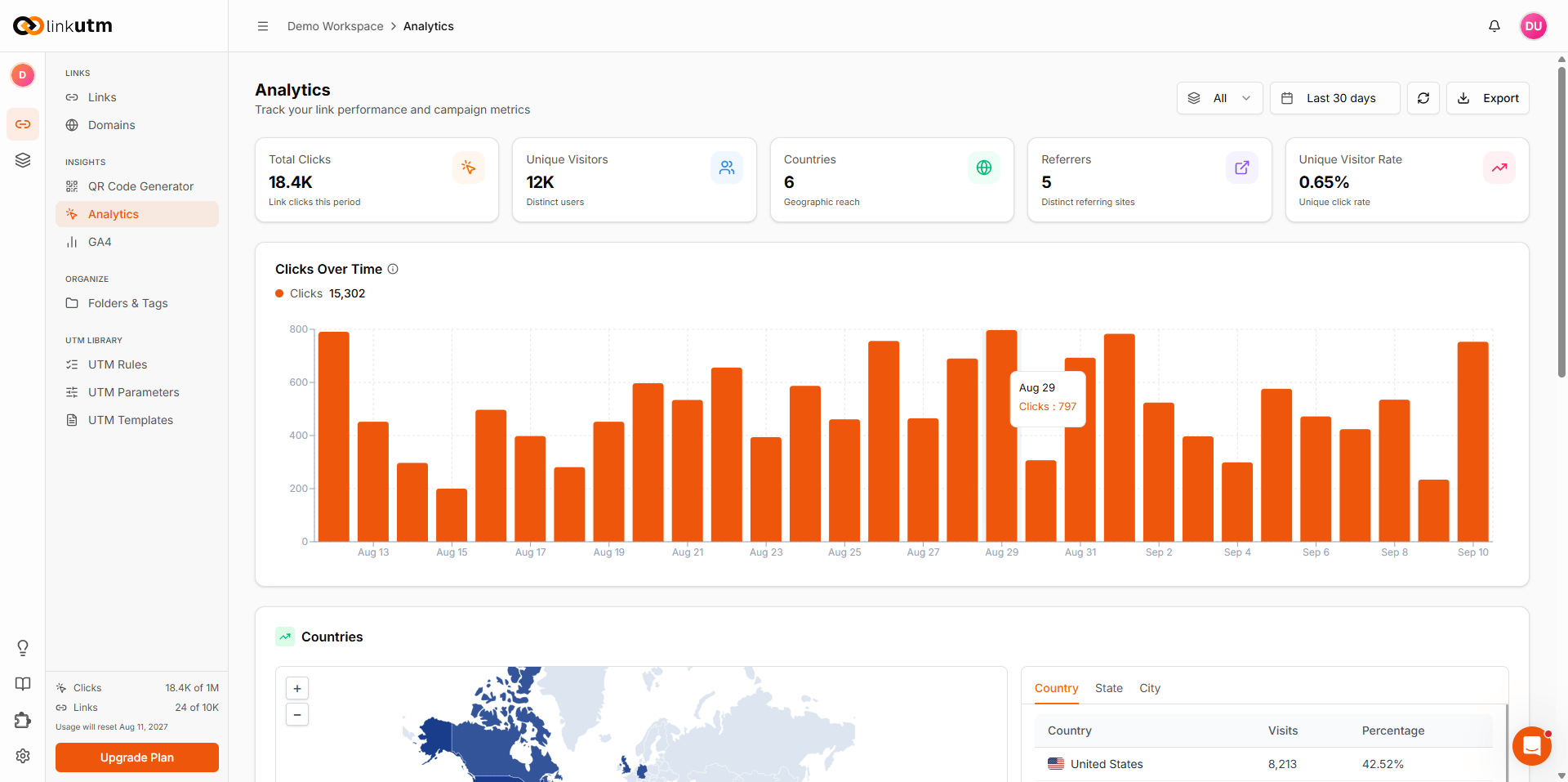
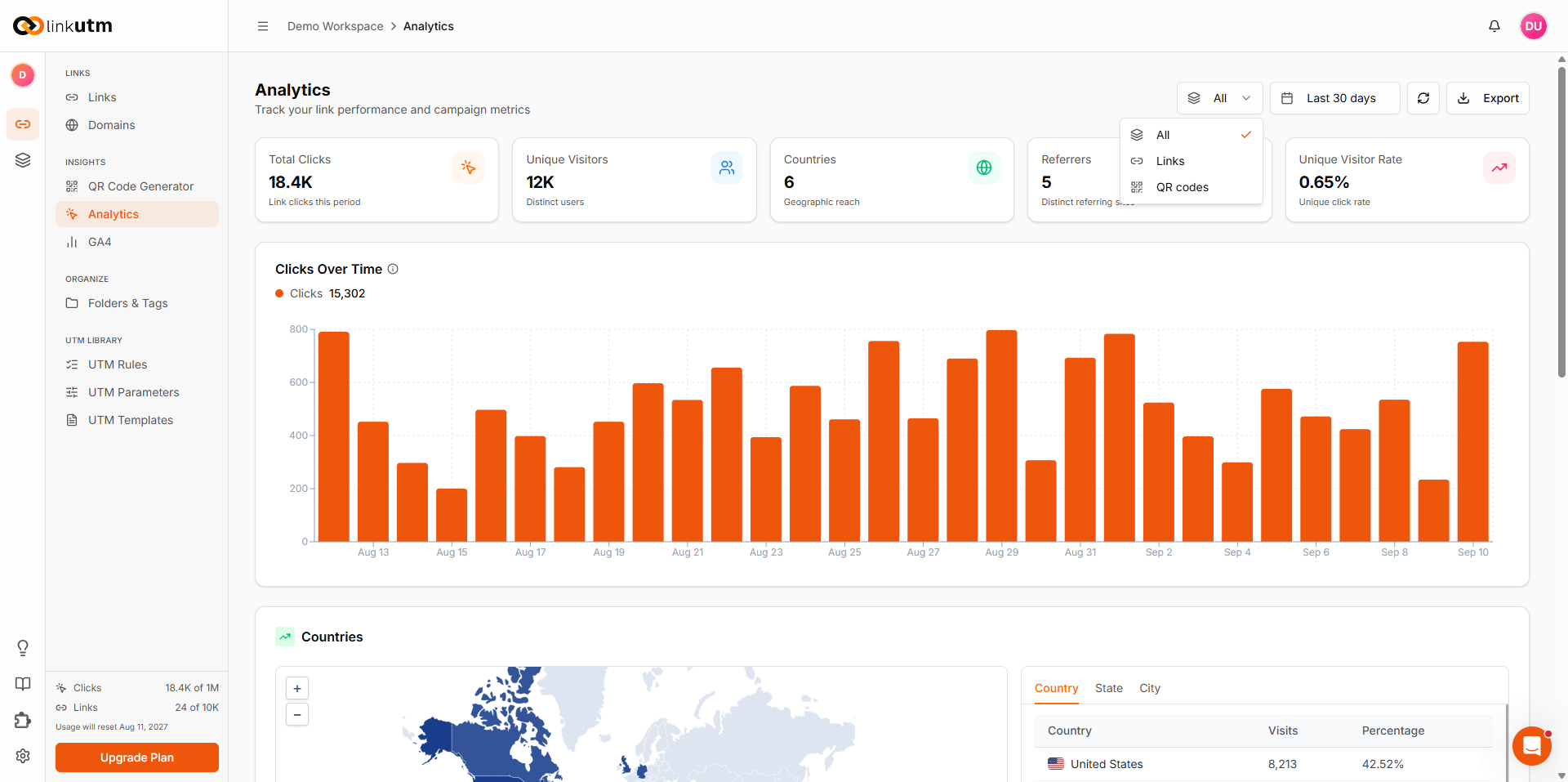
Key Metrics
Total Clicks- Total number of clicks across all links
- Trend comparison (vs. previous period)
- Click growth rate
- Time-series visualization
- Distinct users who clicked your links
- New vs. returning visitors
- Unique click rate
- Audience size tracking
- Goal completions tracked
- Conversion rate
- Conversion value
- ROI calculations
- Percentage of impressions that resulted in clicks
- Average CTR across campaigns
- CTR by channel
- Performance benchmarks
Link-Level Analytics
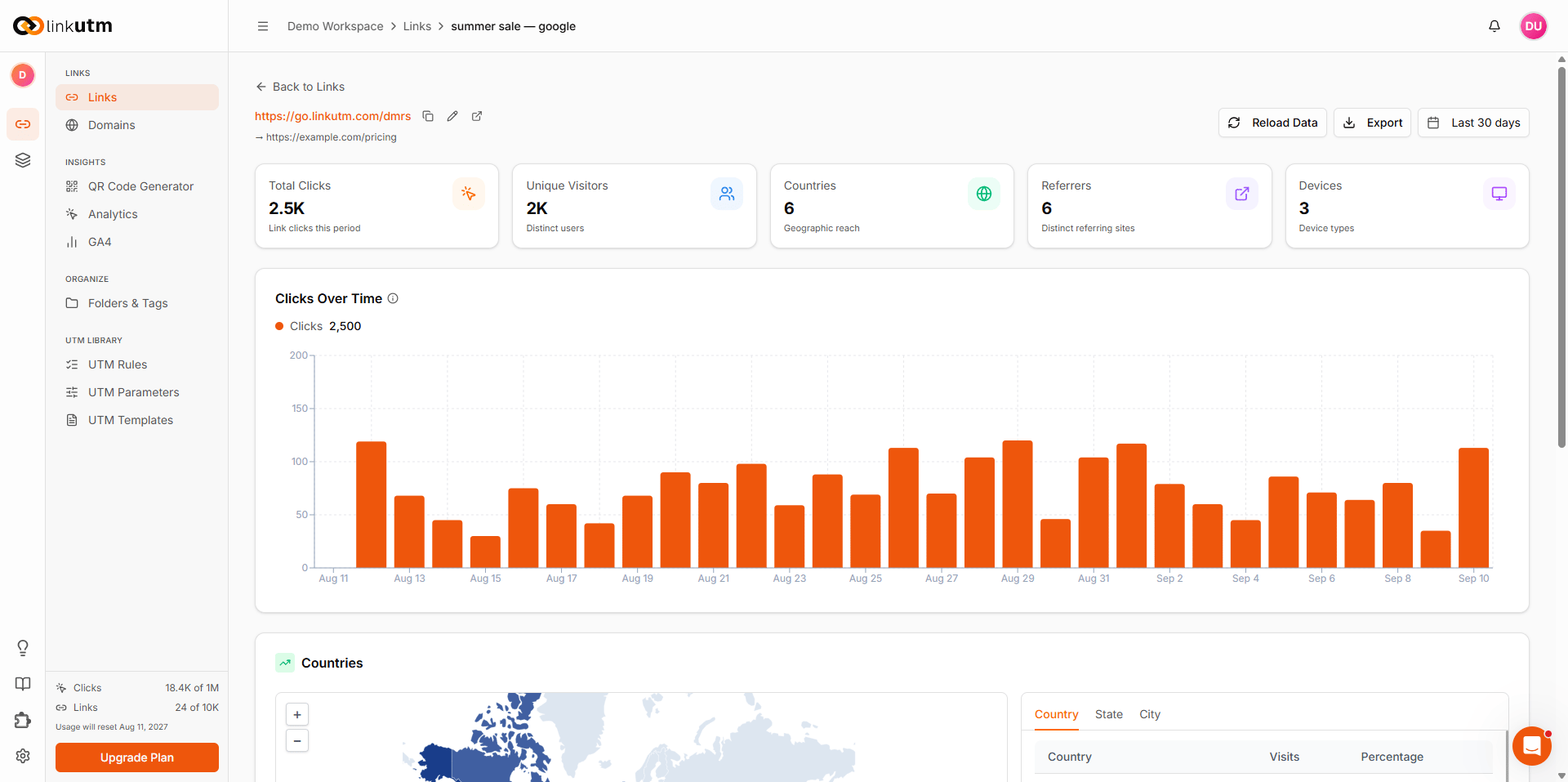
Individual Link Performance
View detailed metrics for each link: Click Metrics:- Total clicks
- Unique visitors
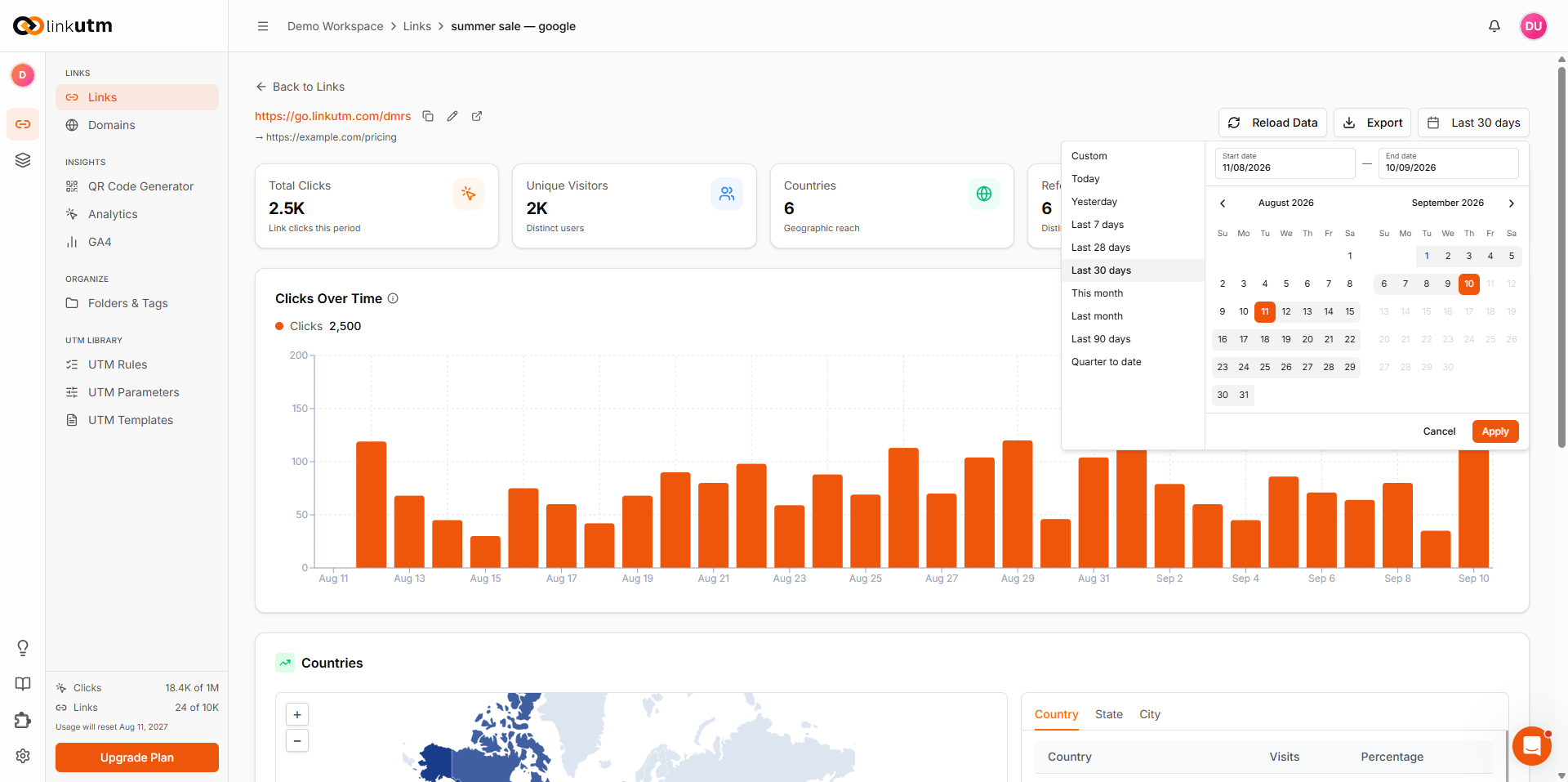
- Click timeline (hourly, daily, weekly, monthly)
- Peak traffic times
- Click velocity
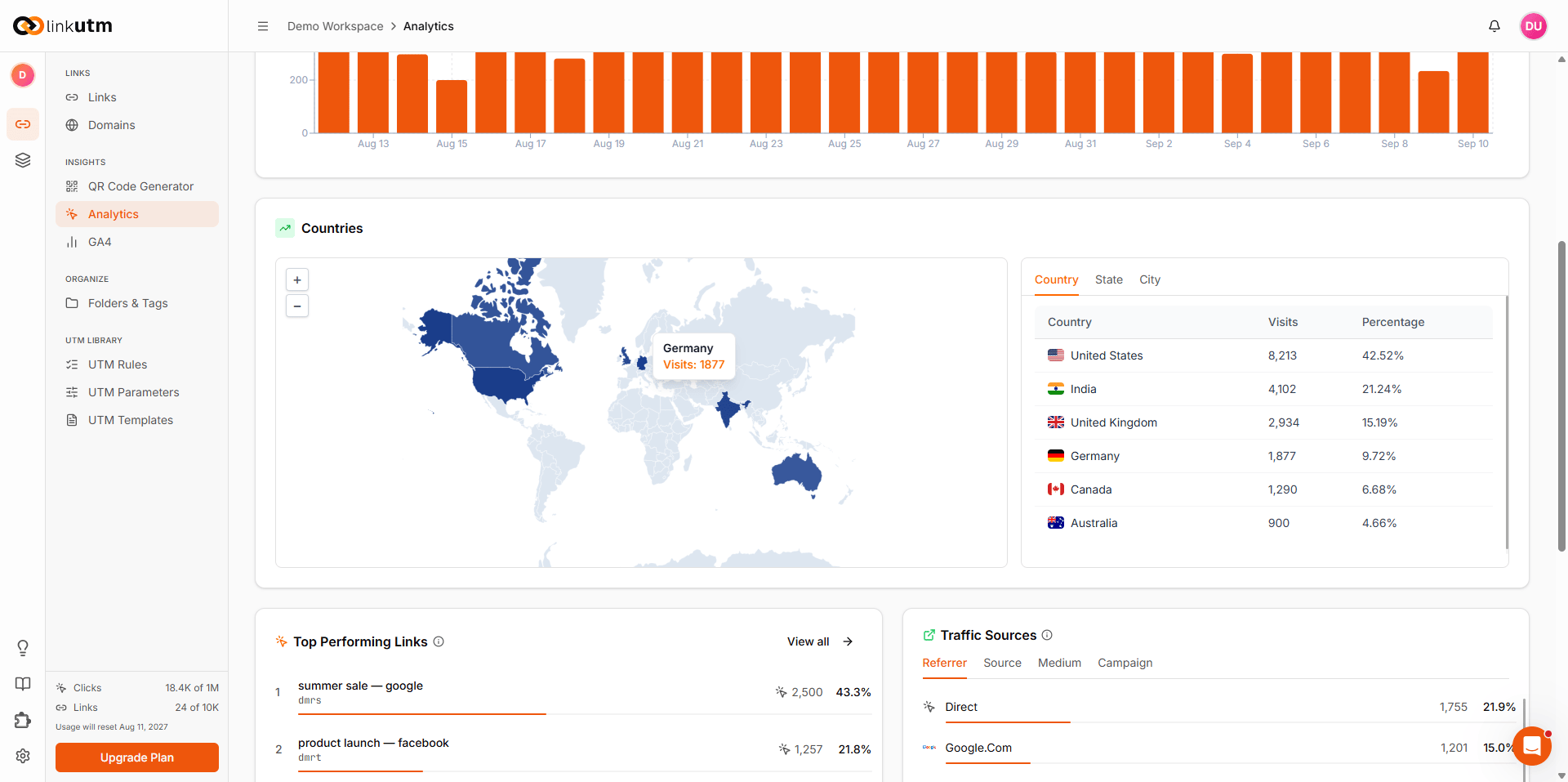
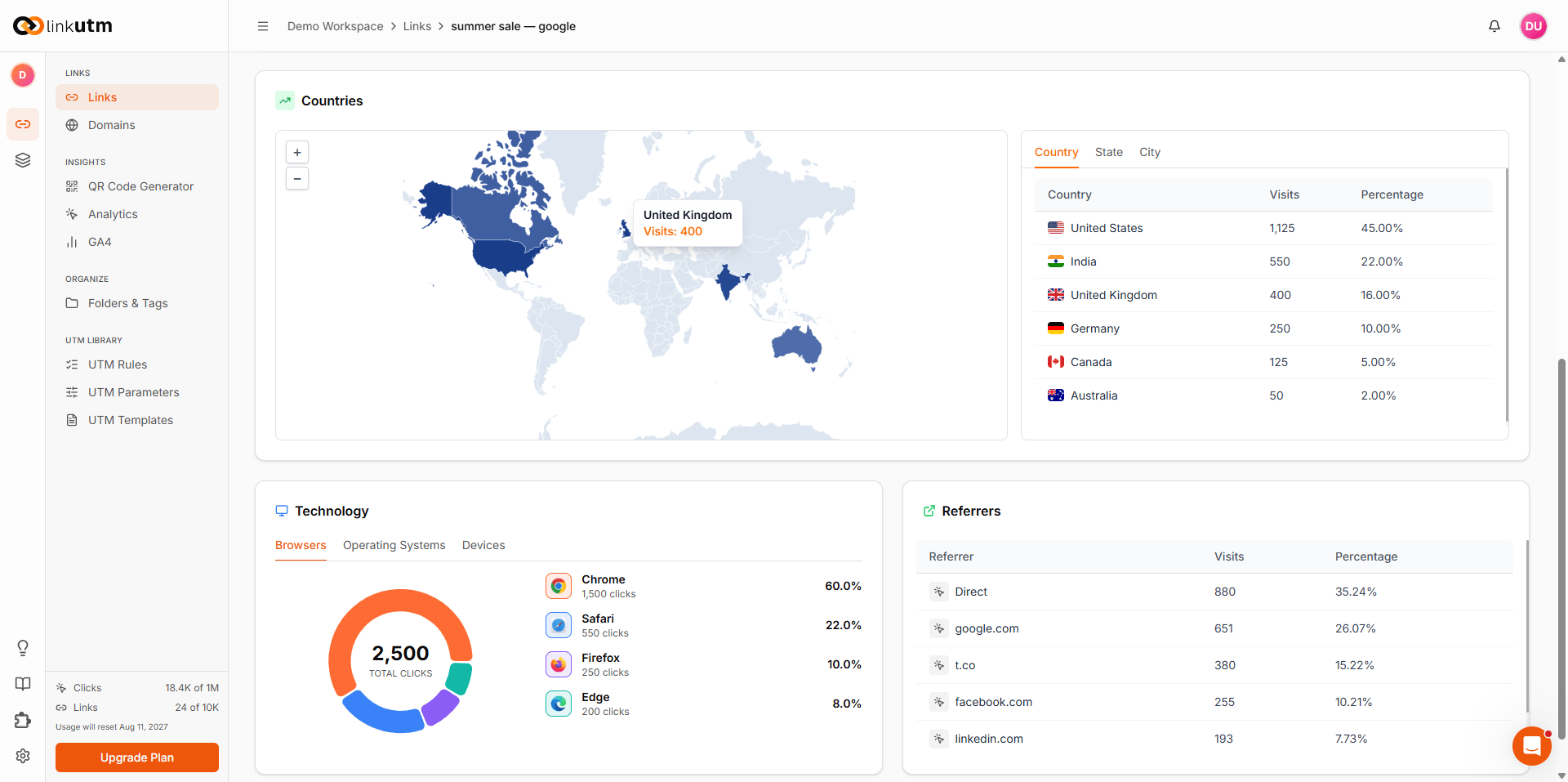
- Countries (with flags and percentages)
- States/Provinces
- Cities
- Geographic heat map
- Regional performance
- Desktop vs. Mobile vs. Tablet breakdown
- Device brand and model
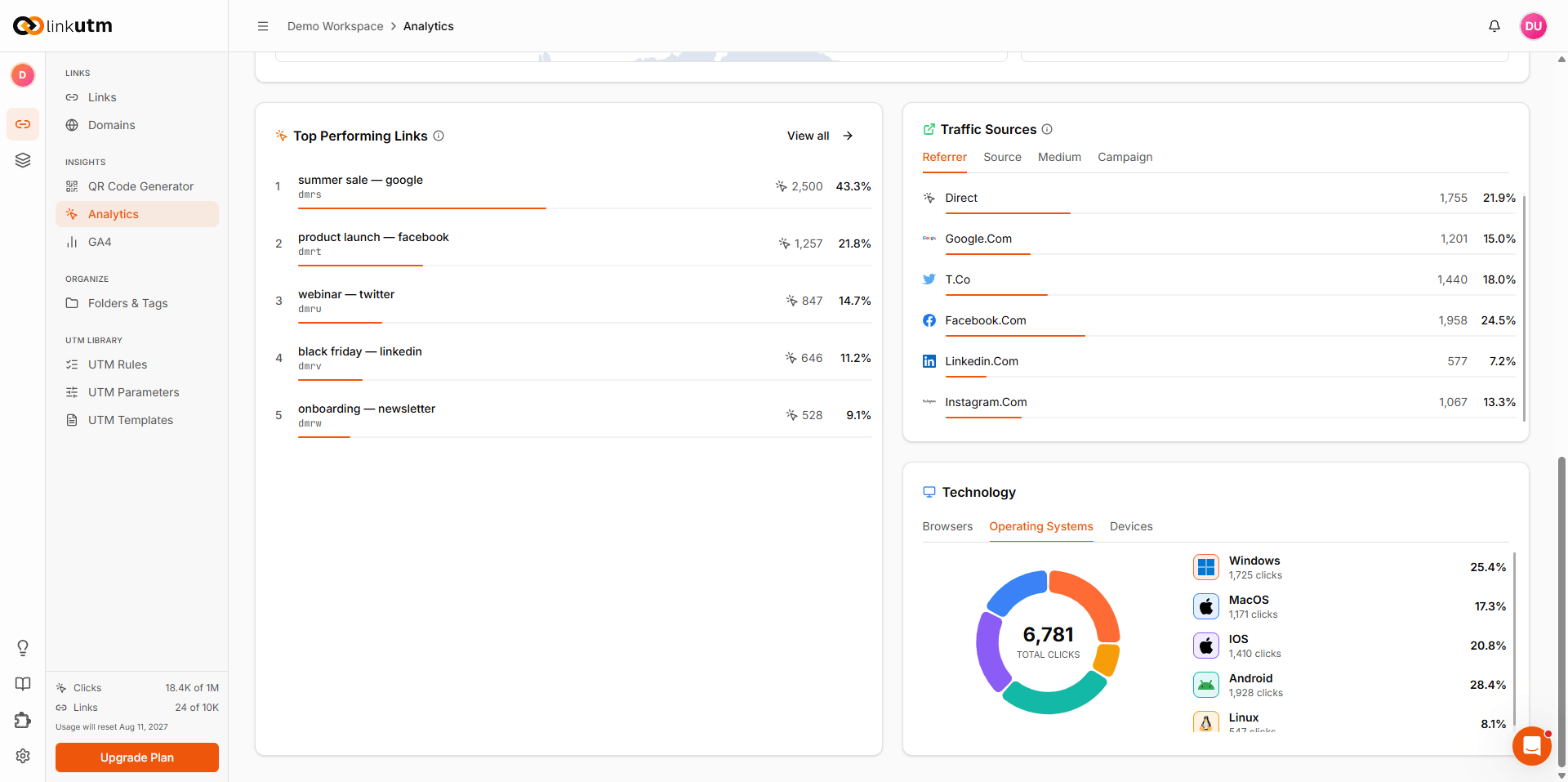
- Operating systems (Windows, macOS, iOS, Android, Linux)
- OS versions
- Screen resolutions
- Browser types (Chrome, Safari, Firefox, Edge, etc.)
- Browser versions
- Browser market share for your audience
- Browser-specific performance
- Where clicks originated
- Direct vs. Referral traffic
- Social platforms
- Search engines
- Other websites
- Clicks by utm_source
- Clicks by utm_medium
- Clicks by utm_campaign
- Clicks by utm_content
- Custom parameter analysis
Time-Based Analysis
Click Timeline:- Hour-by-hour breakdown
- Day-by-day trends
- Week-by-week comparison
- Month-by-month analysis
- Peak click hours
- Peak click days
- Seasonal patterns
- Optimal posting times
- Today
- Last 7 days
- Last 30 days
- Last 90 days
- Custom date range
Campaign Analytics
Aggregate Campaign Performance
View combined metrics for campaigns: By Campaign:- Total clicks per campaign
- Conversion rates by campaign
- ROI by campaign
- Campaign comparison
- Performance by utm_source
- Channel effectiveness
- Source contribution to goals
- Budget allocation insights
- Performance by utm_medium
- Channel type effectiveness
- Medium cost-efficiency
- Optimization opportunities
- A/B test results
- Creative performance
- Content variant comparison
- Winning variations
Folder & Tag Analytics
Organized Views
By Folder:- Aggregate metrics per folder
- Folder-level performance
- Campaign group analysis
- Client performance (for agencies)
- Performance by tag category
- Priority-based analysis
- Status-based metrics
- Channel-based performance
Advanced Analytics Features
Filtering
Filter By:- Date range
- Links (specific links)
- Folders
- Tags
- UTM parameters
- Device type
- Geographic location
- Browser
- Referrer
- Combine filters for deep analysis
- Narrow down to specific segments
- Compare filtered vs. unfiltered
- Save filter presets
Comparison
Compare Time Periods:- This week vs. last week
- This month vs. last month
- This quarter vs. last quarter
- Year-over-year
- Campaign A vs. Campaign B
- Old strategy vs. new strategy
- Channel performance comparison
- Source effectiveness
Exporting Data
Export Options:- CSV format
- Excel compatible
- PDF reports
- Scheduled exports
- Email delivery
- Link performance data
- Campaign summaries
- Geographic data
- Device and browser stats
- Time-series data
- Custom reports
Google Analytics 4 Integration
Connect GA4
linkutm integrates with Google Analytics 4:-
OAuth Connection:
- Click Connect Google Analytics
- Authorize linkutm
- Grant necessary permissions
-
Select Account:
- Choose GA4 account
- Select property
- Choose data stream
-
Data Sync:
- Automatic data synchronization
- Real-time or near-real-time updates
- Historical data access
-
View in linkutm:
- GA4 metrics in linkutm dashboard
- Combined view with linkutm analytics
- Unified reporting
GA4 Metrics Available
Traffic Metrics:- Sessions
- Users
- New users
- Page views
- Average session duration
- Engagement rate
- Engaged sessions
- Events per session
- Event count
- Conversions
- Conversion rate
- Goal completions
- Revenue (if e-commerce tracking enabled)
- Demographics
- Interests
- Technology
- Behavior patterns
Real-Time Analytics
Live Data Tracking
Real-Time Dashboard:- Active users right now
- Current clicks
- Live traffic sources
- Geographic activity map
- Traffic spike notifications
- Unusual activity alerts
- Goal completion alerts
- Error notifications
- Monitor live campaigns
- Track event registrations in real-time
- Instant feedback on new content
- Quick performance checks
Analytics Best Practices
Set Up Goals
Define Success:- What constitutes a conversion?
- Set up goal tracking
- Assign goal values
- Track micro and macro conversions
- Form submissions
- Product purchases
- Email signups
- File downloads
- Video views
- Time on site
Regular Monitoring
Daily:- Check overall performance
- Monitor active campaigns
- Review real-time data
- Respond to alerts
- Deep dive into performance
- Compare to previous week
- Identify trends
- Adjust campaigns
- Comprehensive analysis
- Monthly reports
- Budget allocation review
- Strategic planning
Data-Driven Decisions
Use Analytics to:- Identify best-performing channels
- Optimize underperforming campaigns
- Allocate budget effectively
- Test and iterate
- Understand audience behavior
- Improve targeting
Create Custom Reports
Regular Reports:- Executive summary
- Campaign performance
- Channel effectiveness
- ROI analysis
- Team performance
- Client reports (agencies)
- Management reports
- Team reports
- Partner reports
Common Analytics Questions
How many clicks did my campaign get?
- Go to Links or Analytics
- Filter by campaign (utm_campaign)
- View total clicks
- Compare to goals
Which channel drives the most traffic?
- Go to Analytics
- View By Source or By Medium
- Sort by total clicks
- Analyze top performers
What’s my best-performing link?
- Go to Links page
- Sort by Total Clicks or Conversions
- View top link
- Analyze what makes it successful
Where is my traffic coming from?
- View link analytics
- Check Geographic Data section
- See country, state, city breakdown
- Review referrer sources
What devices do my users use?
- View link analytics
- Check Device Information
- See desktop vs. mobile split
- Review OS and browser data
Analytics Limitations
Data Privacy
Privacy Compliance:- GDPR compliant
- Privacy-first tracking
- Anonymized data where required
- User consent respected
- Personal identifying information
- Email addresses
- Names
- Private browsing sessions (limited data)
Data Accuracy
Factors Affecting Accuracy:- Ad blockers (may block tracking)
- VPNs (affect geographic data)
- Bot traffic (filtered automatically)
- Browser privacy settings
- Cached pages
- View trends over time
- Focus on relative performance
- Compare campaigns fairly
- Use multiple data sources
Data Retention
Storage Periods:- Raw click data: Check your plan
- Aggregated data: Longer retention
- Archived campaigns: May have limits
- Export for long-term storage
Troubleshooting
No Data Showing
Possible Issues:- Link just created (wait a few minutes)
- No clicks yet
- Tracking disabled
- Ad blocker interference
- Analytics integration inactive
- Wait 5-10 minutes for data
- Test link yourself
- Check link settings
- Verify analytics connection
- Contact support
Data Discrepancies
Why Numbers May Not Match:- Different tracking methods
- Attribution windows
- Bot filtering
- Deduplication logic
- Time zone differences
- Use same date range
- Check timezone settings
- Understand each platform’s methodology
- Focus on trends, not exact numbers
Geographic Data Missing
Possible Causes:- VPN usage
- Privacy settings
- Limited data
- View at aggregate level
- Focus on available data
- Combine with other metrics