Documentation Index
Fetch the complete documentation index at: https://docs.linkutm.com/llms.txt
Use this file to discover all available pages before exploring further.
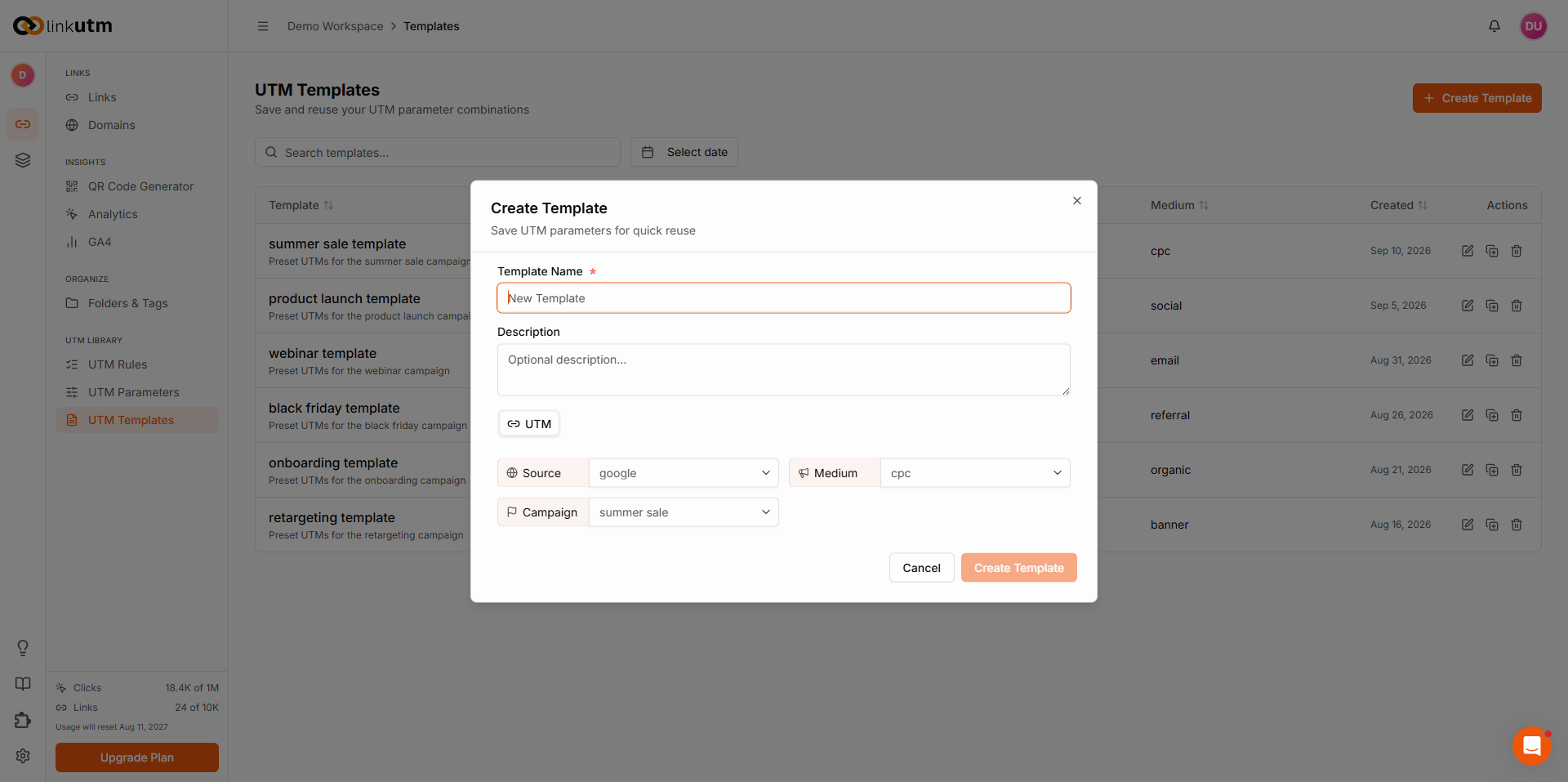
Create UTM Template
Learn how to create reusable UTM templates to streamline your link creation process.Overview
Creating UTM templates allows you to save frequently-used parameter combinations and apply them instantly when creating new links. This guide walks you through the process step-by-step.Before You Start
Plan Your Template
Consider:- Purpose: What type of campaign is this for?
- Channel: Which marketing channel (email, social, paid search)?
- Fixed Parameters: Which parameters stay the same?
- Variable Parameters: Which parameters change per link?
- Audience: Who will use this template?
Gather Information
Have ready:- Campaign naming convention
- Standard parameter values
- Any custom parameters needed
- Template description/notes
Creating a Template: Step-by-Step
Step 1: Navigate to Templates
- Log into your linkutm dashboard
- Click Templates in the sidebar
- Click Create Template or + New Template button
Step 2: Name Your Template
Template Name:- Enter a clear, descriptive name
- Include channel and purpose
- Make it easy to identify
- β βEmail Newsletter - Weeklyβ
- β βFacebook Ads - Lead Generationβ
- β βGoogle Ads - Brand Searchβ
- β βTemplate 1β (too vague)
- Use consistent naming format
- Include enough context
- Keep it concise (50 characters or less)
Step 3: Add Description (Optional but Recommended)
What to Include:- When to use this template
- What variable fields need
- Example use cases
- Any special instructions
Step 4: Configure UTM Parameters
utm_source (Required)
What it represents: The platform sending the traffic Examples by Channel:- Email:
newsletter,promotional_email - Social:
facebook,instagram,linkedin,twitter - Paid Search:
google,bing - Organic:
google_organic - Referral:
partner_name,affiliate_name
- Use specific value if always the same
- Example: Email template always uses
newsletter - Or leave variable if changes (e.g., multi-platform template)
utm_medium (Required)
What it represents: The marketing channel type Common Values:email- Email campaignssocial- Organic social mediacpc- Paid advertising (cost-per-click)display- Display advertisingreferral- Referral trafficorganic- Organic searchaffiliate- Affiliate marketingprint- Print advertisingqr- QR code campaigns
- Usually fixed for channel-specific templates
- Example: βEmail Newsletter Templateβ always uses
email
utm_campaign (Required)
What it represents: Specific campaign or promotion name Strategies for Templates: Option 1: Leave Variableutm_term (Optional)
What it represents: Paid search keywords or audience targeting When to Include:- Paid search templates
- Audience-segmented campaigns
- A/B testing variations
- Keywords:
running_shoes,blue_widgets - Audiences:
lookalike_audience,retargeting_cart - Segments:
cold_traffic,warm_leads
- Leave blank if not applicable
- Include default value if always used
- Add note in description if variable
utm_content (Optional)
What it represents: Differentiates similar content/links When to Include:- A/B testing ads or emails
- Multiple CTAs in same campaign
- Different ad placements
- Creative variations
headline_a,headline_bblue_button,red_buttonheader_cta,footer_ctaimage_ad,video_ad
- Leave blank for general use
- Include if always applicable
- Add examples in description
Step 5: Add Custom Parameters (Optional)
Why Add Custom Parameters:- Internal campaign IDs
- Specific audience information
- Additional tracking needs
- Integration requirements
- Click Add Custom Parameter
- Enter parameter name (no spaces, use underscores)
- Enter default value (or leave for variable)
- Add multiple as needed
Step 6: Set Default Folder (Optional)
Assign a default folder where links from this template will be created:- Select from existing folders
- Links automatically organized
- Can be overridden during link creation
- Channel-specific folders
- Client-specific folders (for agencies)
- Campaign-based organization
Step 7: Assign Default Tags (Optional)
Add default tags that will be applied to links created from this template:- Select tag colors
- Multiple tags supported
- Automatic categorization
Step 8: Add Template Notes (Optional)
Internal Notes for Your Team:- Usage guidelines
- Tips and best practices
- Change log
- Contact for questions
Step 9: Review and Save
Final Checklist:- β Template name is clear and descriptive
- β Required parameters (source, medium, campaign) filled appropriately
- β Optional parameters configured as needed
- β Custom parameters added if necessary
- β Description explains when/how to use
- β Default folder assigned (if desired)
- β Default tags selected (if applicable)
- Click Save Template or Create
- Template appears in your templates list
- Ready to use immediately
After Creating Your Template
Test the Template
- Create a test link using your new template
- Verify all parameters fill correctly
- Check if defaults are appropriate
- Ensure variable fields are clear
Share with Team
- Inform team of new template availability
- Provide usage guidelines
- Explain when to use
- Gather feedback
Document Usage
Add to your team documentation:- Template purpose
- When to use
- Example links
- Best practices
Template Examples
Example 1: Email Newsletter Template
Example 2: Facebook Ads - Lead Generation Template
Example 3: Google Ads - Brand Search Template
Example 4: Product Launch - Multi-Channel Template
Example 5: Partner Referral Template
Advanced Template Features
Template Inheritance (If Available)
Create template hierarchies:Conditional Parameters (If Available)
Set parameters based on conditions:Template Variables with Prompts (If Available)
Create prompts when using template:Best Practices
Template Naming
DO:- β Include channel in name
- β Specify purpose clearly
- β Use consistent format
- β Keep concise but descriptive
- β Use generic names
- β Use abbreviations only
- β Forget context
- β Make too long (over 60 chars)
Parameter Strategy
DO:- β Fix parameters that never change
- β Document variable parameters
- β Use consistent values
- β Follow your naming conventions
- β Leave all parameters variable
- β Use inconsistent formatting
- β Forget to document usage
- β Over-complicate with too many parameters
Description Writing
DO:- β Explain when to use
- β List variable fields
- β Provide examples
- β Include special instructions
- β Leave description blank
- β Be too vague
- β Assume knowledge
- β Forget to update when template changes
Template Maintenance
DO:- β Review quarterly
- β Update as needed
- β Archive outdated templates
- β Gather team feedback
- β Create and forget
- β Let templates become stale
- β Ignore usage data
- β Skip documentation
Troubleshooting
Template Not Appearing in List
Possible Issues:- Not saved properly
- Filter applied
- Wrong project/workspace
- Permissions issue
- Check save confirmation
- Clear any filters
- Verify correct workspace
- Check user permissions
Parameters Not Auto-Filling
Possible Issues:- Template not fully configured
- Browser cache issue
- System bug
- Edit template, verify all fields saved
- Refresh browser
- Try different browser
- Contact support
Team Canβt See Template
Possible Issues:- Permission settings
- Not shared with team
- Wrong workspace
- Check sharing settings
- Verify template is project-level
- Ensure team members in correct workspace