What it is

Workspace members are users attached to a workspace with a role. Each gets per-workspace notification preferences, can create/edit links subject to role permissions, and can be removed by the owner.

Roles

RoleDefault permissions
ownerEverything. Created automatically for the workspace creator. Cannot be removed or have role changed.
memberDefault invite role. Create/edit links, manage folders/tags/templates within RBAC permissions.
Custom rolesDefined via the RBAC system (admin, viewer, etc.) - workspace-level configurable.

How to invite

1

Open Members

Sidebar → SettingsMembers (or Team).
2

Send invite

Email + role. The system:
  • Checks the workspace’s team-member maximum.
  • Rejects if the email is already a member or has a pending invite.
  • Sends an email with the accept link.
3

Manage pending invites

Resend (resets 7-day expiry) or cancel.
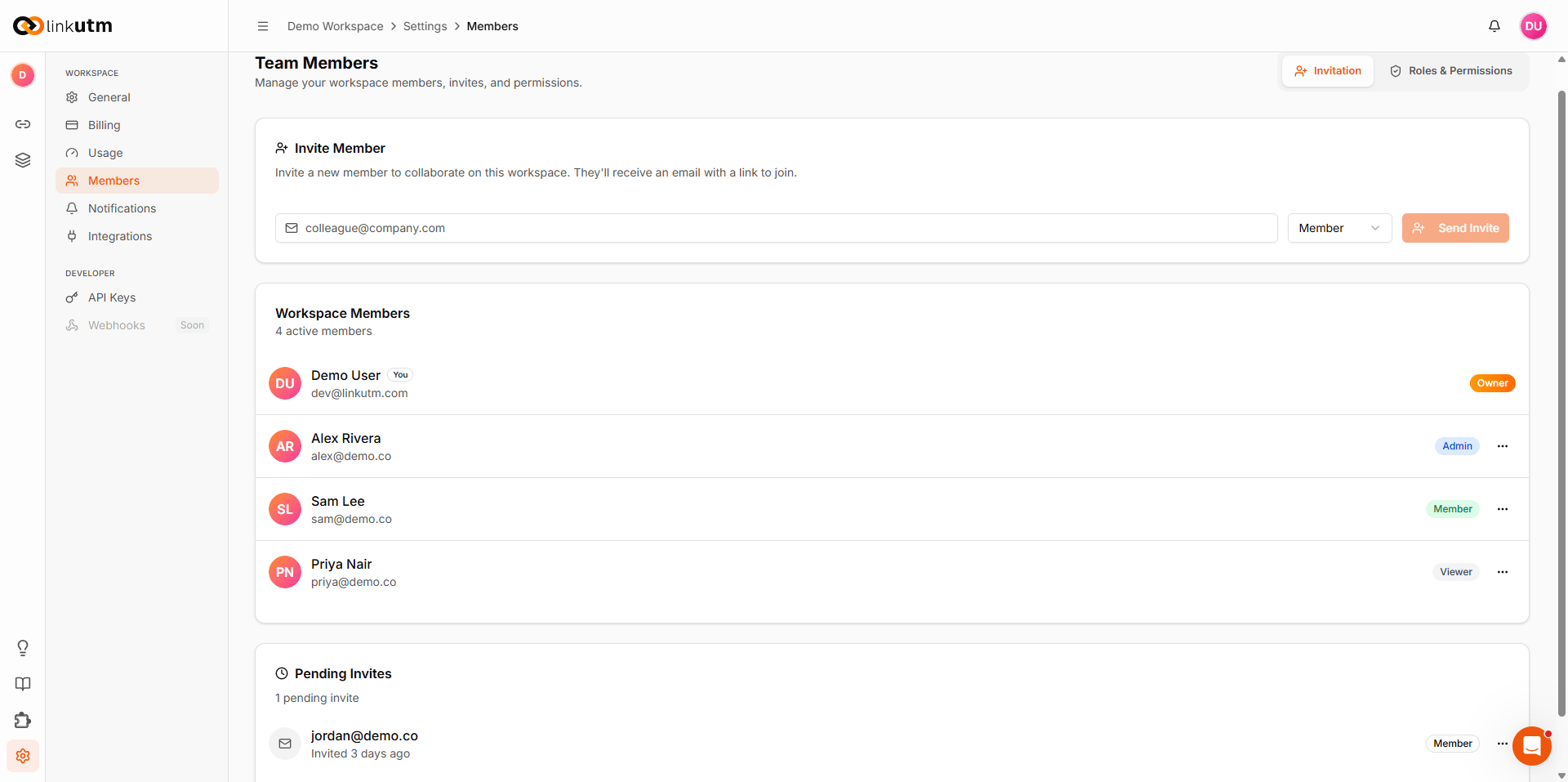
Team Members page - invite form, member list with roles (Admin/Member/Owner), and Roles and Permissions table

How to accept an invite

The invitee clicks the link in the email. They sign in (or create an account with the same email) and confirm.
The invite is bound to the email it was sent to. If the invitee signs in with a different email address, the invite won’t work — they need to sign in with the exact email the invite was sent to.

Removing members

1

Open Members → row actions

The owner can remove any member except themselves.
2

Confirm

Member loses access immediately. Their created links remain in the workspace (creator user reference is retained, but they no longer see anything).
The system can’t remove the owner via this flow. Transfer ownership or delete the workspace.

Per-member notifications

Each member controls what triggers an email to them:
NotificationWhen you get it
New link createdA teammate creates a link in this workspace
Click milestonesYour link hits 100, 500, 1k, 5k, 10k, 50k, 100k, 500k, or 1M clicks
Team changesA member joins, leaves, or has their role changed
Weekly reportWeekly digest of workspace activity
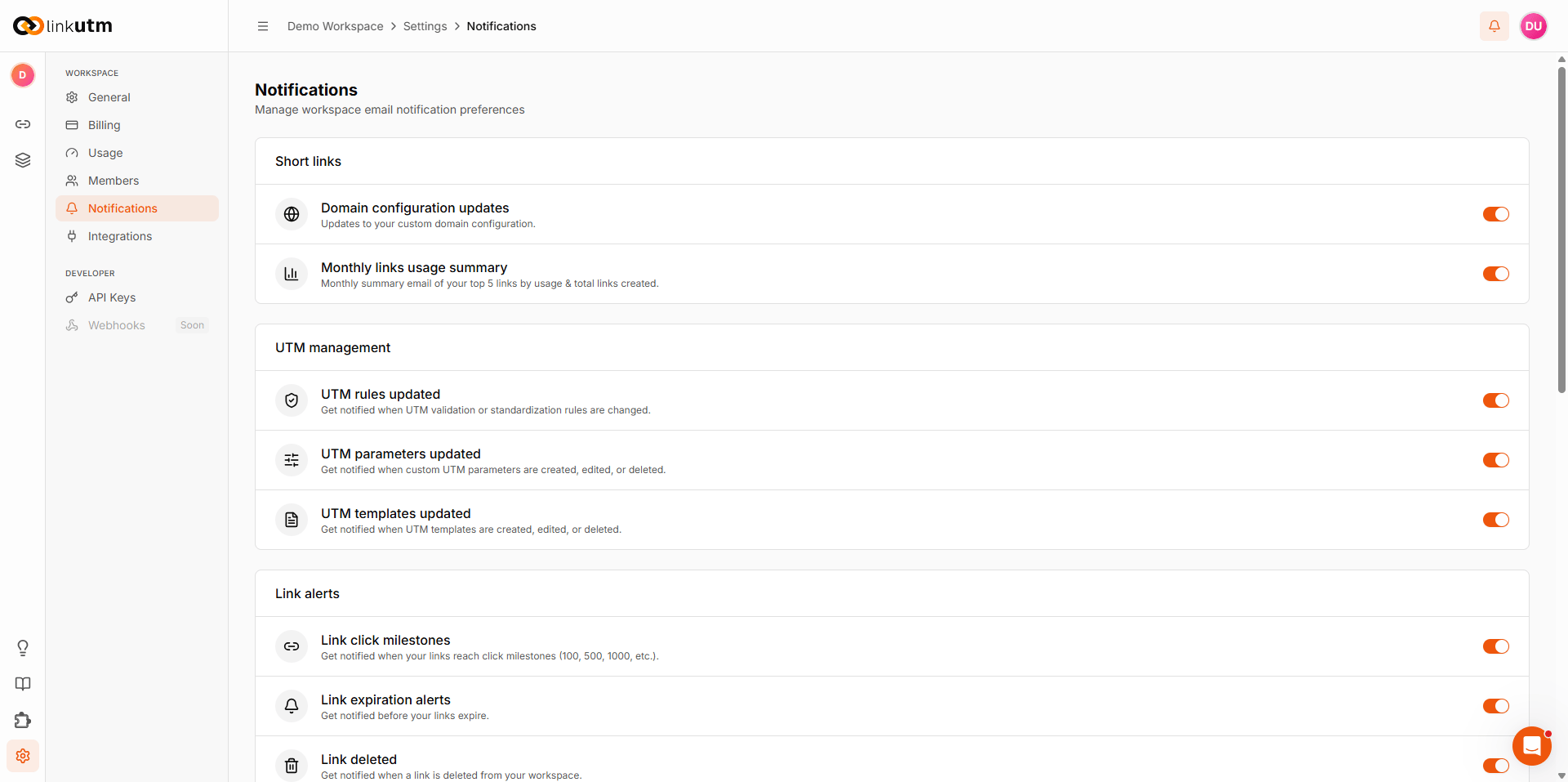
Notification settings - Short links, Link alerts, and Team members sections each with ON/OFF toggles per event type

Account-level notifications

Separately, each user has account-level toggles (under Account → Notifications) that override workspace-level for system events: domain updates, link expiry, billing alerts, security alerts, etc.

Real-world example

Agency client team:
Workspace: Client: Globex
Members:
├── jane@acme-agency.com  - owner   (account manager)
├── kim@acme-agency.com   - member  (campaign analyst)
└── nick@acme-agency.com  - member  (designer, view-only role would fit better)
Jane gets all notifications. Kim gets click milestones + weekly report. Nick disables everything except weekly report.

Common mistakes

Each workspace has a team-member maximum. The invite endpoint rejects new invites once the workspace is at capacity, with a message naming the current count and limit.
You can’t invite someone who’s already a member. Remove them first if you want to change their role, or use the role change option directly.
The owner’s role can’t be changed. Transfer ownership separately if needed.
Blocked. The owner can leave by deleting the workspace.

Edge cases

Invite expiry. Invites expire after 7 days. If the invitee tries to accept after that, the link won’t work. Resend the invite from the Members page to generate a fresh one.
Email normalization. Invites match against lowercase-trimmed email. Jane@Acme.com and jane@acme.com are the same invite.
Lowering the team-member maximum. If a workspace’s team-member maximum drops below the current count, current members keep access. The new maximum only blocks new invites until the count comes down through manual removal.