Documentation Index
Fetch the complete documentation index at: https://docs.linkutm.com/llms.txt
Use this file to discover all available pages before exploring further.
Password Protected Links
Learn how to secure your links with password protection in linkutm.Overview
Password protection adds an extra layer of security to your links by requiring users to enter a password before accessing the destination URL. This feature is perfect for protecting pre-launch campaigns, internal resources, confidential content, or limiting access to specific audiences.Why Use Password Protection?
Common Use Cases
Pre-Launch Campaigns- Protect campaign links before official launch
- Allow team review without public access
- Prevent accidental early sharing
- Secure employee-only content
- Protect internal documentation
- Restrict team-specific materials
- Share work-in-progress with clients
- Secure approval process
- Controlled access to drafts
- VIP access for special customers
- Premium member content
- Invite-only events or resources
- Secure test links from public
- Control who accesses staging environments
- Limit exposure during testing phase
- Partner-exclusive offers
- Employee benefits
- Restricted promotions
Setting Up Password Protection
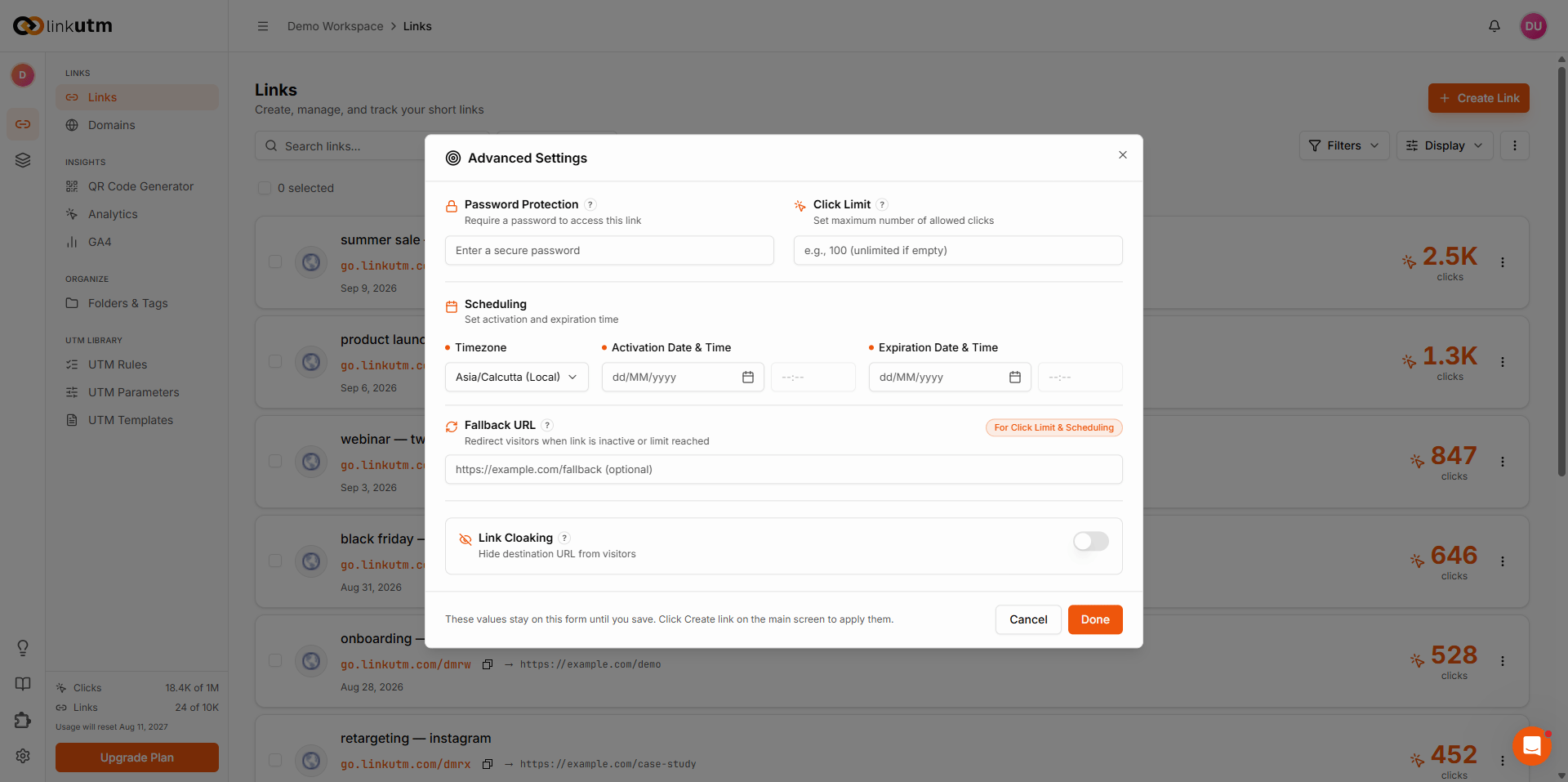
During Link Creation
- Create a new link or edit existing link
- Scroll to Advanced Settings or Security Settings
- Toggle Password Protection ON
- Configure password options:
- Auto-generate: Let system create secure password
- Custom password: Enter your own password
- Save your link
For Existing Links
- Navigate to your Links page
- Find the link to protect
- Click Edit
- Enable Password Protection
- Set or generate password
- Save changes
Password Options
Auto-Generated Passwords
Benefits:- Cryptographically secure
- Hard to guess
- Unique for each link
- Immediate availability
K7mP9xN2qR5t
Best for:
- Maximum security
- Short-term access
- One-time use scenarios
Custom Passwords
Benefits:- Easy to remember
- Easy to share verbally
- Can be thematic or branded
- User-friendly
SummerSale2024
Best for:
- Team sharing
- Extended access periods
- Easy recall needed
- Use combination of letters and numbers
- Avoid common words
- Make it memorable but not obvious
- Consider your audience’s technical level
How Password Protection Works
User Experience
- User clicks your link
- Password prompt appears with your branding
- User enters password
- If correct: Redirected to destination URL
- If incorrect: Error message, try again option
Password Entry Page
The password page includes:- Your project/brand name (if configured)
- Password input field
- Submit button
- Optional custom message or instructions
- Secure, branded interface
Session Handling
After Successful Entry:- User is redirected immediately
- (Optional) Session cookie may be set
- Future clicks may not require re-entry (depending on configuration)
- Clear error messaging
- Option to try again
- (Optional) Rate limiting after multiple failures
Managing Password-Protected Links
Viewing Protected Links
On your links page, password-protected links are indicated by:- 🔒 Lock icon
- “Password Protected” badge or label
- Special indicator in link details
Copying Password-Protected Links
- Find your protected link
- Click Copy Link
- Share link AND password separately (recommended)
Sharing Passwords Securely
Best Practices:- Use different communication channels
- Share password verbally when possible
- Use temporary passwords
- Change passwords periodically
- Limit password distribution
Changing Passwords
- Edit the protected link
- In Password Protection settings
- Choose Generate New or enter new custom password
- Save changes
- Notify users of password change
- After review period ends
- If password may be compromised
- When access group changes
- Regularly for long-term links
Removing Password Protection
- Edit the link
- Toggle Password Protection OFF
- Save changes
- Link is now publicly accessible
Advanced Password Features
Password Expiration (If Available)
Set passwords to expire automatically:- After specific date/time
- After certain number of uses
- Combined with link expiration
Multiple Passwords (If Available)
Create different passwords for different user groups:- Team A: password1
- Clients: password2
- VIPs: password3
- Track which group accessed
- Revoke access by group
- Different access levels
Password Strength Requirements
Enforce strong custom passwords:- Minimum 8 characters
- Mix of letters and numbers
- Special characters (optional)
- No common passwords
Combining with Other Security Features
Password + Link Expiration
Ultimate Time-Limited Security:- Enable password protection
- Set expiration date/time
- Link automatically becomes inactive after date
- Perfect for time-sensitive previews
Password + Click Limits
Limited Access Control:- Enable password protection
- Set maximum click limit
- Link stops working after X clicks
- Useful for exclusive content
Password + Device Targeting
Device-Specific Security:- Enable password protection
- Set device-specific URLs
- Different destinations for iOS/Android
- Same password for all devices
Real-World Examples
Example 1: Pre-Launch Campaign
Example 2: Client Approval Process
Example 3: Internal Training Materials
Example 4: Partner Exclusive Offer
Example 5: Event Registration (VIP)
Best Practices
Security
✅ Do:- Use strong, unique passwords
- Share link and password separately
- Change passwords periodically
- Remove protection when no longer needed
- Use auto-generated passwords for high security
- Using obvious passwords (password123, company name)
- Sharing link and password in same message
- Reusing passwords across multiple links
- Leaving protection enabled indefinitely
- Posting passwords publicly
Communication
When Sharing Protected Links:-
Clear Instructions
-
Separate Password
-
Provide Context
- Explain why password is needed
- Specify who should have access
- Include expiration information
- Offer support contact
Management
Regular Review:- Audit password-protected links monthly
- Remove protection from outdated links
- Update passwords for long-term links
- Document password changes
- Centralized password management
- Clear ownership of protected links
- Document who has access
- Use team features for accountability
Troubleshooting
User Can’t Access Link
Problem: Password isn’t working Possible Causes & Solutions:-
Incorrect Password
- Verify password is correct (case-sensitive)
- Check for extra spaces
- Confirm you’re sharing latest password
-
Link Expired
- Check expiration settings
- Extend expiration if needed
- Create new link if expired
-
Click Limit Reached
- Check click count
- Increase or remove limit
- Create new link if needed
-
Browser Issues
- Try incognito/private mode
- Clear browser cache
- Try different browser
Password Not Saving
Problem: Password protection doesn’t activate Solutions:- Ensure you clicked “Save” after enabling
- Refresh the link list
- Check for error messages
- Verify you have permission to set passwords
- Try regenerating password
Lost Password
Problem: Forgot the password for a link Solutions:- Edit the link to view password (if allowed)
- Generate new password
- Check team notes or documentation
- Contact link creator (if team member)
Analytics for Protected Links
Track password-protected link performance:- Access attempts: How many tried to access
- Successful entries: How many entered correct password
- Failed attempts: Blocked incorrect entries
- Standard metrics: Clicks, visitors, geographic data
- How many people have the password
- If password is being shared widely
- User engagement with protected content