Managing Workspaces
Learn how to create, configure, and manage workspaces in linkutm.What is a Workspace?
A workspace is the middle tier of linkutm’s organizational structure. It represents your company, agency, or department and contains all your projects, team members, and shared resources. Key Features:- Contains multiple projects
- Team member management
- Shared templates and parameters
- Workspace-specific settings
- Centralized analytics
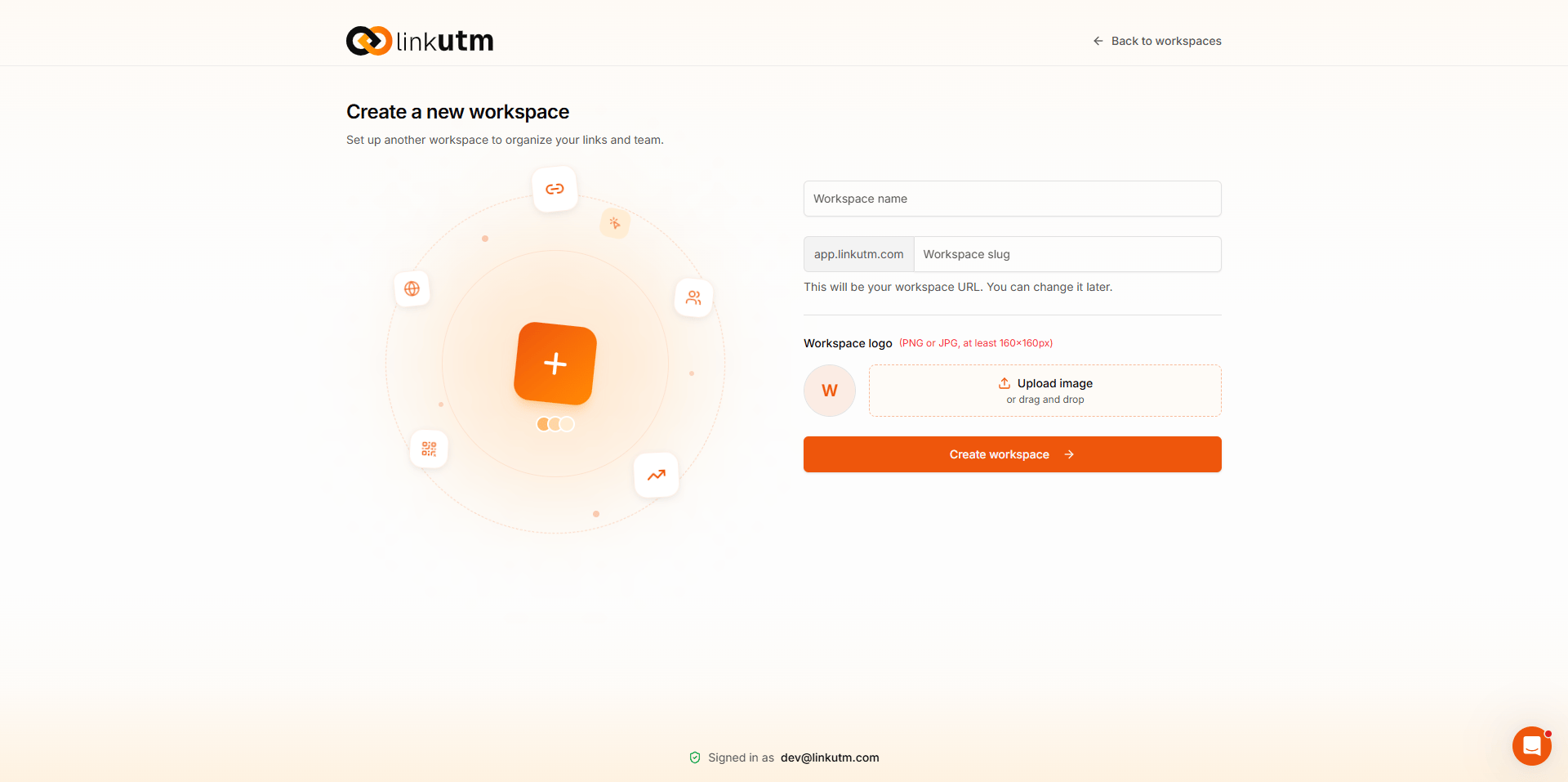
Creating a Workspace
Step 1: Access Workspace Creation
From Dashboard:- Click the Workspace Switcher in the top navigation
- Click Create New Workspace or + Add Workspace
- Go to Settings → Workspaces
- Click Create Workspace button
Step 2: Enter Workspace Details
Workspace Name (Required)- Use your company or department name
- Keep it professional and clear
- Examples:
- ✅ “Acme Corporation”
- ✅ “Digital Marketing Agency”
- ✅ “E-commerce Division”
- ❌ “My Workspace”
- ❌ “Test123”
- Brief description of workspace purpose
- Helps team understand workspace scope
- Example: “Main marketing workspace for all company campaigns”
- Timezone: Select your primary timezone
- Date Format: Choose date format preference
- Default Link Shortener: Set workspace default (can be overridden per project)
Step 3: Configure Initial Settings
Team Settings:- Who can invite members?
- Default role for new members
- Require approval for new members
- Default link expiration period
- Default click tracking settings
- QR code generation preferences
- Default analytics date range
- Retention period
- Export format preferences
Step 4: Create Initial Project
After creating workspace, you’ll be prompted to create your first project:- Enter project name
- Set project description
- Configure basic settings
- Click Create Project
Step 5: Invite Team Members
Add team members to your workspace:- Click Invite Team Members
- Enter email addresses (comma-separated for multiple)
- Assign roles:
- Admin
- Manager
- Member
- Viewer
- Add welcome message (optional)
- Send invitations
Workspace Dashboard
Overview Section
Key Metrics Displayed:- Total Projects: Number of projects in workspace
- Total Links: All links across all projects
- Total Clicks: Aggregate clicks across workspace
- Team Members: Number of active members
- Active Projects: Projects with recent activity
- Click trends over time
- Projects by performance
- Top sources and mediums
- Geographic distribution
Quick Actions
From Workspace Dashboard:- Create new project
- Invite team member
- View workspace analytics
- Access workspace settings
- Switch to different workspace
Recent Activity
See latest activity across all workspace projects:- Links created
- Projects added
- Team members joined
- Settings changed
- Milestones reached
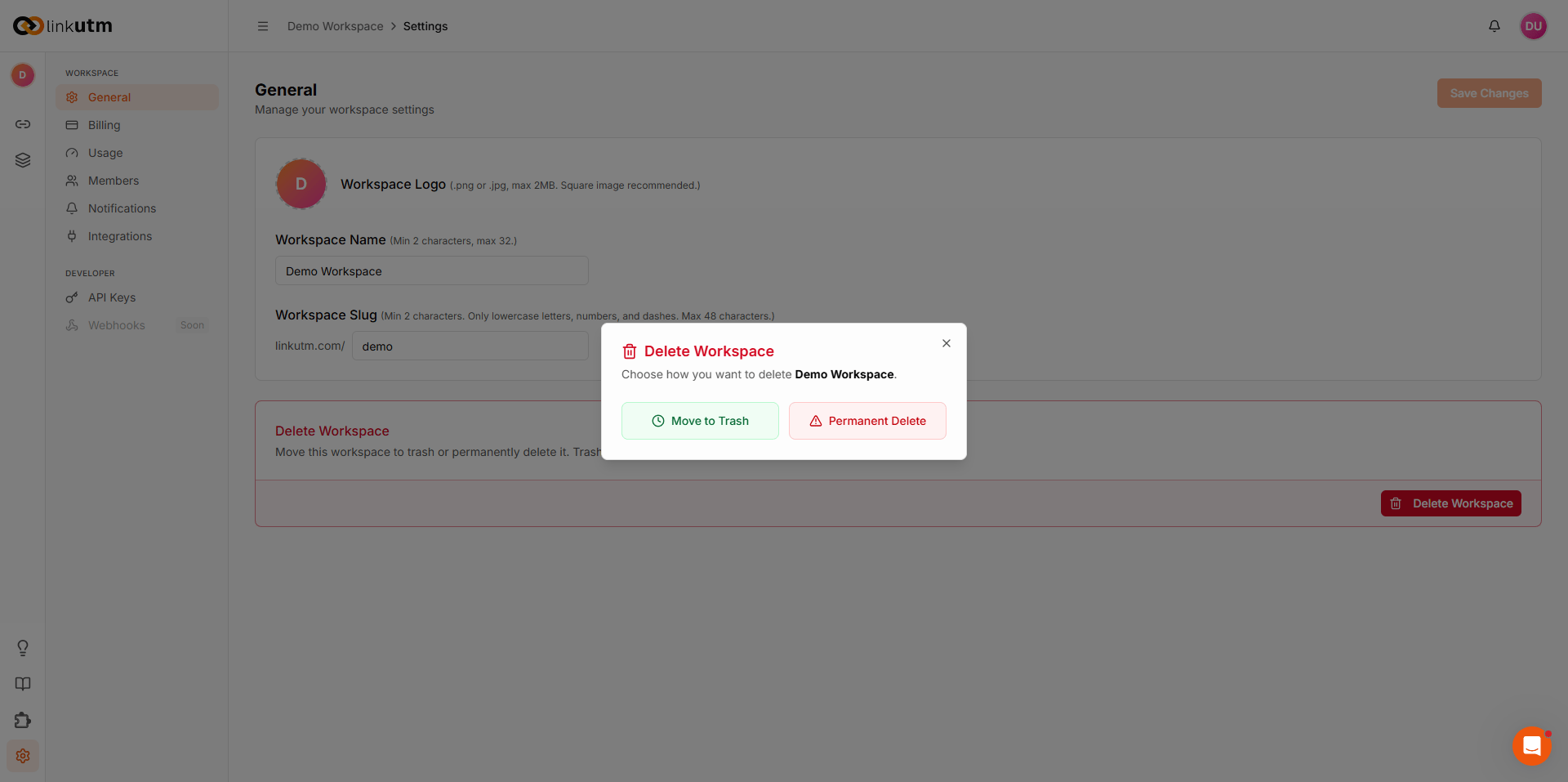
Workspace Settings
General Settings
Access:- Select workspace
- Go to Settings → Workspace Settings
- Click General tab
- Workspace name
- Description
- Company logo (if available)
- Industry/category
- Primary timezone
- Date format (MM/DD/YYYY or DD/MM/YYYY)
- Time format (12-hour or 24-hour)
- Language preference
- Default project settings
- Default UTM rules
- Default link shortener
- Default folder structure
Team Management
Access:- Go to Settings → Team
- View all workspace members
- Member name and email
- Profile picture
- Role in workspace
- Date joined
- Last active
- Projects assigned
- Links created
- Invite new members
- Edit member roles
- Remove members
- Resend invitations
- View member activity
- Select multiple members
- Assign to project
- Change roles
- Remove from workspace
Permission Settings
Workspace-Level Permissions: Admin Permissions:- ✅ Full workspace access
- ✅ Create/delete projects
- ✅ Manage all team members
- ✅ Configure workspace settings
- ✅ View billing
- ✅ Manage integrations
- ✅ Create projects
- ✅ Manage assigned projects
- ✅ Invite team members (limited)
- ✅ View workspace analytics
- ❌ Delete workspace
- ❌ Manage billing
- ✅ Access assigned projects
- ✅ Create links
- ✅ Use templates
- ✅ View analytics (limited)
- ❌ Create projects
- ❌ Manage team
- ✅ View workspace (read-only)
- ✅ View analytics
- ❌ Create or edit anything
- ❌ Access settings
- Go to Settings → Roles
- Click Create Custom Role
- Name the role
- Select permissions
- Save role
Integrations
Available Integrations: Google Analytics 4:- Connect GA4 account
- Select property and stream
- Automatic data sync
- View GA4 data in linkutm
- Zapier integration
- Slack notifications
- Webhook configuration
- API access
- Go to Settings → Integrations
- Find integration to configure
- Click Connect or Configure
- Follow authorization flow
- Configure settings
- Save integration
Billing (If Applicable)
Workspace Billing:- Go to Settings → Billing
- View current plan
- See usage statistics
- Manage subscription
- Update payment method
- Current plan details
- Monthly/annual billing
- Next billing date
- Payment method
- Invoice history
Managing Multiple Workspaces
Workspace Switcher
Quick Switch:- Click workspace name in top navigation
- Dropdown shows all workspaces you have access to
- Click desired workspace
- Dashboard reloads with workspace data
- Workspace name
- Your role
- Project count
- Member count
- Last accessed
Workspace Comparison
Compare Performance:- Go to Analytics → Workspace Comparison
- Select workspaces to compare
- Choose metrics
- Select date range
- View comparison charts
- Total clicks
- Total links
- Conversion rates
- Top sources
- Geographic distribution
- Team productivity
Default Workspace
Set Default Workspace:- Go to Settings → Preferences
- Find Default Workspace setting
- Select workspace
- Save
- Opens to this workspace on login
- Quick access to most-used workspace
- Saves time
Workspace Templates & Resources
Shared Templates
Workspace-Level Templates:- Available to all projects in workspace
- Maintain consistency across projects
- Easier template management
- Go to Templates in workspace view
- Click Create Template
- Configure template
- Toggle Share with all projects
- Save template
- Projects can use workspace templates
- Projects can create project-specific templates
- Project templates don’t affect other projects
Shared Parameters
Workspace Parameter Library:- Centralized UTM parameters
- Consistent across all projects
- Auto-complete suggestions
- Go to Parameters in workspace view
- Add parameters at workspace level
- Available to all projects
- Standardize naming conventions
Shared Link Shorteners
Workspace-Level Shorteners:- Configure once, use across all projects
- Branded domain for entire workspace
- Simplified management
- Go to Settings → Link Shortening
- Add custom domain
- Configure DNS
- Set as workspace default
- All projects can use
Collaboration Features
Workspace Activity Feed
View All Activity:- Go to Activity tab in workspace
- See chronological activity log
- Filter by:
- Member
- Project
- Action type
- Date range
- Project created
- Link created/edited
- Team member joined
- Template created
- Settings changed
Workspace Notes & Documentation
Shared Documentation:- Workspace-level notes
- Best practices
- UTM naming conventions
- Template usage guidelines
- Contact information
- Go to Settings → Documentation
- Create new document
- Write content (supports markdown)
- Save and share with team
Workspace Announcements
Communicate with Team:- Go to Workspace → Announcements
- Click Create Announcement
- Write message
- Select visibility (all members or specific roles)
- Post announcement
- New feature rollouts
- Workspace changes
- Best practice updates
- Team events
- Policy changes
Workspace Analytics
Aggregate Metrics
View Workspace-Wide Performance:- Select workspace
- Go to Analytics
- View aggregate dashboard
- Total clicks (all projects)
- Unique visitors
- Conversion rates
- Top-performing projects
- Top sources and mediums
- Geographic distribution
- Device breakdown
- Time-based trends
Project Performance Comparison
Compare Projects:- Side-by-side comparison
- Identify best performers
- Optimize budget allocation
- Spot trends
- Go to Analytics → Projects
- Select projects to compare
- Choose metrics
- View comparison charts
Team Performance
Team Metrics:- Links created per member
- Click performance by creator
- Template usage
- Activity levels
- Project contributions
- Performance reviews
- Workload balancing
- Identifying training needs
- Recognizing top performers
Workspace Maintenance
Regular Audits
Monthly Checklist:- ✅ Review team member access
- ✅ Archive inactive projects
- ✅ Clean up old templates
- ✅ Review UTM parameters
- ✅ Check integration status
- ✅ Review usage statistics
- ✅ Comprehensive template audit
- ✅ Team permissions review
- ✅ Workspace settings optimization
- ✅ Performance analysis
- ✅ Strategic planning
Archiving Projects
When to Archive:- Campaign completed
- Project no longer active
- Seasonal campaigns ended
- Client work finished
- Go to project settings
- Toggle Archive Project
- Project moves to archived section
- Links still work
- Can be restored anytime
- Not shown in main project list
- Accessible via Archived Projects section
- Analytics still available
- Links remain functional
Workspace Cleanup
Regular Cleanup Tasks: Templates:- Remove unused templates
- Update outdated templates
- Consolidate similar templates
- Document template purposes
- Remove obsolete parameter values
- Standardize naming
- Merge duplicates
- Update documentation
- Remove inactive members
- Update roles as needed
- Re-verify permissions
- Update contact information
- Archive old campaign links
- Remove test links
- Update expired links
- Organize into folders
Workspace Migration
Exporting Workspace Data
Export Options:- Go to Settings → Export
- Select data to export:
- All links
- Templates
- Parameters
- Team members
- Analytics
- Choose format (CSV, JSON)
- Click Export
- Download file
- Backup workspace data
- Migrate to another platform
- Data analysis
- Compliance requirements
Importing Data
Import to Workspace:- Go to Settings → Import
- Select import type
- Upload file (CSV or JSON)
- Map fields
- Preview import
- Confirm import
- Links from CSV
- Templates
- Parameters
- Team members (bulk invite)
Transferring Workspace Ownership
Transfer to Another User:- Go to Settings → Workspace Settings
- Find Ownership section
- Click Transfer Ownership
- Select new owner (must be workspace member)
- Confirm transfer
- New owner accepts transfer
- Billing responsibility transfers
- Full admin access for new owner
- Original owner can be removed or changed to different role
Best Practices
Workspace Naming
DO:- ✅ Use official company name
- ✅ Be professional
- ✅ Make it easily identifiable
- ✅ Keep it concise
- ❌ Use temporary names
- ❌ Use abbreviations only
- ❌ Include dates or versions
- ❌ Use generic names
Team Management
Best Practices:- Add members with clear roles
- Regular permission audits
- Remove inactive members promptly
- Document team structure
- Communicate changes
Resource Organization
Templates:- Maintain up-to-date template library
- Clear naming conventions
- Document template purposes
- Regular audits
- Standardized parameter values
- Documented naming standards
- Regular cleanup
- Team training
Security
Security Best Practices:- Regular access reviews
- Strong password policies
- Enable 2FA (if available)
- Monitor activity logs
- Immediate access removal for departing members
Troubleshooting
Can’t Create Workspace
Possible Reasons:- Organization plan limit reached
- Insufficient permissions
- Account issues
- Check organization plan
- Contact organization admin
- Upgrade plan if needed
Workspace Not Showing
Check:- Correct organization selected
- You have workspace access
- Workspace wasn’t deleted
- No filters applied
- Refresh page
- Clear browser cache
- Contact workspace admin
- Check with organization owner
Team Members Can’t Access
Common Issues:- Not invited to workspace
- Invitation not accepted
- Wrong email address
- Access revoked
- Resend invitation
- Verify email address
- Check member status
- Grant appropriate permissions
Integration Not Working
Troubleshoot:- Re-authorize integration
- Check permissions
- Verify credentials
- Test connection
- Contact support