When to use it
- Every campaign URL goes through here. There’s no “untracked” mode.
- Use bulk import instead if you have 50+ links to migrate.
- Use a template if you create the same shape of link weekly.
How to create one
1
Open the builder
Sidebar → Links → Create Link.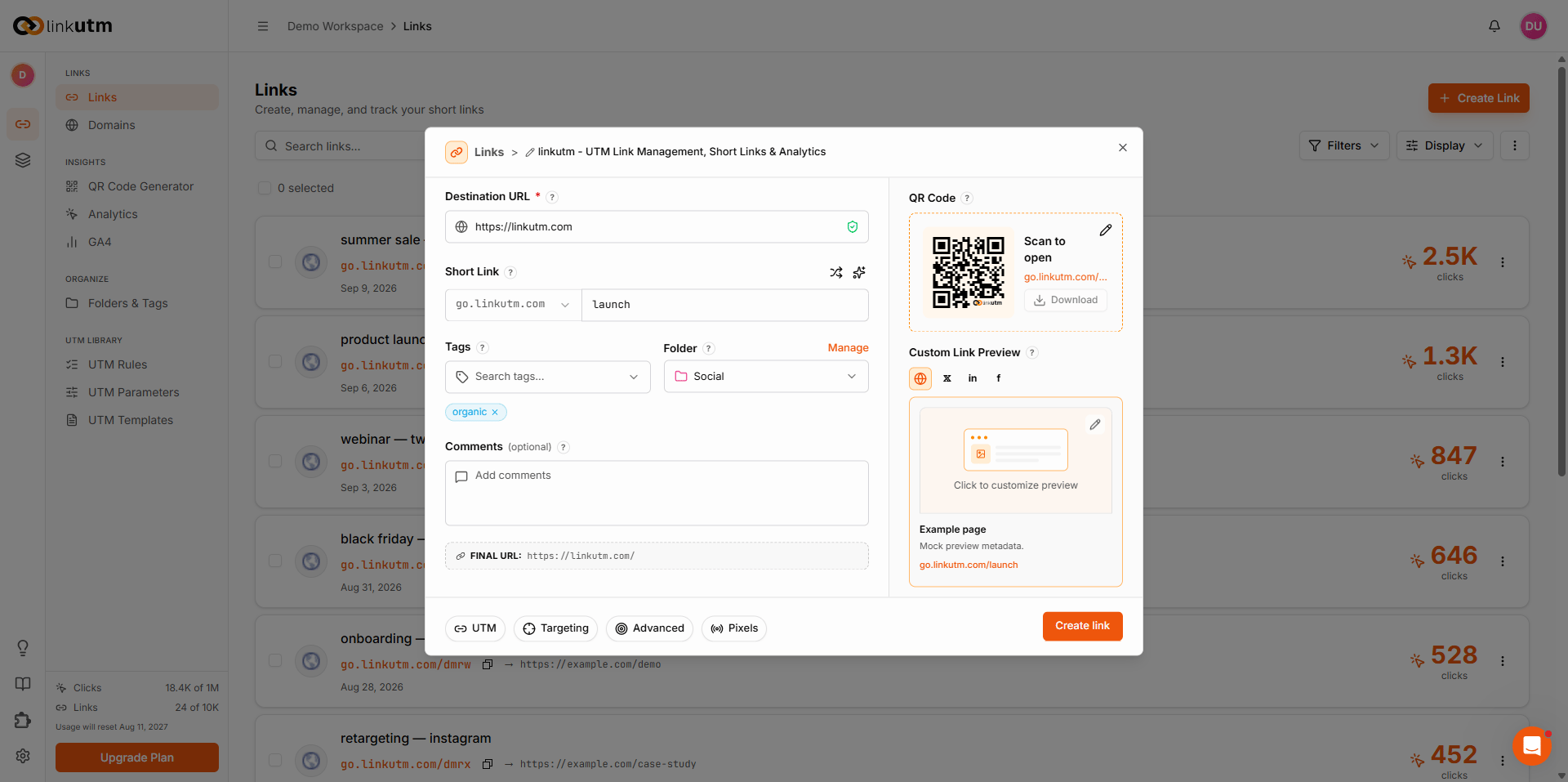
2
Destination URL
The page you’re driving traffic to. Must include
https:// (or http://). Query strings already on the URL are preserved - UTMs append after.3
Domain
Pick which short domain to use. Defaults to the workspace’s default domain. Only verified, enabled custom domains are selectable.
4
Custom slug (optional)
The path after your domain. Leave blank for an auto-generated short code. Type your own for branded slugs (
q2-launch).5
6
Description (optional)
Only for internal reference, never shown to visitors.
7
UTM parameters
Fill from the autocomplete (powered by your parameter library) or type freely. Workspace UTM rules clean values on save (lowercase, space → underscore, etc).
8
Targeting (optional)
Open the Targeting tab to route visitors by device or country. Set an iOS and Android redirect for device targeting, or toggle geo targeting to send each country to its own destination. See geo targeting.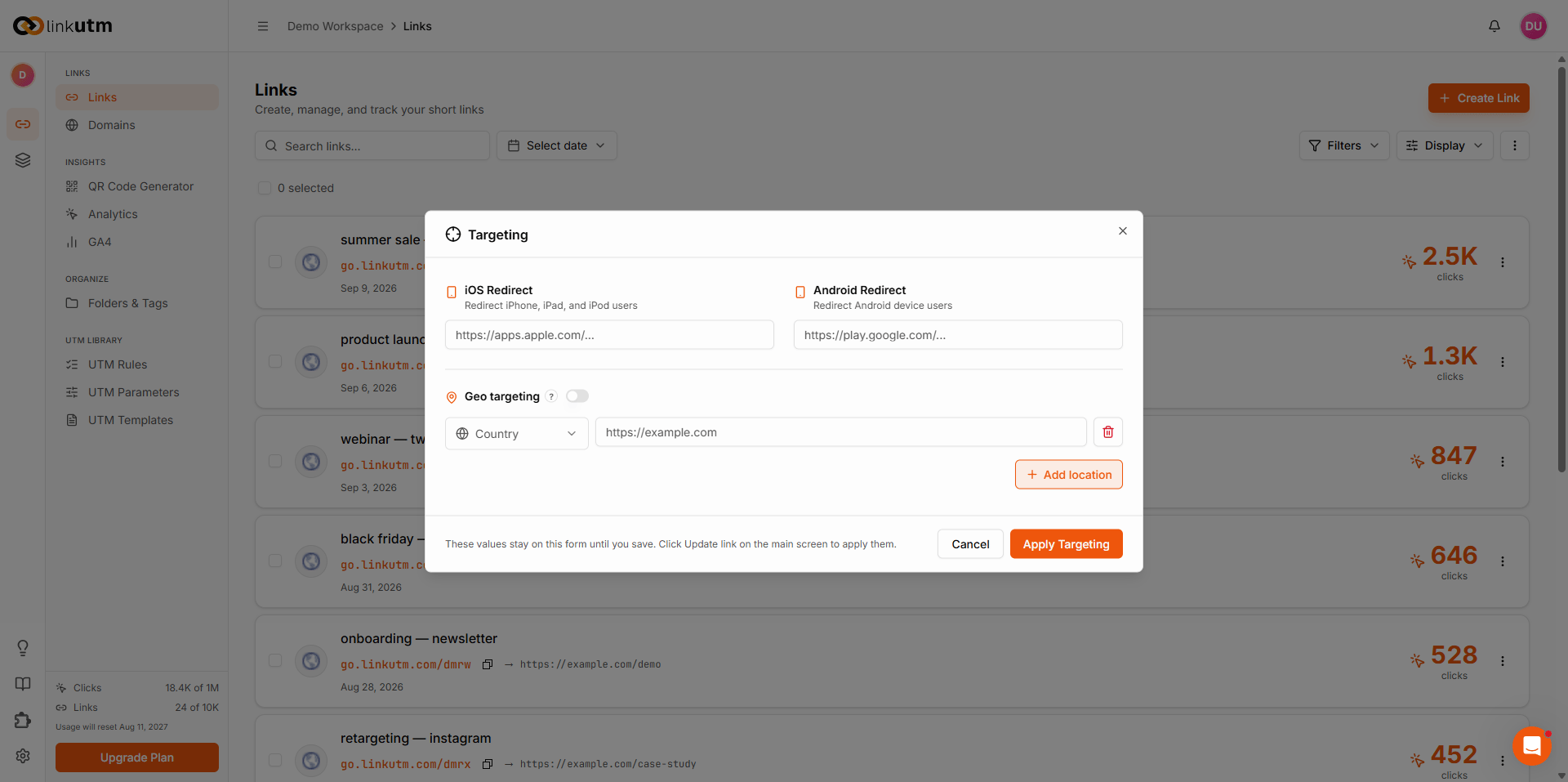
9
Advanced (optional)
Open the Advanced tab for password protection, scheduling and expiration, click limits, link cloaking, fallback URL, and link preview overrides.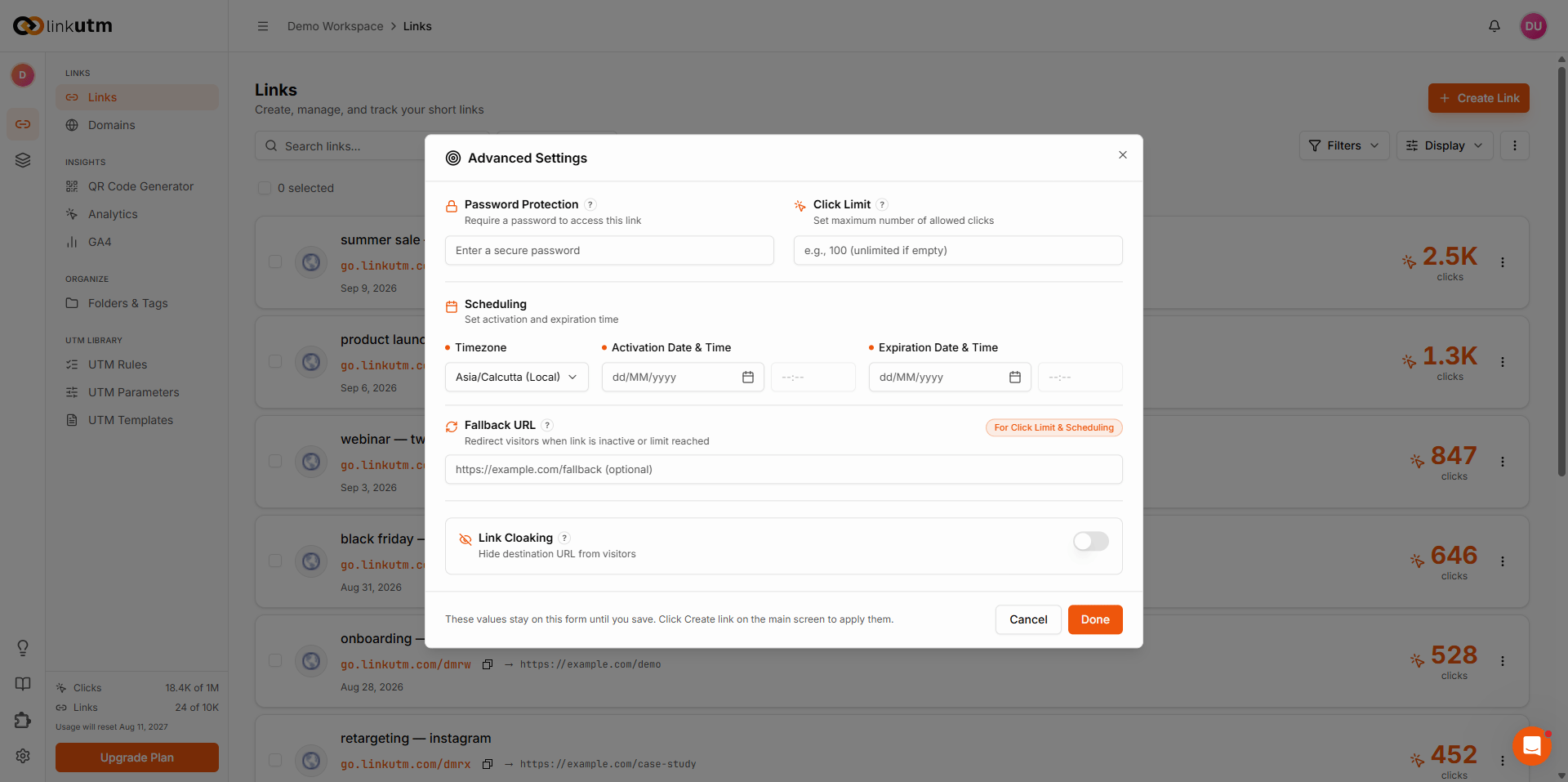
10
Pixels (optional)
Open the Pixels tab to attach tracking pixels that fire when the link is clicked. Pixels are connected once in Settings, then applied per link here.
11
Create
Hit Create. Link is live, Short URL is active, click count starts at zero.
Real-world example
Running a Google Ads campaign for a Q2 product launch, brand keywords variant:go.acme.com/q2-acme → redirects to the full UTM-tagged destination.
Common mistakes
Spaces or capitals in UTM values
Spaces or capitals in UTM values
Summer Sale becomes summer_sale automatically (force-lowercase + space-replacement are on by default). But if you turned those rules off, you’ll get split campaign rows in GA. Leave the rules on unless you have a reason.Forgetting https://
Forgetting https://
Required. The builder won’t accept a bare
example.com.Using a slug another workspace owns
Using a slug another workspace owns
Slugs are global, not workspace-local. Creative slugs avoid collisions:
acme-q2 beats launch.Edge cases
Workspace usage limits. Workspaces have a maximum number of total links. QR codes count toward this limit too, since each one creates a short link. When you hit the limit, link creation fails with a clear message and the workspace owner is notified by email when the link creation quota is near maximum.
Unverified domain. You cannot create a link on a custom domain that hasn’t been verified yet. Use the system default until verification succeeds.
Filtering and bulk actions
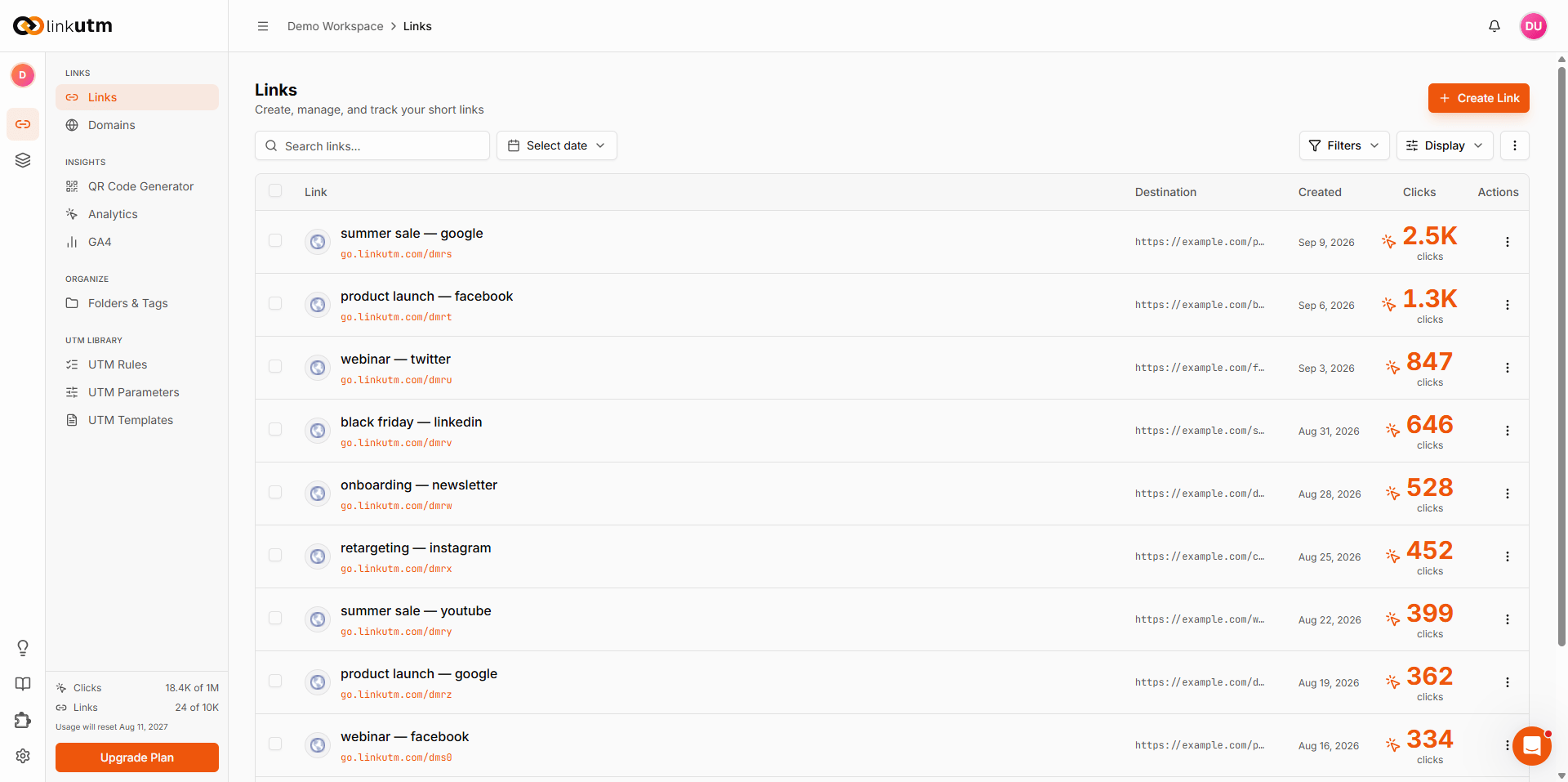
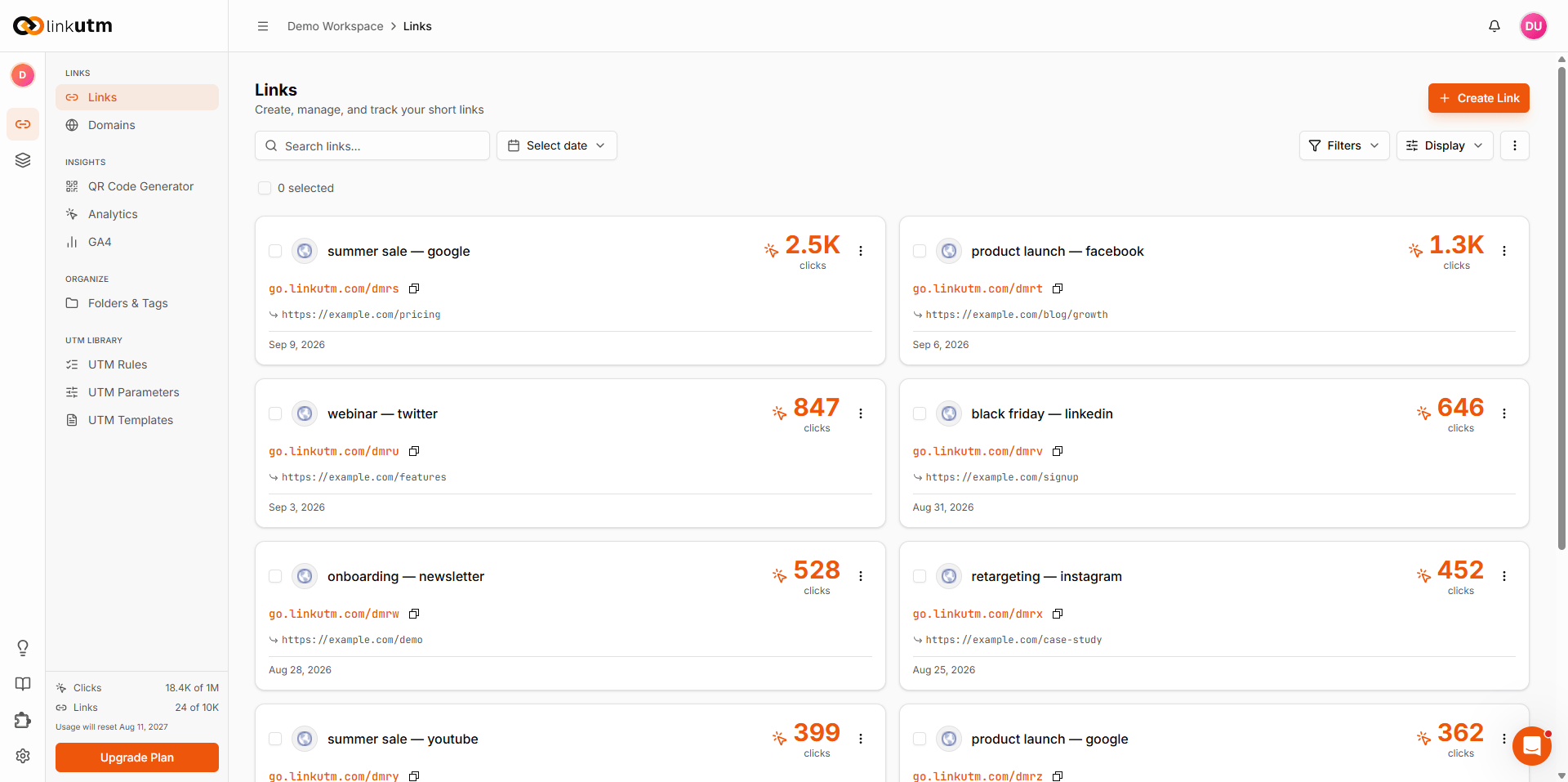
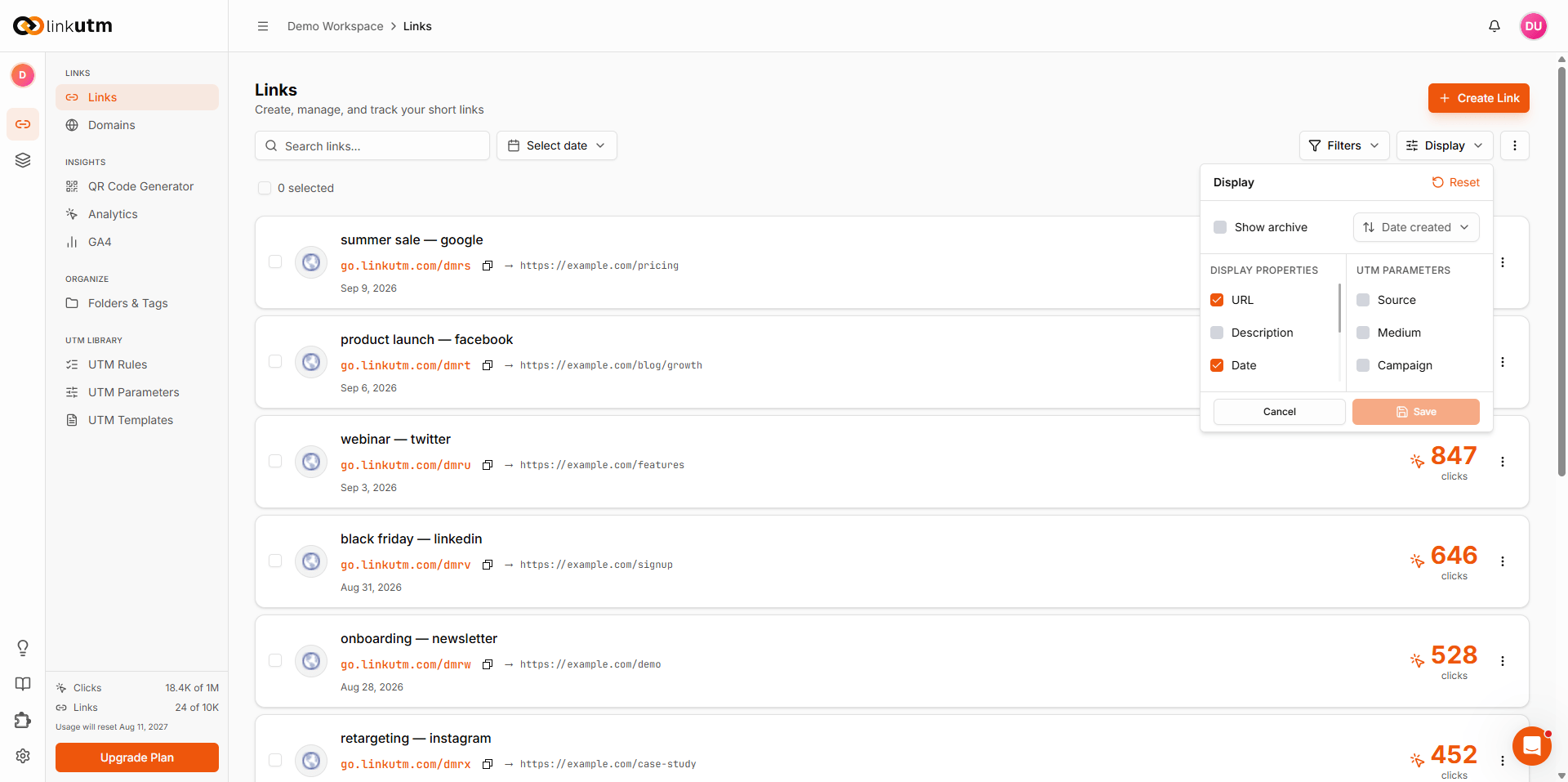
Use the links dashboard to filter, sort, and act on multiple links at once.
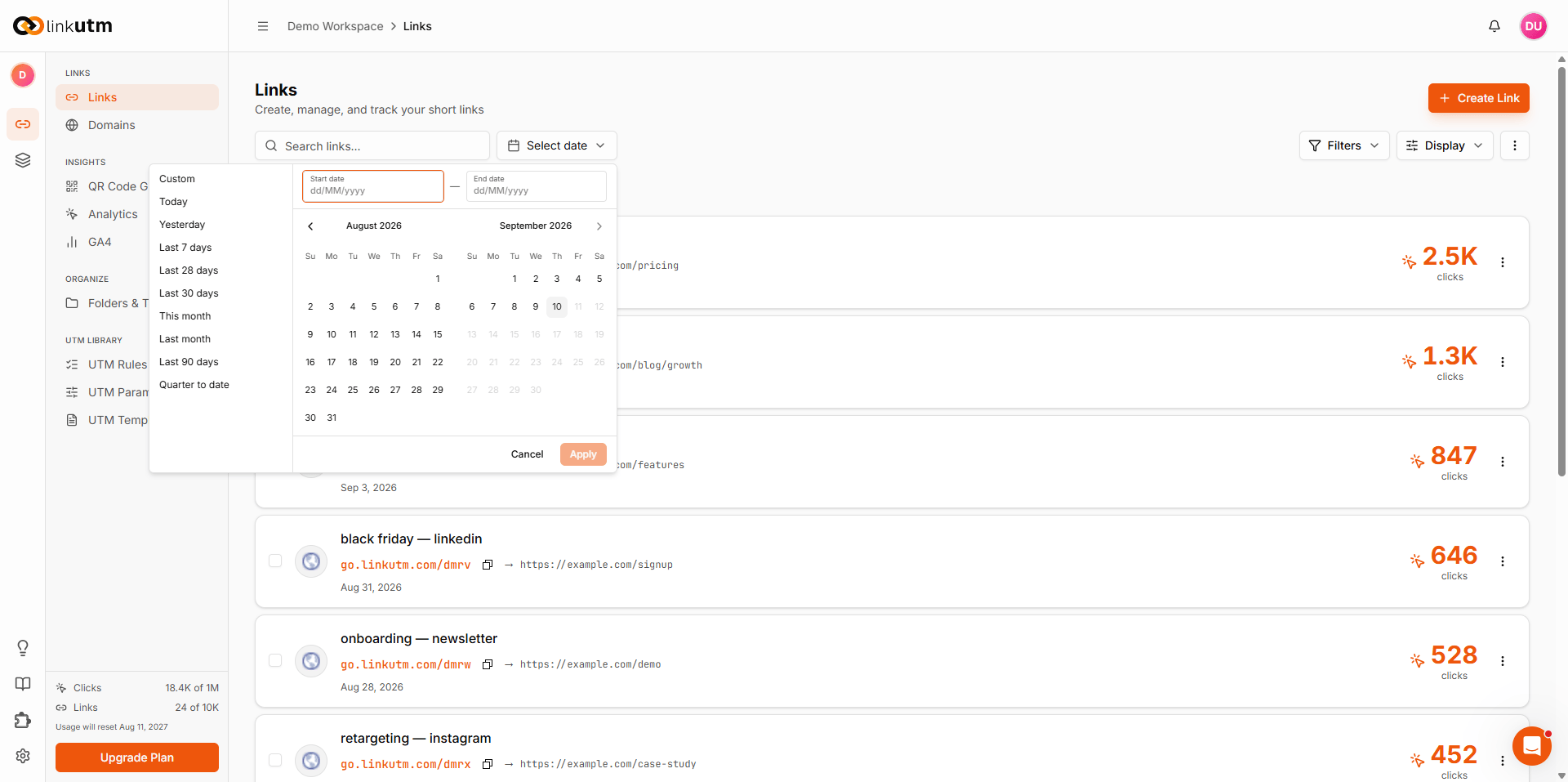
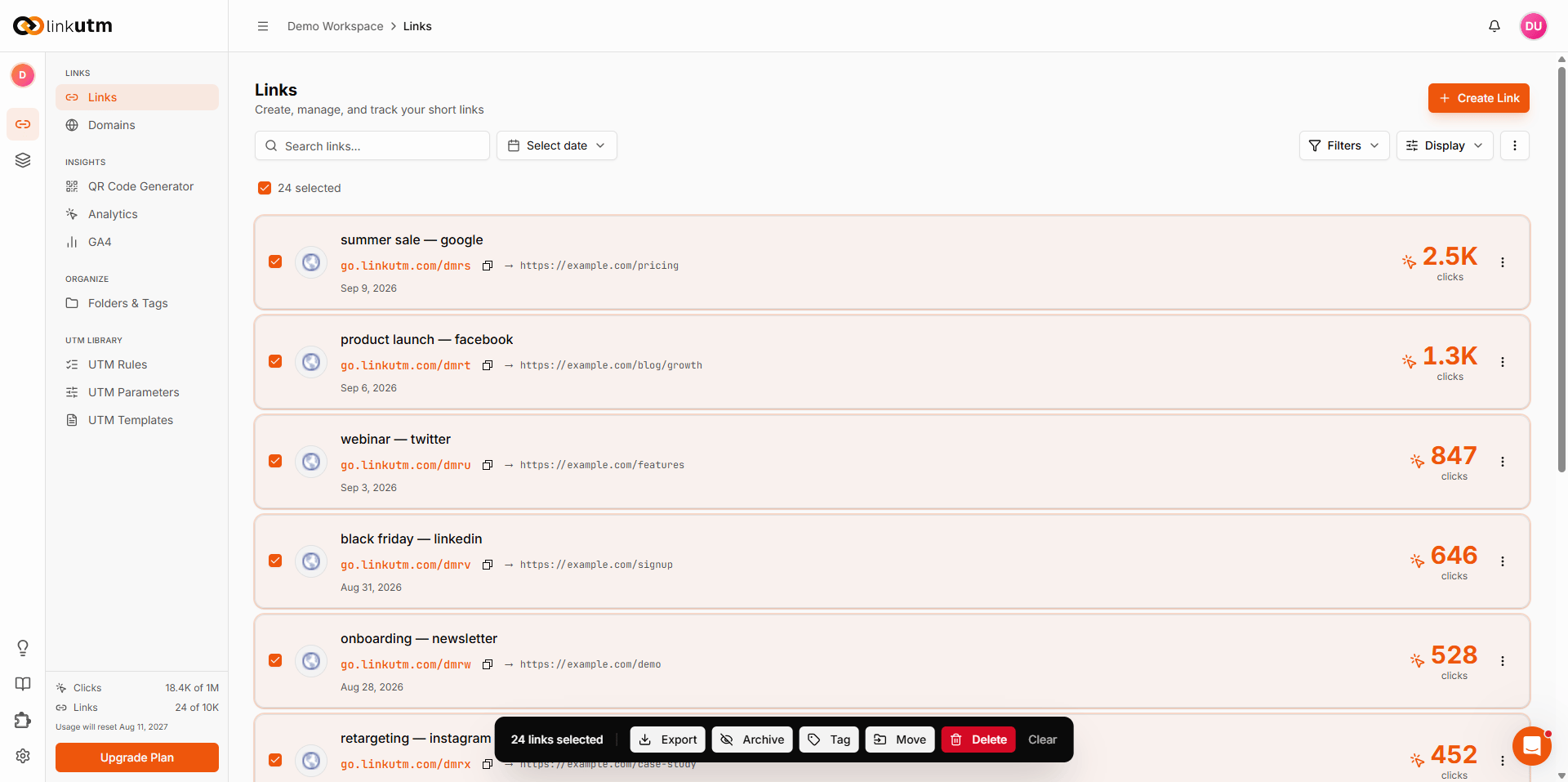
Bulk and import
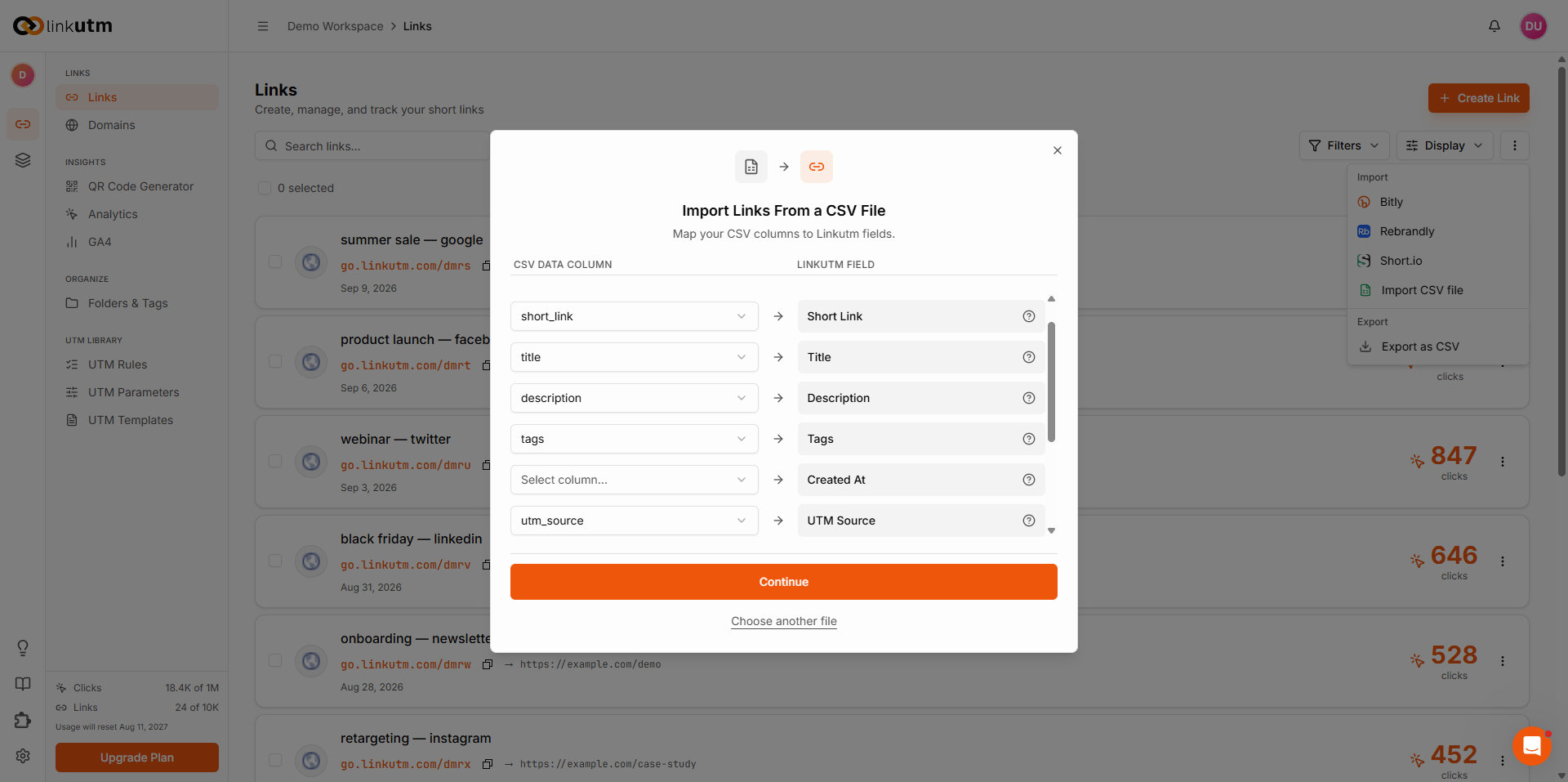
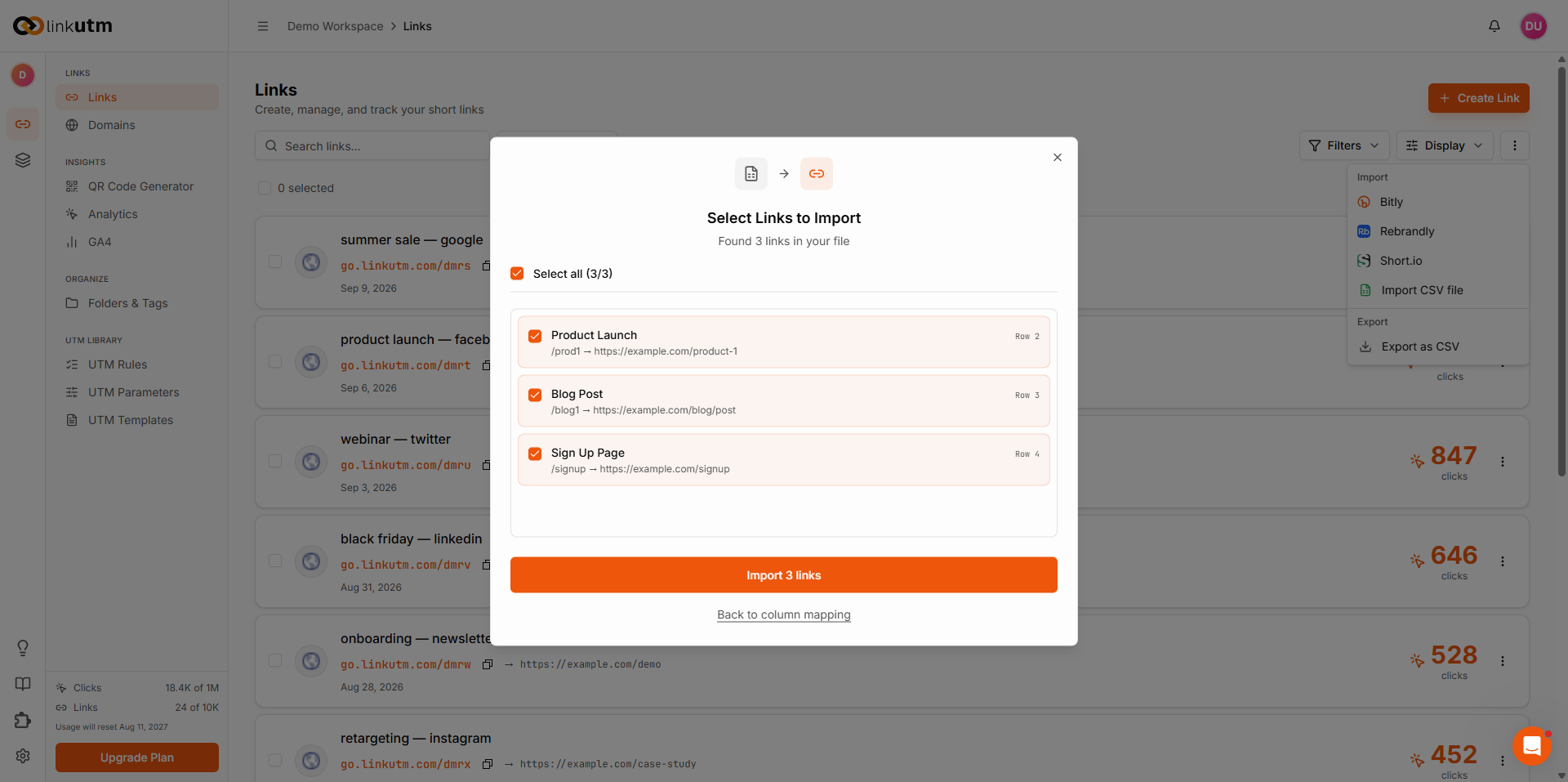
For 50+ links, use:- CSV import - UI flow under Links → Import.
- Bitly / Rebrandly / Short.io migration - paste your API key, the system pulls links and recreates them. Original slugs are preserved when not taken; conflicts are skipped with a per-link error.