

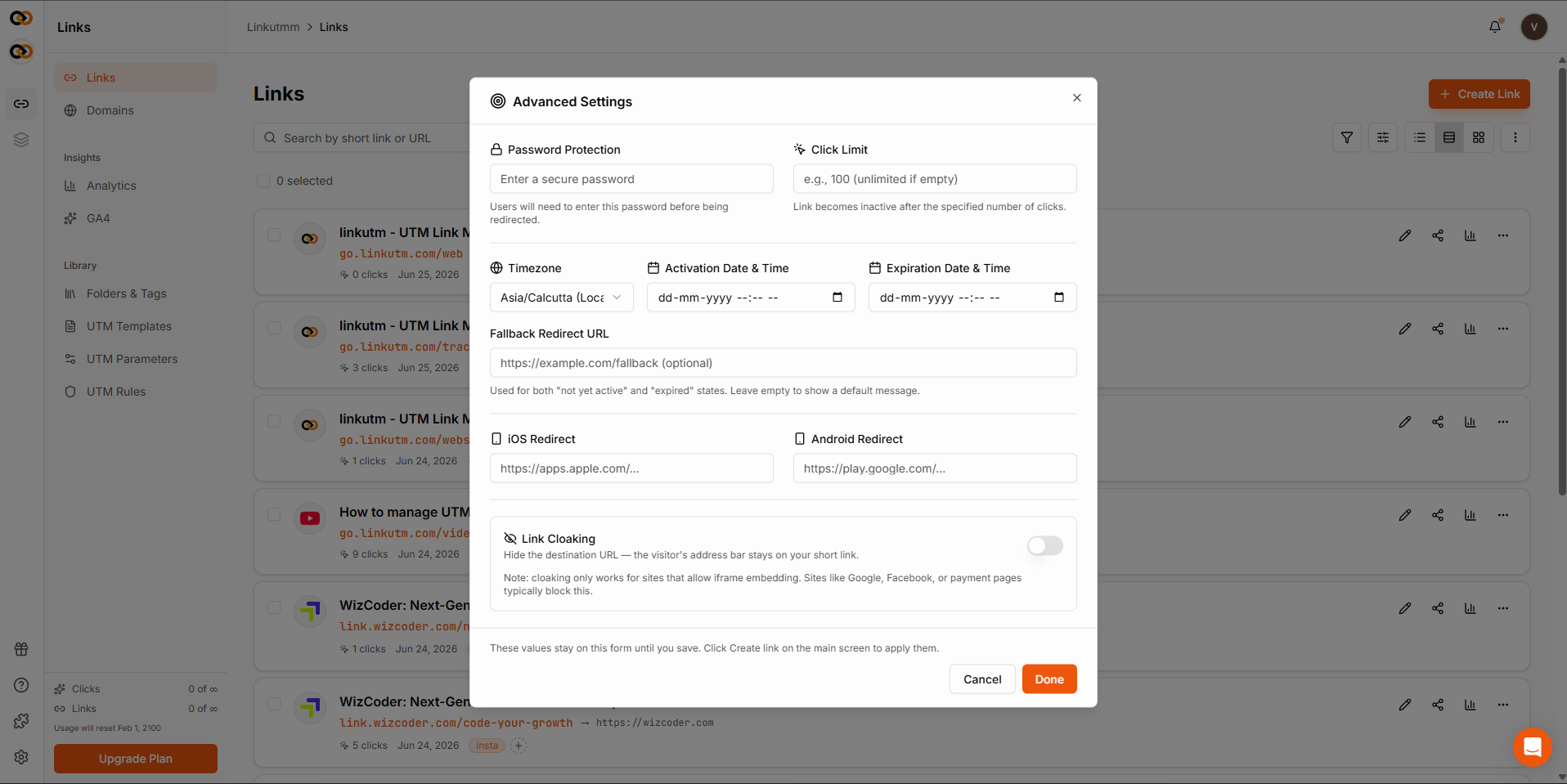
- Activation Date & Time: the link does not redirect to its destination until this moment. Before then, visitors go to the fallback URL if one is set, otherwise they see a “not found” response.
- Expiration Date & Time: after this moment, the link stops sending visitors to the destination. They go to the fallback URL if one is set, otherwise they see a “not found” response.
- Fallback URL: an alternate destination the link redirects to once it has expired, or if someone clicks the link before the activation date.
- Click limit: a maximum number of clicks. Once hit, the link stops redirecting.
When to use it
- Pre-building campaign links days in advance and scheduling them to go live at a precise moment.
- Running a limited-time promotion that starts and ends automatically with no manual intervention.
- Setting a hard cutoff on a flash sale or embargoed announcement.
- Capping a giveaway link at a specific number of clicks.
- Sending visitors somewhere useful (a waitlist, a homepage) after a campaign ends.
How to use it
1
Open Advanced
In the create or edit link panel, click Advanced in the bottom bar.
2
Pick a timezone
Select your timezone from the dropdown. linkutm defaults to your browser’s detected timezone. All dates and times you enter are interpreted in this timezone.
3
Set an Activation Date & Time (optional)
Fill in Activation Date & Time if you want the link to start at a future moment. Leave blank for the link to go live immediately on save.
4
Set an Expiration Date & Time (optional)
Fill in Expiration Date & Time if you want the link to stop at a set moment. If an activation date is also set, expiration must be later than activation.
5
Set a click limit (optional)
Type a number in Click Limit. The counter increments on each real visit. Once the limit is reached, the link stops redirecting.
6
Set a fallback URL (optional)
Enter a Fallback Redirect URL. After the link expires (by date or click limit), or if someone clicks before the activation date, visitors are sent here instead of seeing a “not found” page.
7
Save
The schedule is stored. The link activates, expires, and redirects to fallback on its own.
Real-world example
A Black Friday flash sale running for 48 hours, capped at 500 clicks, with a fallback to the main store:acme.com/shop. After November 29 at midnight ET, or after 500 clicks (whichever comes first), the link expires and visitors are again sent to acme.com/shop. In between, the link serves its destination.
Common mistakes
Setting expiration before activation
Setting expiration before activation
If the expiration date is the same as or earlier than the activation date, the link never becomes active. The builder blocks this and shows a validation error. Check that expiration is set to a later time than activation.
Using the wrong timezone
Using the wrong timezone
The timezone picker defaults to your browser timezone. If you’re scheduling for a different region, switch the timezone first. Otherwise your go-live moment will be off.
Setting a click limit on a high-traffic link
Setting a click limit on a high-traffic link
Clicks can spike fast. A limit of 100 on a link that suddenly gets 50,000 impressions cuts off almost everyone. Set the limit only when a hard cap is the actual intent.
Expecting past clicks to disappear after expiry
Expecting past clicks to disappear after expiry
Past clicks stay in analytics. Expiration only stops new redirects.
Edge cases
Activation and expiration are both optional. Set one, both, or neither. A link with no activation date goes live on save. A link with no expiration date stays live indefinitely.
Click limit vs. expiration. Both stop the link when triggered. If both are set, whichever condition is hit first stops the link. The fallback URL applies in both cases.
Existing links. You can add or change a schedule on a link that is already live. Setting an activation date in the past is treated as already active.
UTM parameters do not carry to the fallback URL. The fallback URL is used exactly as entered, whether the visitor arrives before activation, after expiration, or after the click limit is hit. If you need tracking on fallback traffic, add UTM parameters directly to the fallback URL.