

Supported platforms
How to set up a pixel
1
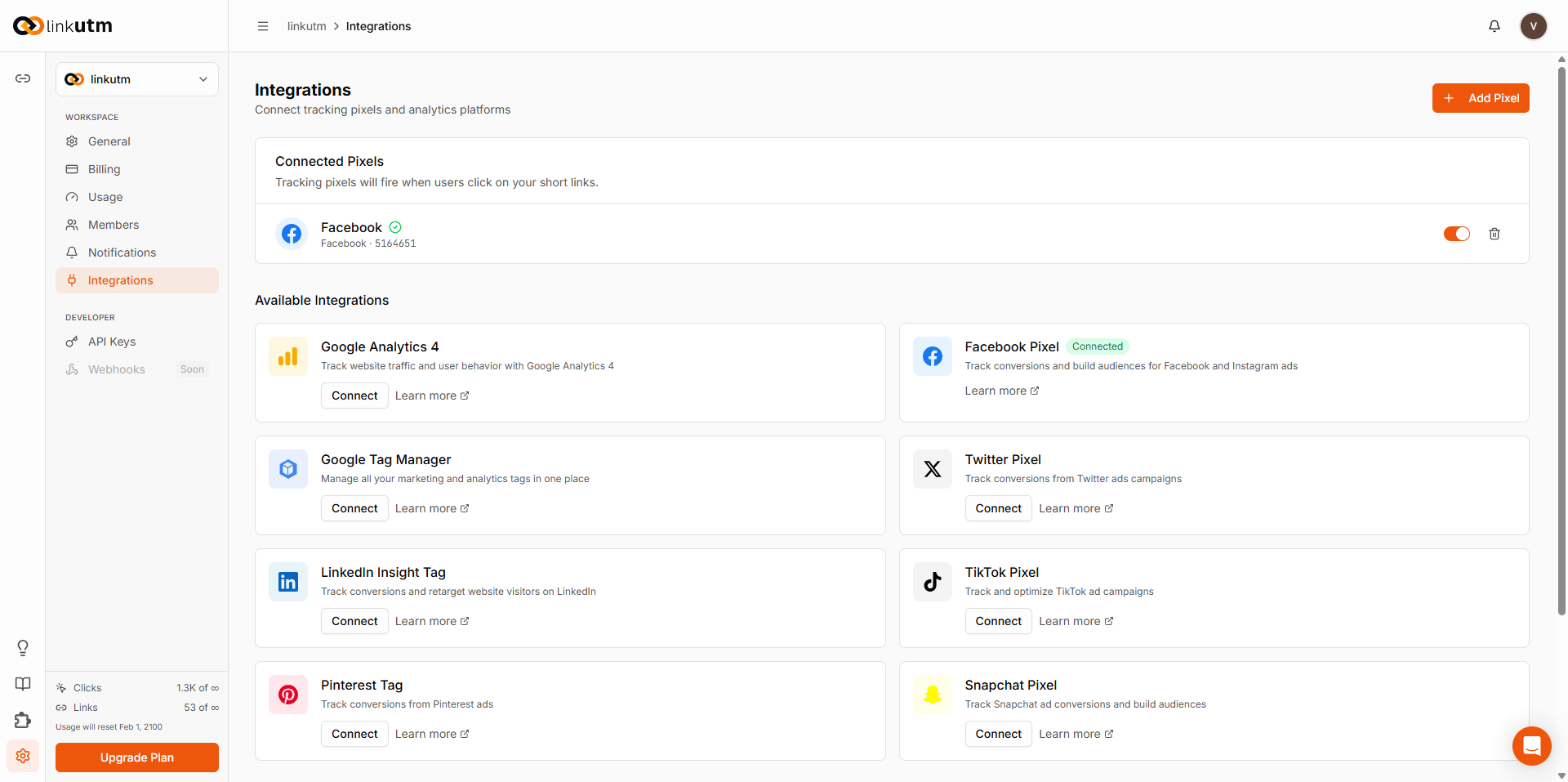
Open Integrations
Settings → Integrations (workspace settings, not account settings).
2
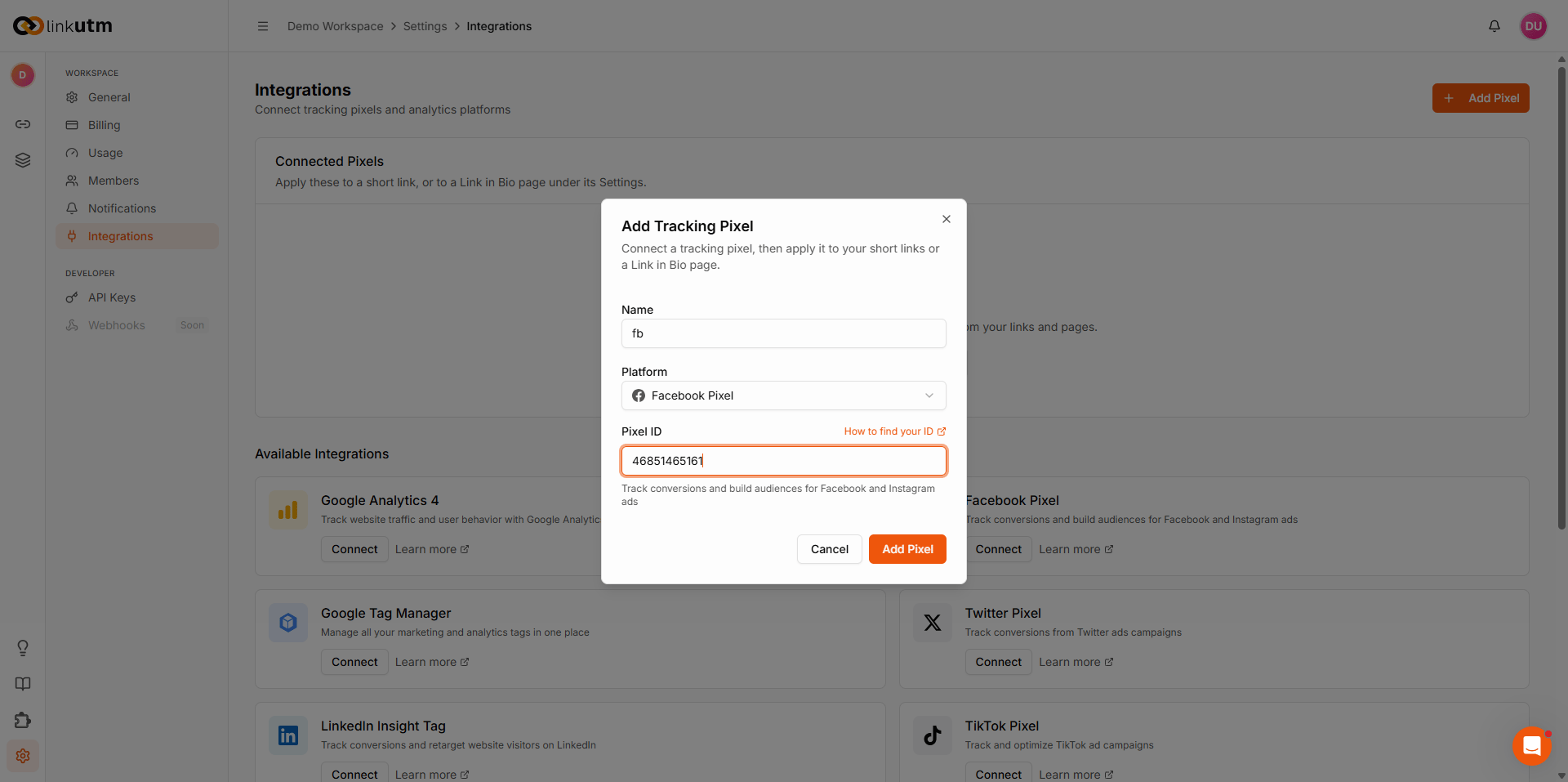
Add Pixel
Click Add Pixel in the top-right corner.
3
Fill in the form
- Name - internal label (e.g.
Facebook Pixel - Main,GA4 - linkutm). Not shown to visitors. - Platform - select from the supported list.
- Pixel ID - the ID from your ad platform. Use How to find your ID link for platform-specific instructions.
4
Save
The pixel appears in Connected Pixels, enabled by default.
How pixels fire
Every enabled workspace pixel fires by default on every link click. You can override this per-link (see below). The system injects a hidden redirect page that:- Fires all applicable pixel scripts (PageView event for each platform).
- Immediately redirects the visitor to the destination URL.
Per-link pixel control
When creating or editing a link, open the Pixels panel in the link builder.- No selection (default) - all enabled workspace pixels fire.
- Select specific pixels - only the checked pixels fire for that link.
- Deselect all - clears the override; falls back to workspace default (all fire).

Enabling / disabling pixels
Toggle the switch next to any pixel in Settings → Integrations to disable it workspace-wide without deleting it. Disabled pixels never fire, regardless of per-link selection.Real-world example
You run paid campaigns across Facebook, Google, and TikTok.Common mistakes
Pixel fires but conversion isn't attributed
Pixel fires but conversion isn't attributed
linkutm fires a PageView event. Conversion events (Purchase, Lead, etc.) must be fired separately on your destination page. linkutm handles top-of-funnel click attribution; your site handles the downstream conversion events.
Wrong Pixel ID format
Wrong Pixel ID format
Each platform has a distinct ID shape. Facebook IDs are all-numeric (15-16 digits). GA4 IDs start with
G-. GTM IDs start with GTM-. Paste from the platform’s dashboard - don’t type from memory.Pixel shows as active but no data in ad platform
Pixel shows as active but no data in ad platform
Ad blockers and iOS 14.5+ ATT restrictions suppress pixel fires in-browser. This is expected and not a linkutm bug. Use server-side Conversions API on your destination site to recover blocked signals.
Added pixel but it's not firing on existing links
Added pixel but it's not firing on existing links
Existing links with an explicit pixel selection (even an empty one) are not automatically updated when you add a new workspace pixel. Edit those links and clear the per-link pixel selection to restore workspace default behavior.
Edge cases
Plan limits. Advanced pixel integrations (GA4 specifically) may be gated to paid plans. The integrations page shows which platforms require an upgrade.
Multiple pixels from the same platform. You can connect more than one pixel from the same platform (e.g. two Facebook pixels for two ad accounts). Each is tracked independently and both fire unless you override per-link.
Deleting a pixel. Deleting a pixel removes it from all links permanently. The per-link selection for that pixel is cleared. Historical link clicks are not retroactively affected - they already fired when they occurred.