

When to use it
- White-labelling a third-party page under your own branded domain.
- Sharing an affiliate link without exposing the raw affiliate URL to the visitor.
- Keeping a campaign destination confidential while still tracking clicks.
How to use it
1
Open Advanced
In the create or edit link panel, click Advanced in the bottom bar.
2
Turn on Link Cloaking
Find the Link Cloaking toggle and switch it on. linkutm checks whether the destination allows this and shows a warning if it doesn’t.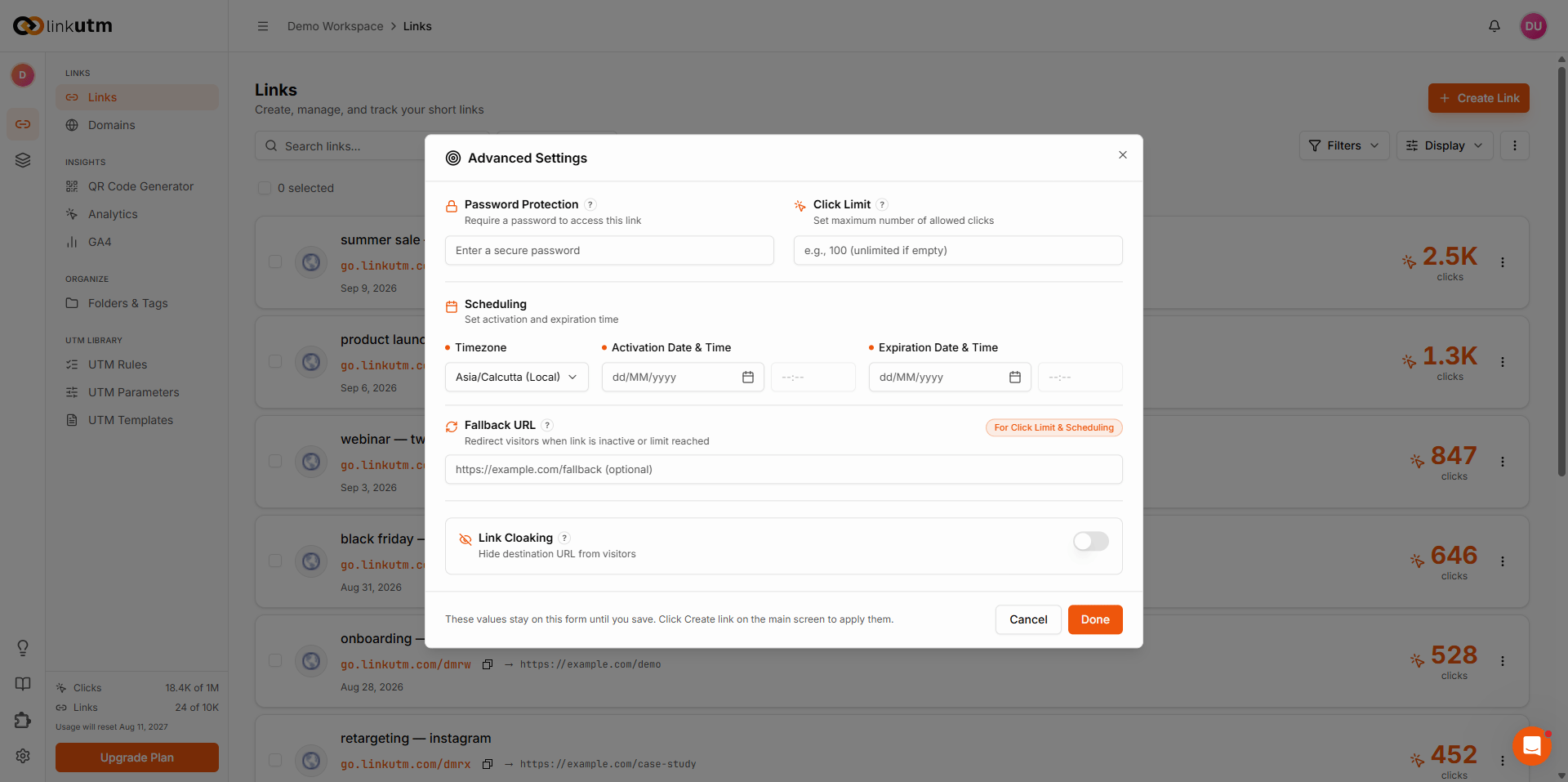
3
Review any warning
If the destination blocks cloaking, a yellow warning appears. You can still save the link, but visitors may see a blank page. Choose a different destination or turn cloaking off.
4
Save the link
The setting is stored on the link. Every visit will now show your short URL in the address bar.
Real-world example
An affiliate publisher promoting a partner’s product page under their own short domain:go.yoursite.com/widget throughout. The partner’s page loads normally.
Common mistakes
Using it on Google, Facebook, or payment pages
Using it on Google, Facebook, or payment pages
These sites don’t allow being displayed inside another page, so cloaking won’t work. Visitors see a blank page. linkutm warns you when this is detected. Pay attention to that warning before saving.
Edge cases
Not all sites allow this. Whether cloaking works depends on the destination site’s settings, not linkutm. linkutm runs a compatibility check when you enable it and warns you if the site blocks embedding.